
Last updated: April 2026
Overview
Every issue card in Board Studio displays a dedicated left column with vertically-distributed avatars, giving you instant visual identification of the project and ownership — without reading a single line of text. The system supports four avatar fields — project, creator, assignee, and reporter — though the default detailed card preset shows three (project, creator, assignee).
At a glance, you know which project an issue belongs to, who created it, and who’s working on it. This is especially powerful on large boards with hundreds of cards across multiple projects.
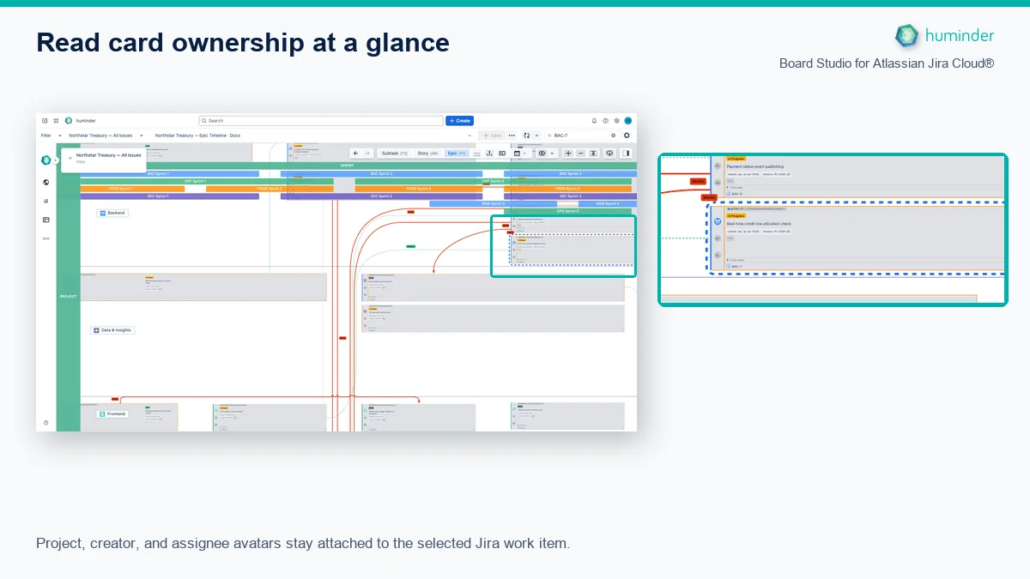
Project, creator, and assignee avatars stay attached to the selected Jira work item.
Avatar Fields
The system supports four rail avatar fields. The default detailed card preset displays three:
| Position | Avatar | Shape | Source | Default Preset |
|---|---|---|---|---|
| Top | Project icon | Square | The Jira project icon configured in project settings | ✅ |
| Middle | Creator avatar | Circle | The profile picture of the user who created the issue | ✅ |
| Bottom | Assignee avatar | Circle | The profile picture of the user currently assigned to the issue | ✅ |
| (Available) | Reporter avatar | Circle | The profile picture of the issue reporter (initials fallback only) | — |
Visual Layout
The card is divided into two areas:
- Left column — A narrow vertical strip containing the three avatars, evenly spaced from top to bottom.
- Right area — The issue details: key, summary, status badge, priority icon, and any additional configured fields.
This separation keeps identity information visually distinct from issue data, so both are easy to scan independently.
Smart Fallbacks
When an avatar image is not available, Board Studio displays initials in a colored circle instead of a broken image placeholder:
| Scenario | Fallback |
|---|---|
| User has no profile picture | First and last initials in a colored circle (e.g., JD for Jane Doe) |
| Issue is unassigned | A neutral placeholder icon |
| Project has no custom icon | Default Jira project icon |
The colored circles use deterministic color assignment — the same user always gets the same color, making them recognizable even without a photo.
Performance Architecture
Board Studio uses a dual-cache system to ensure avatars load instantly and never cause broken images:
Caching Strategy
| Cache | TTL | Purpose |
|---|---|---|
| Project avatar cache | 30 minutes | Caches project icons across all cards sharing the same project |
| User avatar cache | 30 minutes | Caches creator and assignee avatars across all cards |
Optimization Details
- Bulk fetching — All avatars are fetched in parallel before cards render. No per-card API calls, no waterfall loading.
- Blob URLs — Avatar images are converted to blob URLs after fetching, enabling efficient rendering across zoom levels without repeated network requests.
- 48×48 resolution — User avatars are fetched at 48×48 from Jira (with 32×32 and 24×24 fallbacks). Project avatars use Jira’s “large” size. All avatars are rendered at 24×24 px on cards, ensuring crisp display at any zoom level.
💡 Tip: Avatars are fetched once and reused for the entire session. You won’t see loading spinners or placeholder flickers when scrolling through the board.
Authenticated Fetching
All avatar images are fetched through authenticated Jira API calls via Board Studio’s backend. This means:
- ✅ No broken image links — even for private projects or restricted user profiles
- ✅ No CORS issues — all requests go through the authenticated backend
- ✅ No expired tokens — authentication is handled by the Atlassian platform
Unlike external image URLs that can break when sessions expire, Board Studio’s blob URL approach ensures avatars remain visible for the duration of your session.
Zoom Quality
Board Studio fetches 48×48 pixel avatars from Jira (with 32×32 and 24×24 fallbacks for users) and renders them at 24×24 px on cards. This ensures:
- Avatars remain sharp when zooming in on individual cards
- No pixelation artifacts at high zoom levels
- Clean downscaling when viewing the full board at overview zoom
Avatars scale naturally with the board’s semantic zoom system, maintaining visual quality at every level of detail.
Why It Matters
| Benefit | Description |
|---|---|
| Instant project identification | Color-coded project icons let you spot which project a card belongs to without reading the key |
| Ownership at a glance | See who created and who owns an issue immediately — critical for standup reviews and stakeholder boards |
| Cross-project boards | When viewing multiple projects on one board, avatars provide the fastest way to visually group and distinguish cards |
| No text scanning required | Visual recognition is faster than reading names — avatars reduce cognitive load on dense boards |
| Works at all zoom levels | Whether you’re viewing 500 cards or inspecting one, avatars are always visible and proportionally sized |
📌 Note: Card avatars are always enabled — no configuration required. Every card on every board benefits from this visual identification system automatically.