
The first program board you navigate like a map.
Overview
Semantic zoom transforms your program board into a navigable hierarchy. Instead of simply making cards bigger or smaller, zoom gestures move you through the Jira issue hierarchy — zoom out to see parent-level aggregate cards, zoom in to see child-level detail.
Board structure (swimlanes, headers, grouping) stays stable. Only the card content adapts to the hierarchy level you’re viewing. The result is a single spatial board that serves executive overviews and team-level detail equally well.
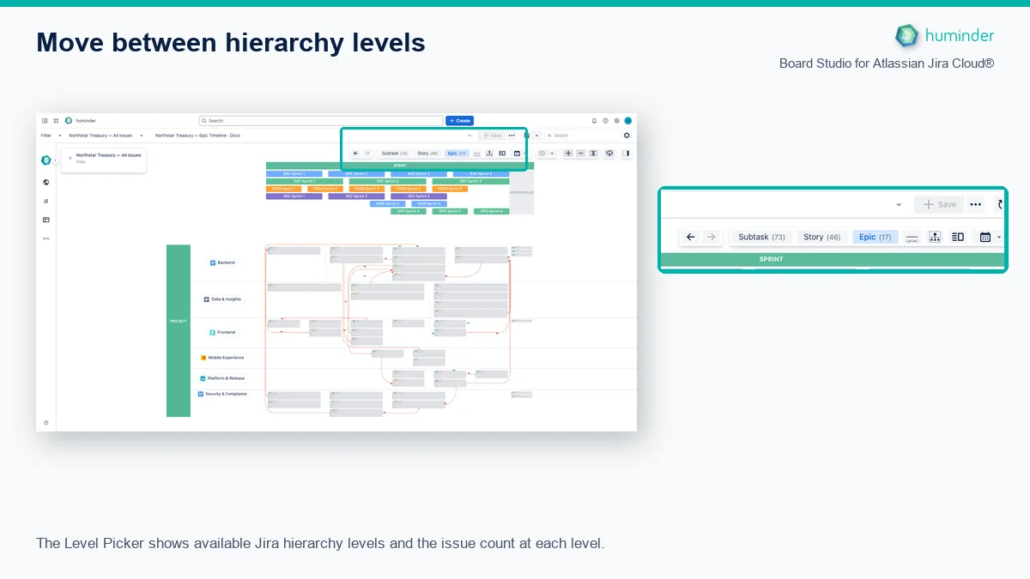
The Level Picker shows available Jira hierarchy levels and the issue count at each level.
How It Works
Board Studio detects the full Jira hierarchy configured in your instance:
| Direction | Typical destination |
|---|---|
| Zoom out | Initiative, Theme, or another configured parent level |
| Default planning level | Epic |
| Zoom in | Story, Task, Bug, then Subtask |
You switch hierarchy levels using the Level Picker — a floating overlay control that lists every detected level. Click a level to jump directly to it; cards morph smoothly with an 800ms animation, preserving spatial context so you always know where you are.
Level labels come from Jira issue type names configured in your instance. When issue type metadata is unavailable, Board Studio falls back to generic labels (“Subtask”, “Story”, “Epic”, “Level N”).
Note: Board Studio supports custom hierarchy levels available in Jira Premium and Enterprise plans (Initiative, Theme, Capability, and any custom level). Standard Jira hierarchy (Epic → Story → Subtask) works out of the box.
Level Picker
A floating overlay control gives you direct access to any hierarchy level without scrolling:
| Level Picker Feature | Description |
|---|---|
| Hierarchy levels | All detected levels with labels from Jira issue type names |
| Issue count badges | Number of issues at each level |
| Active level indicator | Current viewing level highlighted |
| Adaptive layout | Buttons when ≤ 4 levels; dropdown when > 4 levels |
| Aggregated child links toggle | Icon button to show/hide rolled-up child dependency edges at parent level |
Tip: The Level Picker is the primary way to switch hierarchy levels. Click any level to jump directly to it — this is the fastest way to switch between portfolio and team views.
Rollups on Parent Cards
When viewing parent-level cards (e.g., Epics when zoomed out from Stories), each card displays rolled-up metrics from its children:
Six built-in rollup metrics are always available:
| Rollup Metric | Icon | Display |
|---|---|---|
| Child count | # | Number of child issues |
| Total story points | Σ | Sum of all children’s story points |
| Status distribution | bar | Visual bar showing To Do / In Progress / Done proportions |
| Completion percentage | % | Percentage of children in Done status |
| Blocked count | ! | Number of children with active blockers |
| Cross-dependencies | ⇆ | Children with links to issues outside this parent |
Dynamic field rollups extend this with any Jira field. Supported aggregation modes:
| Mode | Example use |
|---|---|
| sum | Story points, time estimates |
| avg | Confidence scores |
| min / max | Dates, priorities |
| distribution | Status categories, labels |
| count / countDistinct | Assignees, components |
| range | Date spans |
Note: Dynamic rollups are configured in the Board Structure settings. Any Jira field with numeric or categorical values can be rolled up to parent cards.
Aggregate Edges
At parent level, individual dependency edges between child issues would create visual clutter. Instead, Board Studio generates synthetic aggregate edges that represent the combined dependencies between two parent cards.
| View Level | Edge Behavior |
|---|---|
| Child level (Stories/Tasks) | Individual edges between issues |
| Parent level (Epics) | Synthetic aggregate edges with triple-line styling and count labels |
Aggregate edges use a distinctive triple-line visual style with count labels so they are immediately distinguishable from single-issue links. Structural links (e.g., parent/subtask hierarchy links) are excluded from aggregation. Toggle aggregate edges on or off using the Aggregated child links button in the Level Picker.
Responsive Card Modes
Cards automatically adapt their display based on available pixel space, primarily in timeline responsive mode. As the board scales, cards shift between three modes:
| Mode | Card Width | Content Displayed |
|---|---|---|
| Full | ≥ 220 px | All configured fields, avatars, badges, icons |
| Compact | 120 – 219 px | Issue key, summary, status, story points |
| Chip | < 120 px | Minimal issue key badge only |
This ensures the board remains readable at every zoom level. You never see truncated text or overlapping fields — the card simply shifts to the appropriate display mode for its current size.
Use Cases
Executive Briefing
Start at the Initiative or Epic level for a portfolio overview. When a stakeholder asks about a specific area, zoom into that section to reveal the underlying stories. Zoom back out to continue the high-level conversation — all within the same board, with no page navigation.
PI Planning
During Program Increment planning, features are discussed at the Epic level. When teams need to break down work, zoom into a specific Epic to see and arrange its Stories across sprints. The spatial layout maintains team and sprint context at every level.
Sprint Review
Navigate between team-level views (Epics, features completed) and story-level detail (individual items, acceptance criteria). The same board serves both the team lead’s summary and the deep-dive into specific deliverables.
Tip: Combine semantic zoom with Focus Mode for maximum clarity. Zoom to the desired hierarchy level, then click a card to focus on its dependency chain at that level.
Unlike Any Competitor
No other Jira visualization tool offers fluid hierarchy navigation within the same spatial board layout.
| Capability | Board Studio | Advanced Roadmaps | Jira Board | Portfolio Tools |
|---|---|---|---|---|
| Hierarchy navigation | ✅ Fluid zoom | ⚠️ Separate timeline rows | ❌ Single level | ⚠️ Separate views |
| Same spatial layout | ✅ Yes | ❌ No | ❌ No | ❌ No |
| Rollup metrics | ✅ On parent cards | ⚠️ Progress bar only | ❌ None | ⚠️ Limited |
| Aggregate edges | ✅ Triple-line synthetic | ❌ None | ❌ None | ❌ None |
| Responsive card modes | ✅ Full/Compact/Chip | ❌ Fixed | ❌ Fixed | ❌ Fixed |
| Animation | ✅ 800ms morph | ❌ Page reload | ❌ None | ❌ Page reload |
Summary
| Feature | Details |
|---|---|
| Navigation model | Level Picker (primary); zoom-threshold switching also available |
| Supported levels | Subtask → Story/Task → Epic → Initiative/Theme (+ custom) |
| Level Picker | Floating control with issue count badges, buttons (≤4 levels) or dropdown (>4), aggregated child links toggle |
| Level labels | Jira issue type names; fallback: “Subtask”, “Story”, “Epic”, “Level N” |
| Parent card rollups | 6 built-in (#, Σ, status bar, %, !, ⇆) + dynamic rollups (sum, avg, min, max, distribution, count, countDistinct, range) |
| Aggregate edges | Synthetic triple-line edges with count labels; structural links excluded; toggled via Level Picker |
| Card modes | Full (≥220px), Compact (120–219px), Chip (<120px) — primarily for timeline responsive mode |
| Animation | 800ms smooth morphing between levels |
| Competitor comparison | No other tool offers fluid hierarchy navigation in a spatial board |