
Overview
Board Studio remembers where you’ve been. As you move between hierarchy levels — for example drilling from a Story-level view up to its Epic, or jumping to the portfolio overview — the Back and Forward buttons in the top-right toolbar let you retrace your steps without losing context.
Each visit captures not just the level, but everything that defines your working state at that moment:
- The cards and links you had selected
- Where you were panned and zoomed
- Whether Focus Mode was engaged (and at which depth)
- Which inspector items were pinned
When you go Back (or Forward), the board rebuilds at the previous level and restores all of that state exactly.
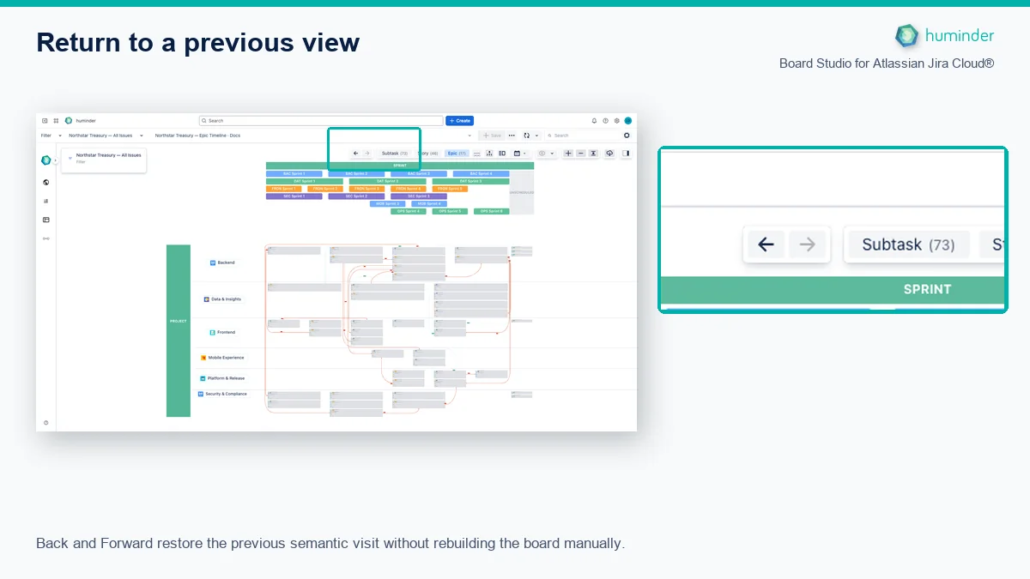
Back and Forward restore the previous semantic visit without rebuilding the board manually.
How to Use
The two arrow buttons live in the top-right toolbar, next to the layout controls.
| Button | Action |
|---|---|
| ← Back | Return to the previous semantic level you visited |
| → Forward | Replay a level you Back’d away from |
Buttons are disabled when there’s nothing to navigate to and while a level rebuild is in progress, preventing double-trigger races.
What Counts as a “Visit”
A new history entry is recorded whenever you move between hierarchy levels — regardless of how the navigation was triggered.
| Trigger | Recorded as |
|---|---|
| Drilling into an aggregated link | Drill-down |
| Picking a level from the Level Picker | Level picker |
| Loading a saved board configuration | Config load |
Selection, panning, or zooming inside the same level does not create a new history entry. Only level changes do.
Note: History is per session. Each time Board Studio reloads, the back/forward stacks start fresh.
What Gets Restored
When you press Back or Forward, Board Studio restores the destination’s full visit snapshot using a clear priority policy:
- Exact viewport — pan and zoom snap back to the precise position you left
- Selection — every previously selected card and edge is re-selected
- Focus Mode — if Focus was engaged at that visit, it re-engages with the same depth
- Inspector pins — pinned cards and links are restored per level
If the underlying Jira data has changed since your visit (for example an issue was deleted, a link removed, or its parent reorganized), Board Studio gracefully degrades: missing items are silently dropped from the restored selection, but everything still findable is restored.
Forward Navigation and Focus Mode
Going Back preserves Focus Mode — it re-engages exactly as it was on your previous visit.
Going Forward through a fresh navigation (not via the Forward button) auto-disengages Focus Mode. This is intentional: when you drill into a new level, you almost always want the full board first, then re-focus from there if needed.
| Action | Focus Mode behavior |
|---|---|
| Click Back | Restored exactly as it was at the destination visit |
| Click Forward | Restored exactly as it was at the destination visit |
| Drill-down or level-picker (fresh navigation) | Auto-disengaged — start fresh on the new level |
Tip: Engage Focus on a few cards, drill to the parent Epic to see them in context, then click Back — your focused subset comes right back.
Persistence
Per-level state (selection, viewport, pins, focus mode) is persisted across reloads — you keep what you had on each level. But the history sequence itself is session-only: each time Board Studio reloads, back/forward stacks reset.
This is by design:
| State | Survives reload? | Why |
|---|---|---|
| Per-level selection, viewport, pins, focus | ✓ Yes | You expect to find your work where you left it |
| Back/Forward navigation history | ✗ No | Reload counts as a fresh start; the level picker still gets you anywhere |
Common Workflows
Quick Comparison Across Levels
- On a Story-level board, select a few related stories
- Drill up to their parent Epic to see how they roll up
- Click Back to return to the same selection on the Story view
Recover from a Wrong Drill
Accidentally drilled into the wrong aggregate link? Click Back — your previous level returns exactly as it was, no need to re-set up your view.
Focused Exploration
Engage Focus Mode on a critical card and its blockers. Drill into the parent Initiative to see the broader portfolio context. Click Back to return — Focus Mode re-engages on the same subset automatically.
Limitations
- Browser Back / Forward buttons do not control Board Studio. The app runs inside an iframe and uses its own in-app history.
- Keyboard shortcuts for Back / Forward are not available in this release. Use the toolbar buttons.
- History does not survive a page reload — see Persistence above.
Related Features
- Focus Mode — Filter the board to a focused subset of cards
- Semantic Zoom — Navigate the Jira hierarchy by zooming
- Inspector — Pin cards and links across navigation