
Last updated: April 2026
Board Studio speaks your language and matches your theme — automatically.
Overview
Board Studio supports 27 languages and automatic dark/light mode — all without any manual configuration. It reads your Jira preferences and adapts instantly.
27 Supported Languages
Board Studio automatically matches the language configured in your Jira profile settings. Every UI element — buttons, labels, tooltips, error messages, and field names — is fully translated.
| Flag | Language | Code |
|---|---|---|
| 🇬🇧 | English | en |
| 🇫🇷 | French | fr |
| 🇩🇪 | German | de |
| 🇪🇸 | Spanish | es |
| 🇮🇹 | Italian | it |
| 🇧🇷 | Portuguese (Brazil) | pt-BR |
| 🇯🇵 | Japanese | ja |
| 🇨🇳 | Chinese (Simplified) | zh-CN |
| 🇹🇼 | Chinese (Traditional) | zh-TW |
| 🇰🇷 | Korean | ko |
| 🇷🇺 | Russian | ru |
| 🇳🇱 | Dutch | nl |
| 🇵🇱 | Polish | pl |
| 🇨🇿 | Czech | cs |
| 🇩🇰 | Danish | da |
| 🇪🇪 | Estonian | et |
| 🇫🇮 | Finnish | fi |
| 🇮🇸 | Icelandic | is |
| 🇳🇴 | Norwegian | no |
| 🇸🇰 | Slovak | sk |
| 🇸🇪 | Swedish | sv |
| 🇹🇭 | Thai | th |
| 🇹🇷 | Turkish | tr |
| 🇺🇦 | Ukrainian | uk |
| 🇻🇳 | Vietnamese | vi |
| 🇭🇺 | Hungarian | hu |
| 🇷🇴 | Romanian | ro |
Automatic Language Detection
Board Studio detects your language automatically — there is no language selector in the app. It works like this:
- You set your preferred language in Jira Profile → Language.
- Board Studio reads that preference when the app loads.
- All UI text renders in your chosen language immediately.
Tip: If you change your Jira language, simply reload Board Studio to see the updated translations.
What Gets Translated
Every user-facing text element in Board Studio is localized:
| UI Element | Translated |
|---|---|
| Sidebar section headers | ✓ |
| Button labels | ✓ |
| Tooltips and hover text | ✓ |
| Error and info messages | ✓ |
| Dropdown options | ✓ |
| Dialog titles and descriptions | ✓ |
| Guided tour steps | ✓ |
| Field names and placeholders | ✓ |
Note: Jira field values (issue summaries, status names, labels) come directly from Jira in whatever language your Jira instance uses. Board Studio translates its own UI — not your Jira data.
Dark Mode & Light Mode
Board Studio automatically matches your Jira theme preference — no manual toggle required.
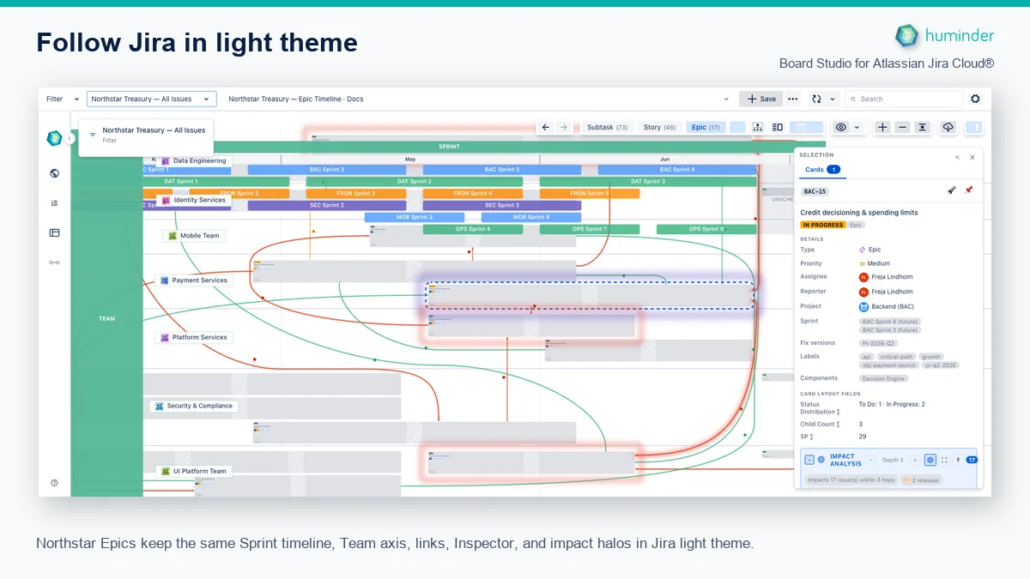
Northstar Epics keep the same Sprint timeline, Team axis, links, Inspector, and impact halos in Jira light theme.
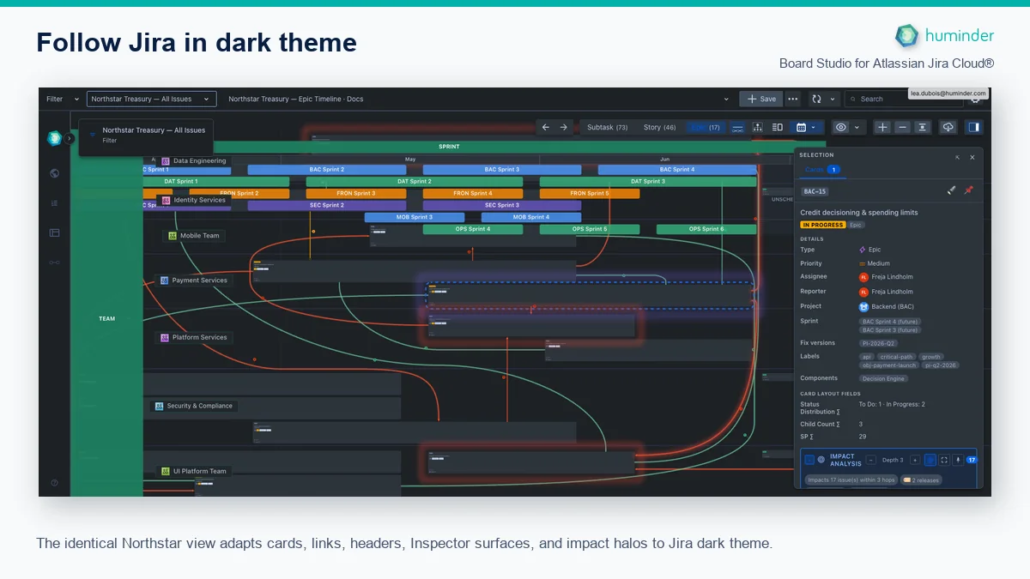
The identical Northstar view adapts cards, links, headers, Inspector surfaces, and impact halos to Jira dark theme.
How It Works
- You set your theme in Jira Settings → Theme (Light, Dark, or Match Browser).
- Board Studio reads the active Jira theme.
- All UI elements render with the appropriate color scheme — instantly.
Everything Adapts
| Element | Theme Behavior |
|---|---|
| Cards | Background, text, and border colors adapt |
| Dependency edges | Line colors adjust for visibility on dark/light backgrounds |
| Swimlane headers | Background and text contrast adapts |
| Configuration sidebar | Full dark/light variant |
| Overlays and dialogs | All modals and overlays follow the theme |
| Rollup chips | Metric badges use theme-appropriate colors |
| Status bars | Status category colors adjust for contrast |
Built on Atlassian Design Tokens
Board Studio uses Atlassian Design Tokens for all color and spacing values. This means:
- Consistent look with the rest of the Jira interface.
- Automatic adaptation when Atlassian updates their design system.
- Accessibility compliance — contrast ratios meet WCAG standards in both themes.
Note: There is no manual dark/light mode toggle inside Board Studio. To change themes, update your Jira theme preference — Board Studio follows it automatically.
Zero Configuration
Both localization and theming require no setup from users or administrators:
| Feature | Configuration Required |
|---|---|
| Language | None — reads Jira profile |
| Dark / Light mode | None — reads Jira theme |
| RTL text support | Automatic for applicable languages |
| Token-based theming | Automatic — uses Atlassian Design System |
This means Board Studio works correctly for every user on your Jira instance from the very first load — regardless of their language or theme preferences.