
Overview
Board Studio’s Search is a persistent header bar that finds any work item on the loaded board — by free text, by field value, or by link type — and drives the canvas. Picking a single result pans to it. Selecting all results smoothly zooms the viewport to fit them. The Inspector panel updates as you go.
There is no modal, no separate query screen, no JQL to write. Just type.
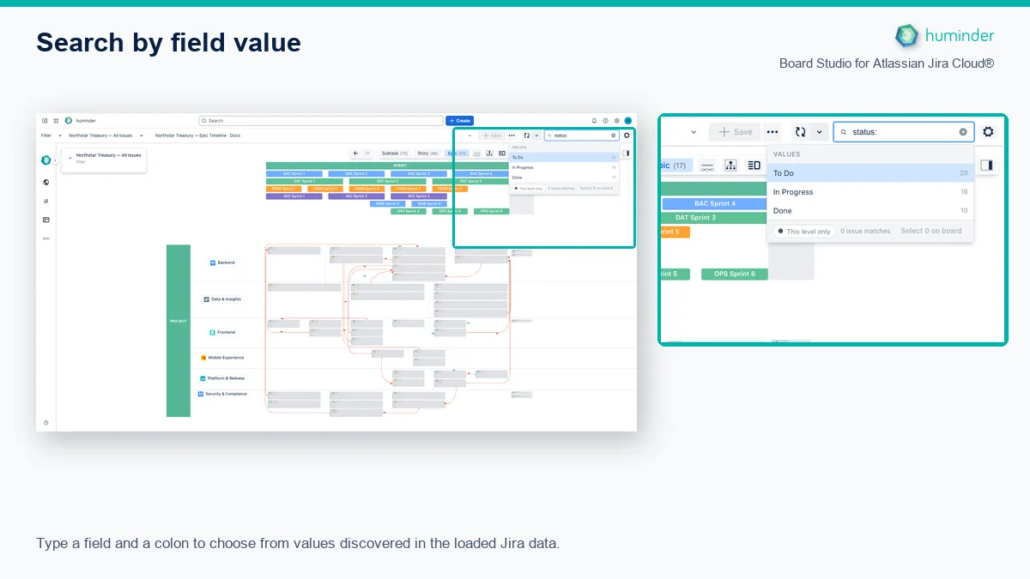
Type a field and a colon to choose from values discovered in the loaded Jira data.
What you can do
| Capability | Example |
|---|---|
| Find issues by free text across summary, key, status, assignee, components, labels, and fix versions | credit returns every issue mentioning “credit” |
| Filter by field value with a mini-DSL — no JQL required | status:Blocked, assignee:Alice, label:at-risk |
| Filter by Jira link type | link:blocks, link:duplicates |
| Combine clauses (AND) | status:Blocked label:at-risk |
| Pick a single result → pan the board to it | ↑/↓ navigate, Enter picks |
| Select all results → smoothly zoom-to-fit on the canvas | ⌘/Ctrl + Enter |
| See why each result matched | Every row shows a “matched on …” badge (e.g. summary, key, link) |
| Stay focused on the current zoom level | Results auto-scope to the active hierarchy level — Epic, Story, or Sub-task |
How it works
Persistent header bar
The Search bar lives in the app header. It’s always there, always one click away — no panel switching, no modal, no separate search page.
Two-stage typeahead
The typeahead opens as you type (180 ms debounce) and works in two stages:
| Stage | What you see | What you do |
|---|---|---|
| Stage 1 — Fields & link types | Suggestions for field names (assignee, status, priority, label, fixVersion…) and link types (link:blocks, link:relates…). |
Pick a suggestion to insert it followed by :. |
| Stage 2 — Values | Suggestions for values that exist in the loaded data, scoped to the field you chose. | Pick a value to commit the clause. |
You can also type free text at any point — search returns issues matching the text across summary, key, status, assignee, components, labels, and fix versions, ranked by relevance (exact key matches score highest).
Mini-DSL
Search supports a simple field:value DSL. Multiple clauses combine with AND.
| Syntax | Meaning |
|---|---|
field:value |
Match issues where the named field equals the value (case-insensitive). |
link:typeName |
Match issues that are connected by a link of the given type. |
text (no colon) |
Free-text search across multiple fields. |
| Multiple clauses (space-separated) | All clauses must match (AND). |
Examples:
credit                          → free-text "credit"
status:Blocked                  → all blocked issues
label:at-risk status:In Progress → at-risk AND in progress
link:blocks                     → issues participating in a "blocks" link
Hierarchy-scoped results
Search results are automatically scoped to the current hierarchy level. If you’re at the Epic level, search only returns Epics. Zoom down to Story level and the same query auto-rescopes — no need to rewrite the query, no need to manually rescope.
Tip: Type the query at the level you care about. Zoom changes update the result list automatically.
Selection & navigation
Search is more than a result list — it directly drives the canvas.
Pick one result
| Action | Result |
|---|---|
| Click a result, or press Enter with a row highlighted | Replaces the canvas selection with that single issue and pans the board (ensureVisible) so the card is in view. |
| Press ↑ / ↓ | Move the highlighted row in the dropdown. |
| Press Esc once | Clear the input. |
| Press Esc twice | Close the dropdown. |
Select all results
| Action | Result |
|---|---|
| Press ⌘/Ctrl + Enter, or click Select all N matches in the dropdown footer | Adds every match to the canvas selection and smoothly zooms-to-fit their bounding box (capped at 1.5× to prevent over-zooming on small clusters, with 48 px padding). |
The “Select all N matches” footer is always visible in the dropdown — you don’t have to discover it.
How Search composes with the Inspector
Search and the Inspector are designed to work together.
| Step | What happens |
|---|---|
| Type a query | Typeahead opens, results filter as you type. |
| Press Enter to pick one | Card pans into view, Inspector switches to the Cards tab and shows the rich single-card panel. |
| Press ⌘/Ctrl + Enter to multi-select | All matches are selected, viewport zooms to fit, Inspector Cards tab shows a breakdown (counts by status, type, assignee). |
| Switch to the Links tab | If any of the selected cards have links you also selected, the breakdown follows. |
This is the search → triage → drill loop in three keystrokes — no JQL, no spreadsheet, no losing your place.
Keyboard shortcuts
| Shortcut | Action |
|---|---|
| Type | Opens the dropdown (180 ms debounce). |
| ↑ / ↓ | Move through suggestions or results. |
| Enter | Pick the active row — pans to the issue, or inserts a field / link / value. |
| ⌘/Ctrl + Enter | “Select all N matches” — multi-select on canvas + smooth zoom-to-fit. |
| Esc | First press clears the input; second press closes the dropdown. |
Why it matters
| Pain point | How Search solves it |
|---|---|
Building a JQL query for project IN (FRON, BAC) AND labels = at-risk to answer one question in a meeting |
Type label:at-risk — done. |
| Jira’s modal search returns a flat list — you still have to navigate to each card manually | One result → one pan. All results → one zoom-to-fit. The board moves to the answer. |
| Filtering means re-running the query when you change zoom level | Search auto-rescopes to the current hierarchy level — same query, new answers. |
| “Find” and “triage” are two separate tools | Multi-select from search instantly populates the Inspector breakdown — find, count, and inspect in three keystrokes. |
| You have to learn the search syntax | Typeahead suggests fields first, then values — discoverable as you type. |
Related
- Inspector — Search results populate the Inspector for instant breakdowns.
- Semantic Zoom — Search auto-rescopes to the active hierarchy level.
- Focus Mode — Multi-select results from search, then promote the selection to a Focus Mode subgraph.