
Share your board configurations with other Jira users or groups so they can use the same view without recreating it.
First save a configuration you own. Recipients also need access to its Jira source and work items; sharing the configuration does not provide that access.
Find the controls
Select your saved board in the app header, then open Manage board → Share. The menu belongs to that configuration, not to Jira’s project permissions.
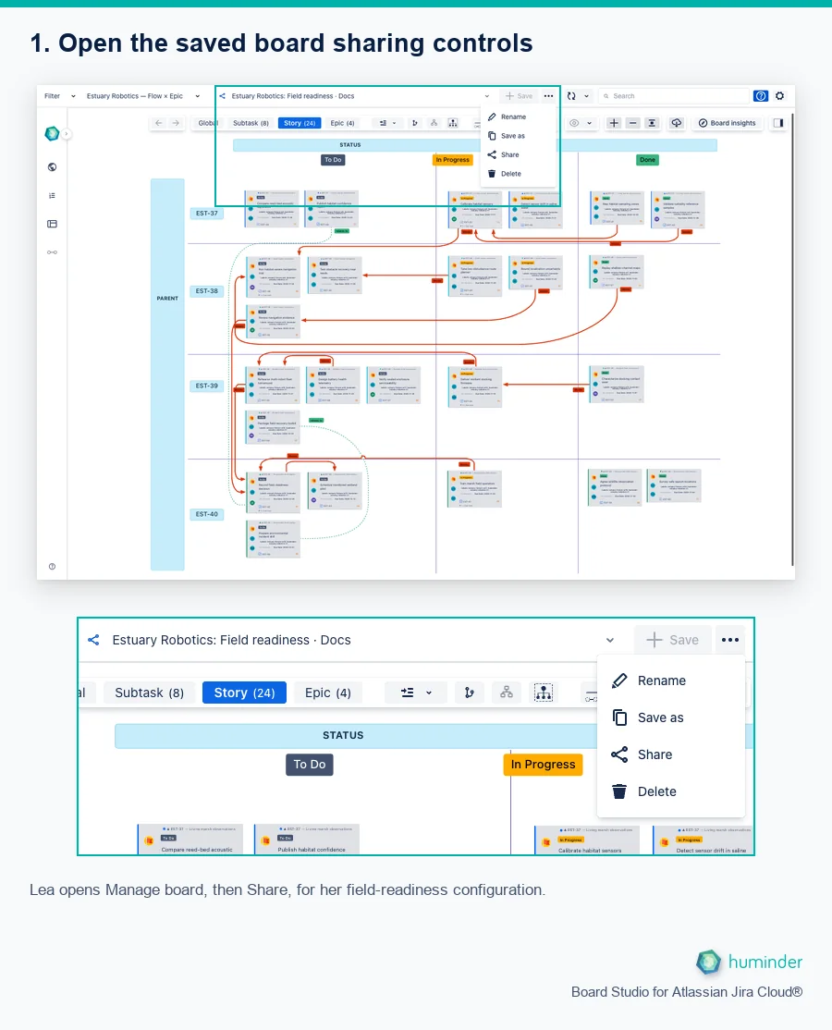
Lea opens Manage board, then Share, for her field-readiness configuration.
Inside Share, search for people or groups. Apply saves the audience; Cancel leaves it unchanged. The walkthrough shows these dialog controls when you reach that task.
Example: prepare a field-readiness review
Lea Dubois has prepared Estuary Robotics: Field readiness · Docs, a saved view of work for an upcoming robotics field trial. She wants the release planning team to review the same board without rebuilding its layout. Marcus Weber belongs to that team.
In this walkthrough, Lea first shares with the Jira group estuary-release-planning. Marcus finds and opens the board through his group membership. Lea then adds Marcus individually, and we follow the notification he receives.
The captures use Lea’s and Marcus’s sessions on a staging site. A Jira administrator created the example group and added both colleagues beforehand. You can use an existing group in your organisation; creating a group is not a step inside Board Studio.
How sharing works
When you share a configuration, you grant specific users or groups access to use it. Recipients find it in the saved-board selector under Boards shared with me. This is a section of the selector, not an invitation inbox.
| Role | Can do |
|---|---|
| Owner | Edit, rename, share, delete the configuration |
| Recipient | View and use the configuration (read-only) |
You can select one person, several people, one or more groups, or a mixture of people and groups. Apply saves the audience; Cancel leaves the saved sharing unchanged.
1. Open Share on a board you own
Select your saved configuration. Open the three-dot Manage board menu beside the selector, then choose Share. Lea uses her field-readiness configuration throughout this example.
2. Search for the team group
In Search for users and groups, enter at least two characters. Lea types estuary, then selects estuary-release-planning from the results. The group icon distinguishes this result from an individual person.
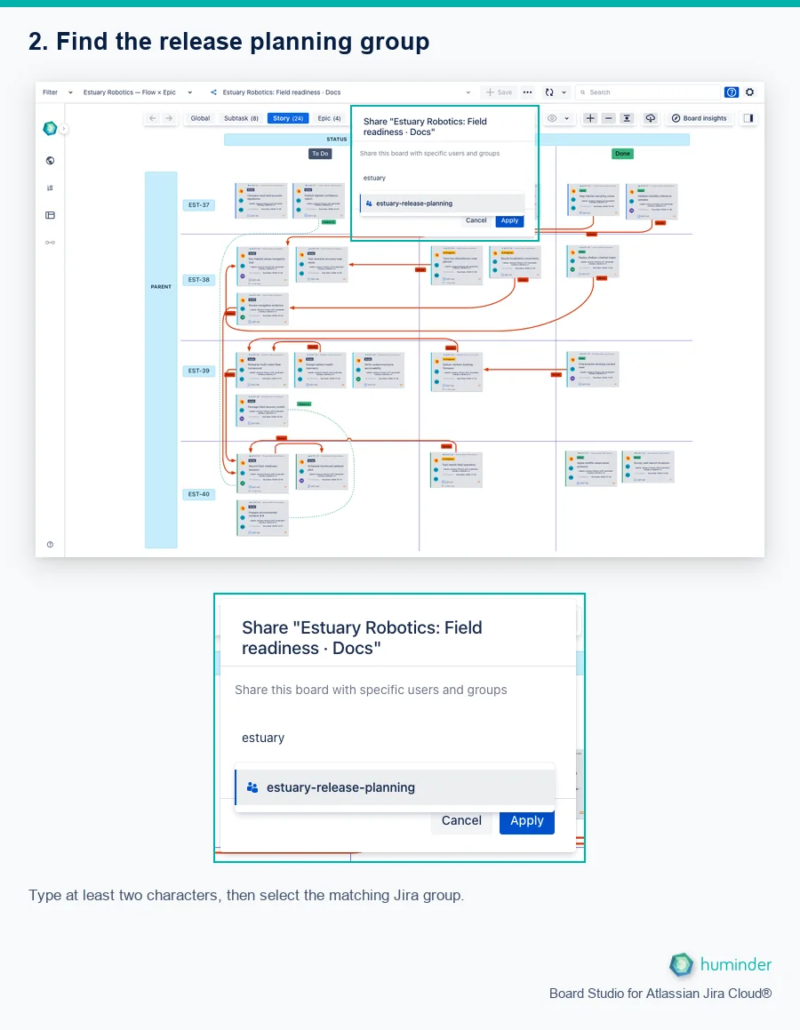
Type at least two characters, then select the matching Jira group.
Choose a group whose membership matches your intended audience. There is no separate Entire organisation option, and a group’s name alone does not tell you who belongs to it. Ask your Jira administrator if you are unsure.
3. Apply and check the saved audience
Check the selected group, then click Apply. To confirm who has access, reopen Manage board → Share. The screenshot below shows the group still selected after Lea applied the change and reopened the dialog.
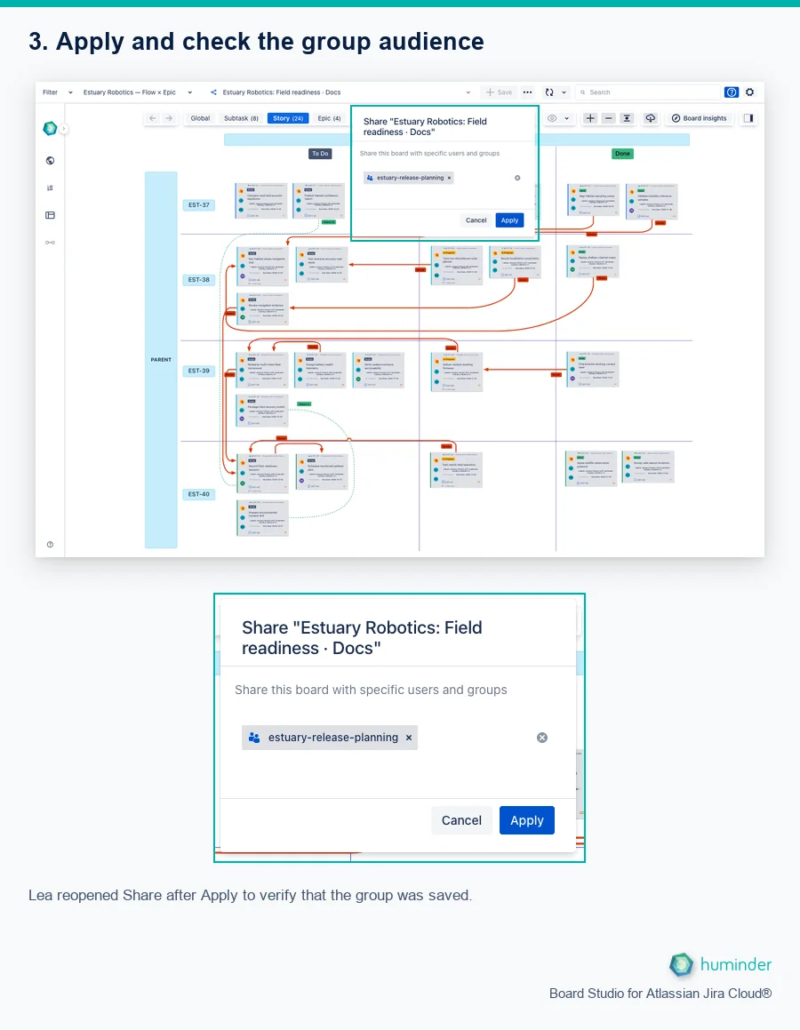
Lea reopened Share after Apply to verify that the group was saved.
Sharing with a group makes the configuration available to its members. It does not send an individual notification to every member or create a group inbox.
4. Find the configuration as a group member
In his own session, Marcus opens the saved-board selector. Estuary Robotics: Field readiness · Docs appears under Boards shared with me. He selects it to load Lea’s view.
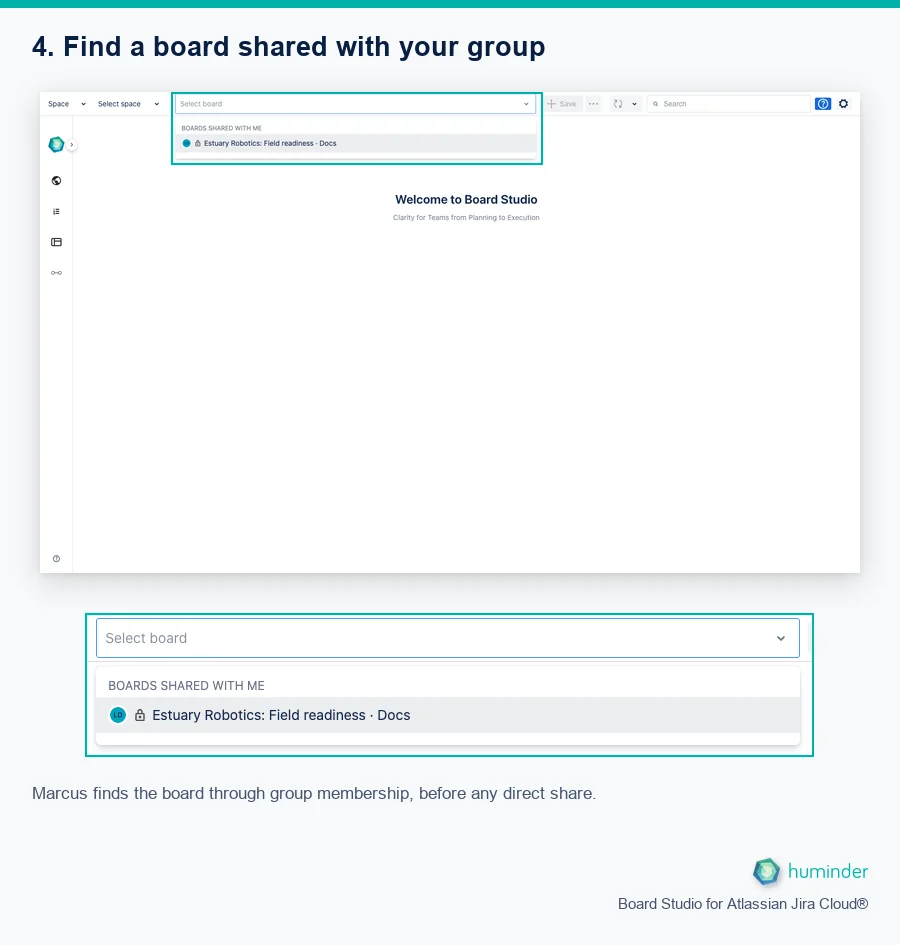
Marcus finds the board through group membership, before any direct share.
This was checked while the board was shared only with the group, before Lea added Marcus directly. Marcus did not need a notification to discover it. If a newly shared configuration is not yet listed, reload Board Studio and open the selector again.
Note: Sharing a configuration does not grant permission to its Jira space, saved filter or work items. Recipients still need the appropriate Jira access, and different work-item permissions can produce different visible data.
5. Add a specific person
Lea returns to Share, keeps the group selected and searches for Marcus. She selects Marcus Weber from the results. To share with people only, follow the same search and selection process without adding a group.
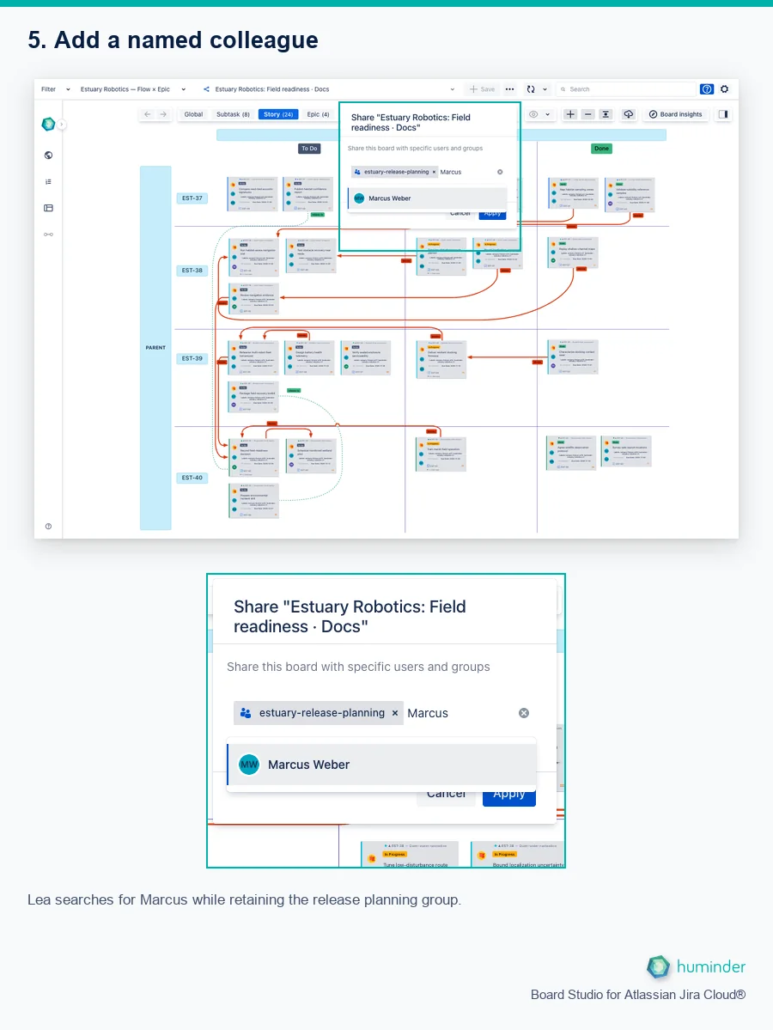
Lea searches for Marcus while retaining the release planning group.
Repeat the search to add more colleagues if needed. Check each selected person rather than assuming that the first search result is the intended recipient.
6. Apply users and groups together
The dialog now contains both estuary-release-planning and Marcus Weber. Lea clicks Apply to save that combined audience. Selecting a search result alone does not save sharing.
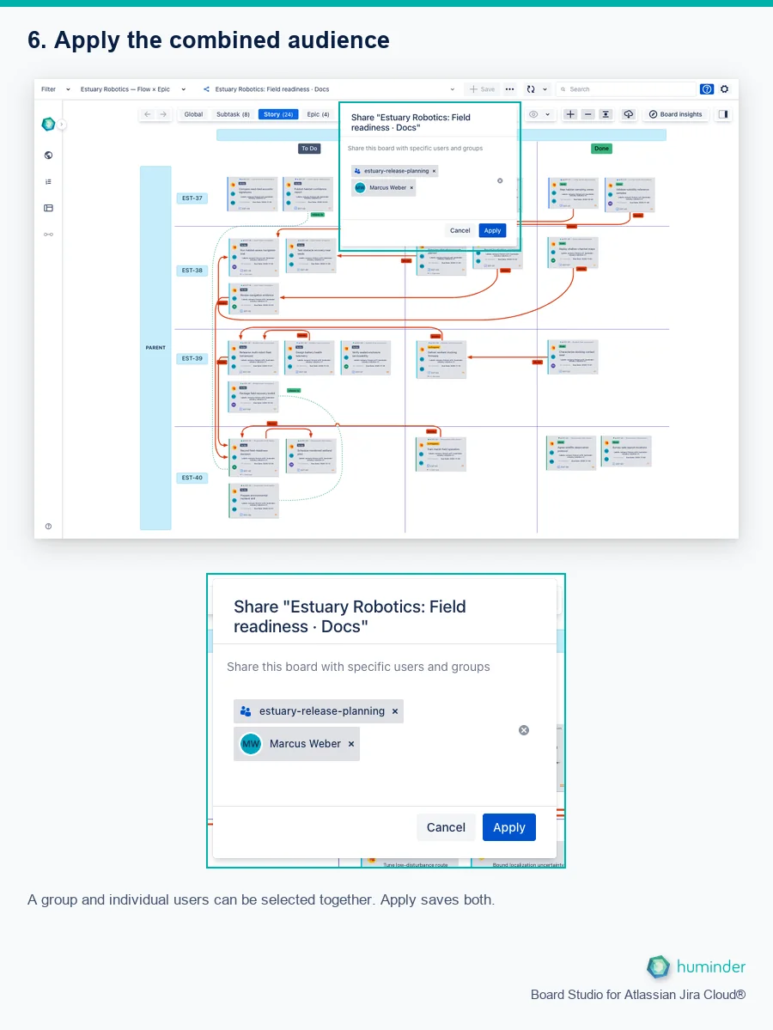
A group and individual users can be selected together. Apply saves both.
Marcus already had access through his group. Adding him individually also makes him an explicit recipient; it does not grant additional Jira permissions.
7. Open the received notification
In Marcus’s open Board Studio session, a Board shared notification names Lea Dubois and the configuration she shared. Marcus clicks Load board to open it. Dismiss closes the notification without opening the board.
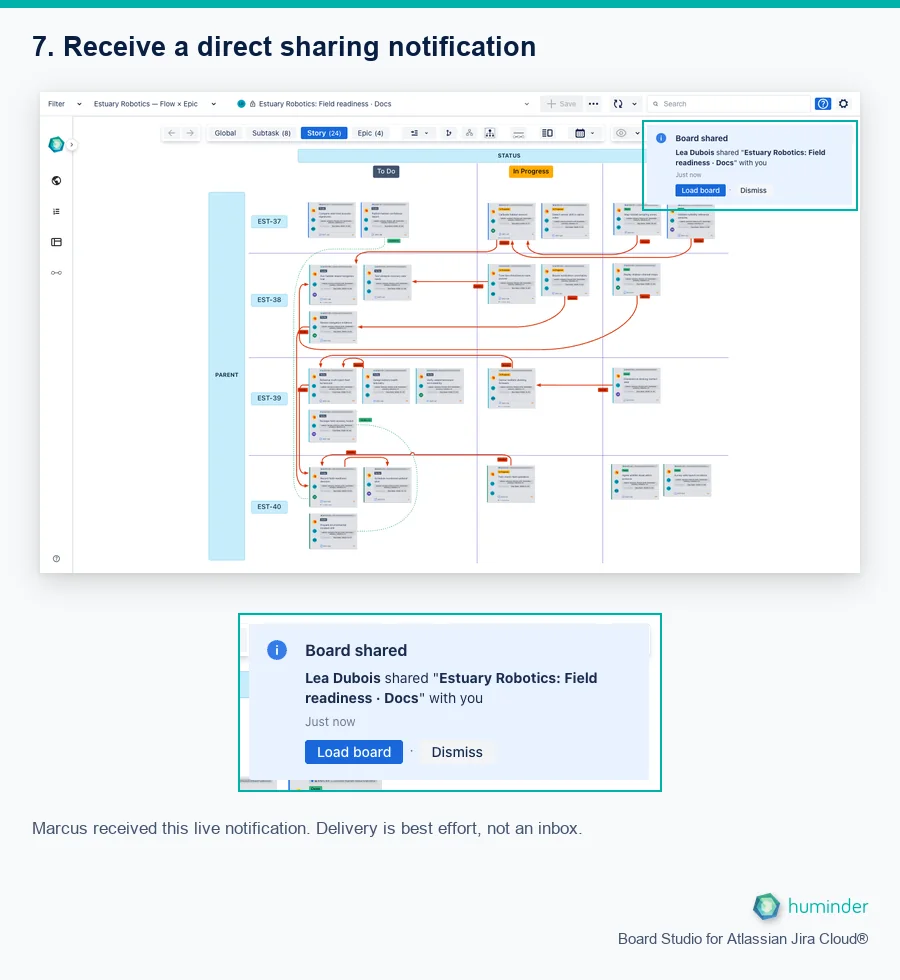
Marcus received this live notification. Delivery is best effort, not an inbox.
This is a real notification received during the walkthrough, not a simulated message. Newly added individual recipients can receive these live notifications, but delivery is best effort. They are not email or a persistent invitation inbox. If no notification appears, use Boards shared with me instead. Loading a shared board can ask you to confirm first if your current board has unsaved changes.
8. Explore the shared board or save your own copy
Marcus can use Lea’s configuration and explore the work. The lock beside the selected board identifies the shared configuration. His Manage board menu offers Save as, rather than the owner’s rename, sharing and delete actions.
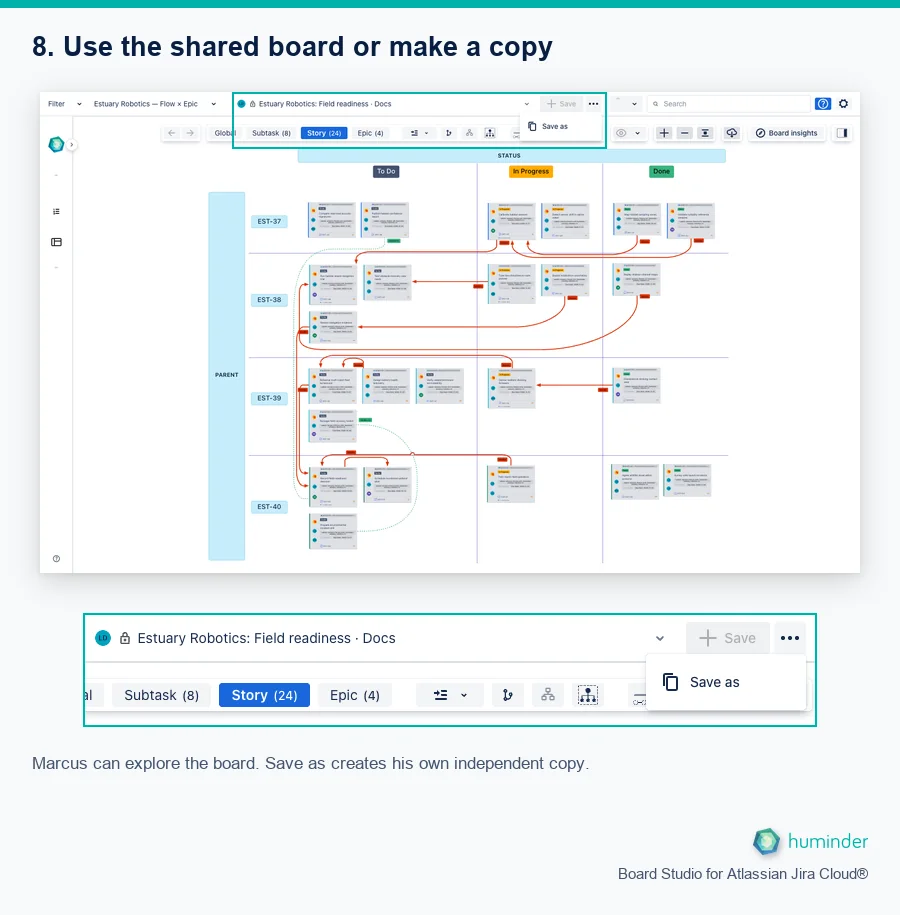
Marcus can explore the board. Save as creates his own independent copy.
Shared configurations are read-only. To keep a customised version, choose Save as, enter a different name and save your own copy. This walkthrough stops before creating a recipient copy.
Copies do not inherit the original configuration’s sharing. Share your copy separately if other people should use it. The configuration is a saved view, not a frozen copy of Jira work items.
Review or remove access
- As the owner, open Manage board → Share.
- Review the selected people and groups.
- Use the remove control beside an entry you no longer want to share with.
- Click Apply to save the change.
Access can come from more than one selected entry. In this example, removing Marcus individually would still leave him access through estuary-release-planning. Removing the group alone would still leave his direct access. Review both routes when changing an audience.
Clear all recipients and apply to make the configuration private again. This changes access to the saved configuration, not anyone’s Jira permissions.