
Install Board Studio from the Atlassian Marketplace to start visualising dependencies in your Jira Cloud instance.
Before you begin
- Requirement: Jira Cloud instance (Free, Standard, Premium, or Enterprise)
- Permissions: Jira administrator access to install apps
- Purpose: See work and dependencies within one Jira project or across several
If you cannot install apps, send the Marketplace link to your Jira administrator and ask them to install Board Studio. Administrator access is needed for installation, not ordinary use; Jira permissions still determine the work you can access.
Install from Marketplace
- Go to Board Studio on Atlassian Marketplace
- Click Try it free
- Select your Jira Cloud instance
- Review and accept the permissions
- Click Install
Permissions requested
| Permission | Purpose |
|---|---|
| Read Jira work | Access work items, spaces, and filters to display on the board |
| Read avatars | Show user and space avatars on cards |
| Read fields and options | Resolve field values and configure the board |
See Data security and privacy for the current permission list, storage and optional AI processing.
Access Board Studio
After your administrator has installed the app:
- Click Apps in the navigation
- Select Board Studio
Check that you can load your work
When Board Studio opens, choose Space or Filter in its header, then choose a source you can access. Wait for the initial load and recognise a few expected work-item keys or summaries. You do not need administrator access for this check.
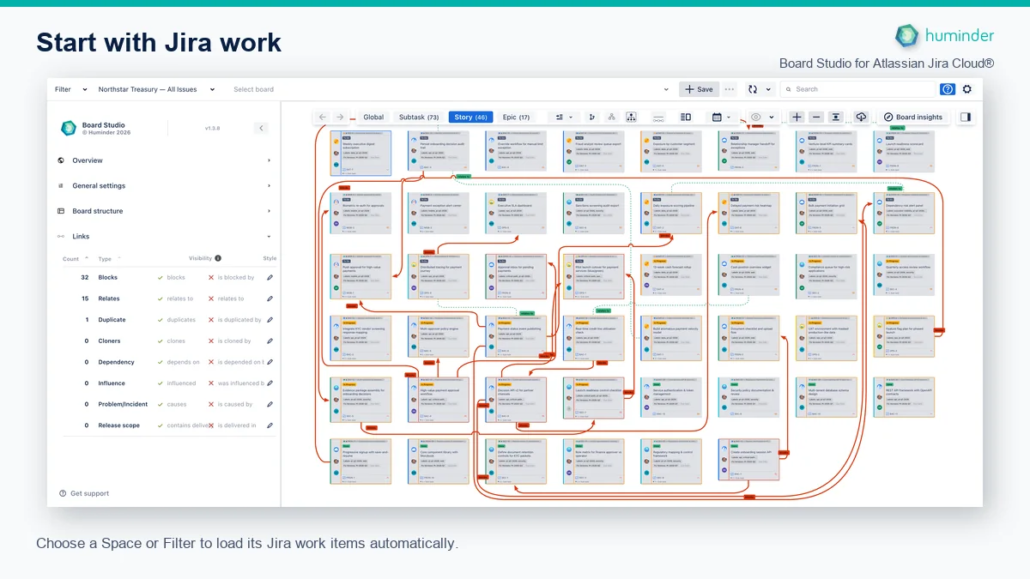
Choose a Space or Filter to load its Jira work items automatically.
This example shows the app after the Northstar Treasury filter has loaded 46 Stories. It illustrates successful access and loading, not the Marketplace installation dialog. Your source, cards and counts will differ. If no work appears, check that the source contains items you can read in Jira; installing the app does not grant access to additional work.
Continue with Your First Board to choose a source and see your Jira work.