
Use Gantt planning on a proportional time axis to see when work starts, how long it runs, and where the gaps are.
Overview
When you assign a date-bearing field as a board dimension, Board Studio turns the board into a Gantt-style timeline. Any field that carries dates can drive it: Sprint, Fix Versions, or a custom field that exposes start and end dates. Cards are placed and sized along a time axis, which gives you a temporal view of the plan.
Timeline mode turns on automatically when an axis has exactly one dimension and that dimension carries dates, either as an interval (a start and an end) or as a point (a single date). The data must contain at least one item with real dates.
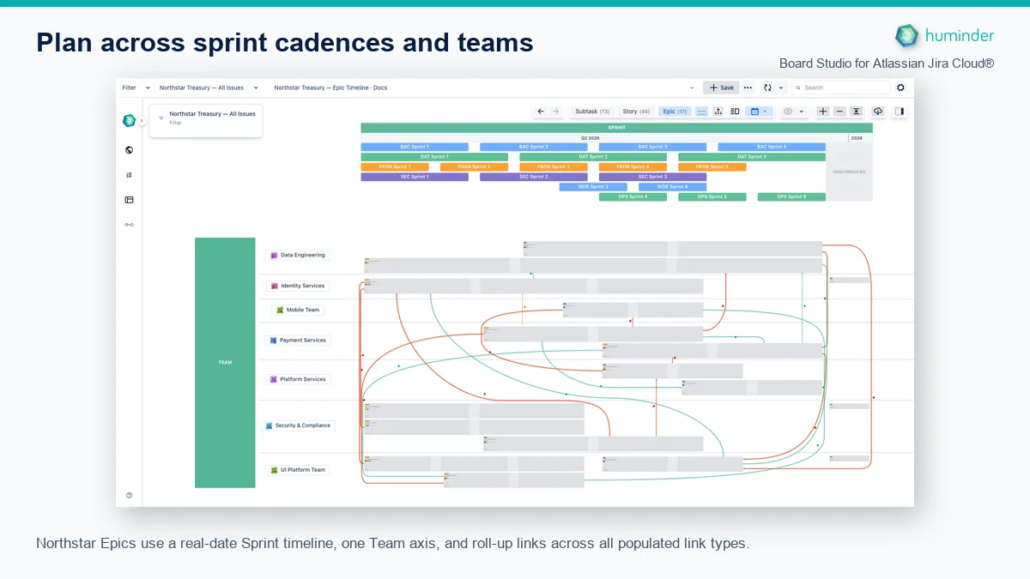
Northstar Epics use a real-date Sprint timeline, one Team axis, and roll-up links across all populated link types.
Supported fields
| Field | Type | Date source |
|---|---|---|
| Sprint | Interval | startDate and endDate from the Jira sprint. |
| Fix Versions | Interval or point | startDate and releaseDate for an interval, or releaseDate only for a point. |
| Custom fields | Interval | Any field that exposes a { startDate, endDate } object. |
| Date or DateTime fields | Point | A single date mapped to one position on the axis. |
A Fix Version with both a start and a release date renders as an interval band. With a release date only, it renders as a point.
How it works
When a date-bearing field is used as a dimension, Board Studio reads the date ranges from the field, creates time-proportional bands where each interval takes space in line with its calendar duration, and places and sizes the cards inside their band. A two-week interval’s cards are half the width of a four-week interval’s cards.
Band width
Board Studio uses two scaling strategies, depending on the total span.
Calendar mode (the default, for spans under 5 years)
Band width is proportional to calendar duration, on an adaptive pixels-per-day scale:
| Total span | Pixels per day |
|---|---|
| Up to 42 days (about 6 weeks) | 32 |
| Up to 84 days (about 12 weeks) | 25 |
| Over 84 days | 18 |
A minimum band width of 260 px keeps even very short intervals usable.
Bucketed mode (automatic, based on readability)
When the shortest interval would render narrower than 80 px after fit-to-view, Board Studio switches to bucketed mode. Every interval then gets a fixed-width column regardless of its calendar duration, so a 1-year sprint and a 10-year sprint take the same width. The check uses the real viewport size and the ratio of the shortest interval to the total span, so it behaves correctly on any screen.
| Aspect | Calendar mode | Bucketed mode |
|---|---|---|
| Turns on when | Shortest interval is at least 80 px on screen. | Shortest interval is under 80 px on screen. |
| Band width | Proportional to duration. | Fixed per band. |
| Date accuracy | Proportional to the day. | Piecewise within each bucket. |
| Best for | Uniform sprint cadences. | Uneven intervals and historical data. |
For example, a dataset with two-week sprints next to a six-month sprint would render the two-week columns far too narrow in calendar mode. Bucketed mode gives every interval an equal column while keeping the order.
Date ruler
A date ruler runs along the timeline axis, between the field-name label and the band headers. It gives the timeline an explicit scale instead of relying on tooltips alone.
The ruler adapts its level of detail to how much room each day has on screen. As you zoom, it moves between an overview, months, weeks, and days, and it thins out labels that would collide so they stay readable. A marker shows today’s date. In bucketed mode it shows a Compressed timeline badge, since the spacing is no longer proportional to the calendar.
You control the ruler in two places: a calendar toggle in the layout menu that cycles through Auto, Always, and Off, and a matching control in the level picker.
| Mode | Behaviour |
|---|---|
| Auto (default) | Shows the ruler when an axis is in timeline mode. |
| Always | Keeps the ruler on. |
| Off | Hides the ruler. |
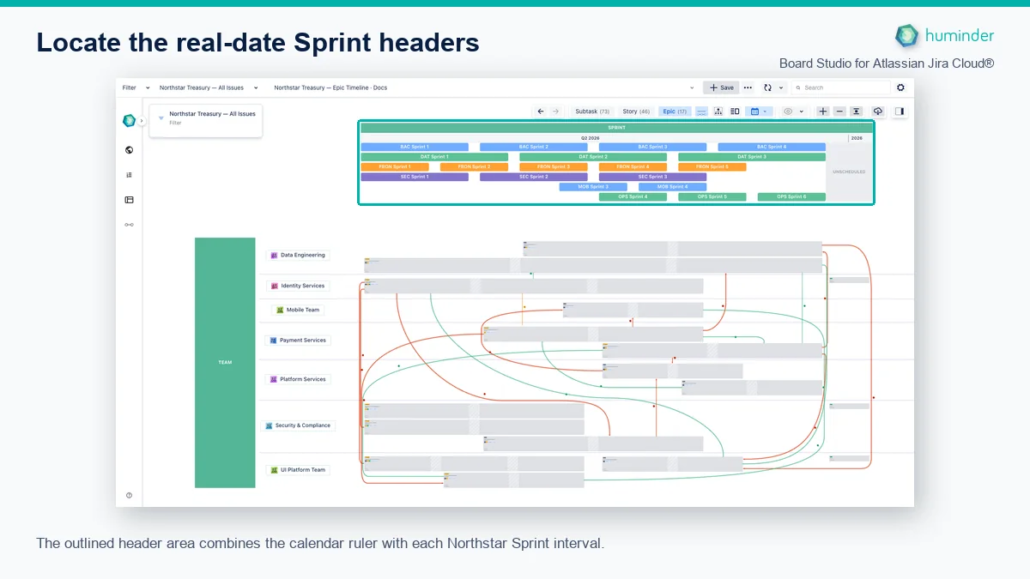
The outlined header area combines the calendar ruler with each Northstar Sprint interval.
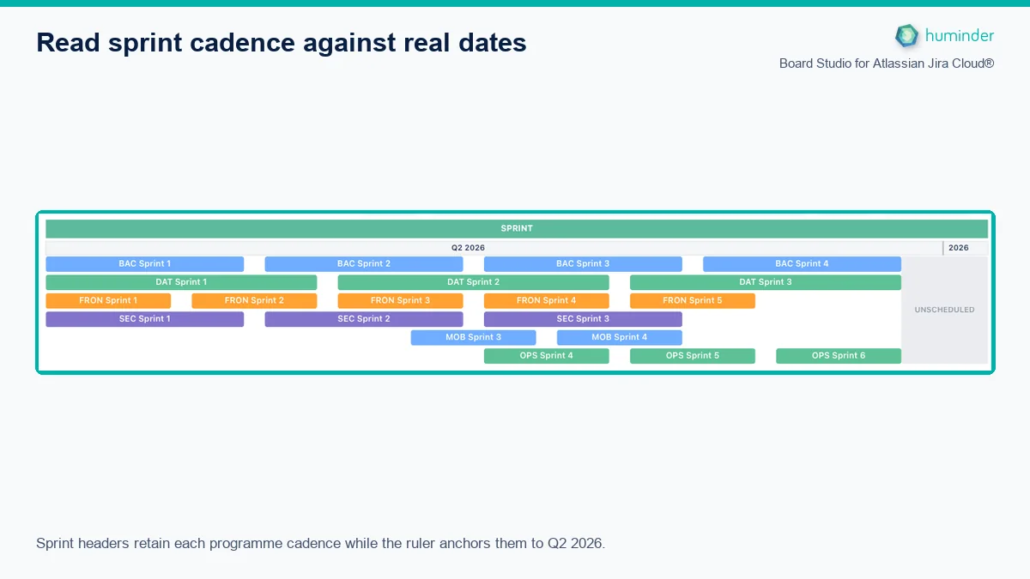
Sprint headers retain each programme cadence while the ruler anchors them to Q2 2026.
Responsive cards
Cards adapt their display to the width available in their band.
| Mode | Width | Shown |
|---|---|---|
| Full | 220 px or more | The complete card: configured fields, avatars, rollup metrics. |
| Compact | 120 to 219 px | Key fields: the issue key and a status badge. |
| Chip | Under 120 px | A small badge with the issue key. |
Zoom in to widen bands and see full detail. Zoom out for a chip-level overview of the whole timeline.
Unscheduled band
Issues with no value for the timeline field are collected into an Unscheduled band at the end of the timeline. It has a fixed width of 180 px and does not scale with the rest, so unplanned work stays visible.
Multi-sprint spanning
When a work item belongs to more than one sprint, its card spans from its earliest sprint to its latest. This works on both horizontal and vertical timeline axes, which gives a true Gantt bar for the item’s lifespan.
Jira’s sprint field is an array that keeps sprint history. When a sprint completes with an issue still in it and the issue moves on, both sprints stay in the array. Board Studio reads the full array to compute the span, from the earliest historical sprint to the most recent.
| Axis | Effect |
|---|---|
| Horizontal | Card width stretches from the earliest to the latest sprint column. |
| Vertical | Card height stretches from the earliest to the latest sprint row. |
Cards that belong to a single sprint render at standard size. Spanning only happens when several sprints are present.
Completed sprint horizon
By default the timeline shows the two most recent completed sprints plus any active or future sprints, which keeps the view on current and upcoming work. When bucketed mode turns on, this filter is lifted so the full timeline is shown.
Viewport fill
If the whole timeline is narrower than the viewport, Board Studio stretches the dated bands to fill the space. The Unscheduled band moves to stay at the end but does not stretch, holding its 180 px width.
Cross-axis layout
The non-timeline axis keeps its grouping, which gives you a two-dimensional view: time on one axis, structure on the other. For example, place a Sprint timeline on one axis and Team on the other to coordinate Epics across teams and cadences without constraining the available timeline space.
| Timeline axis | Cross axis | Result |
|---|---|---|
| Horizontal columns | Team rows | Each row is a team; cards span time-proportional columns. |
| Vertical rows | Team columns | Each column is a team; cards span time-proportional rows. |
Select through timeline headers
Click a timeline header to select every card scheduled in that interval. The Inspector records the Sprint as a structural selection criterion and shows its real start date, end date, and state.
Shift-click more Sprint headers to add intervals. Sprint criteria combine as a union, so selecting BAC Sprint 3 and BAC Sprint 4 includes cards from either interval.
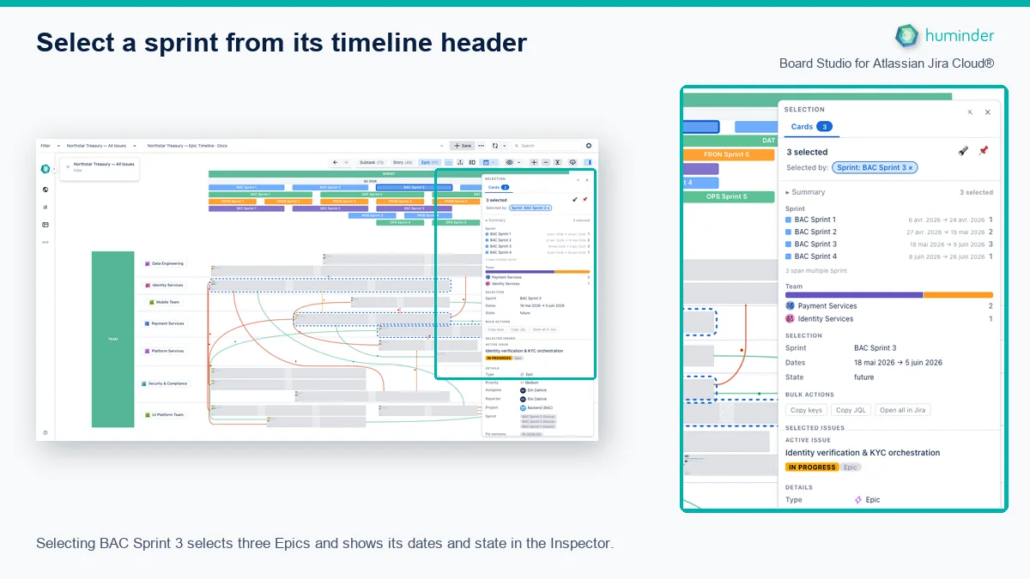
Selecting BAC Sprint 3 selects three Epics and shows its dates and state in the Inspector.
Shift-click a header on the other axis to intersect it with the selected timeline intervals. For example, BAC Sprint 3 or BAC Sprint 4 combined with Payment Services selects only the Epics that match the chosen Team and either Sprint.
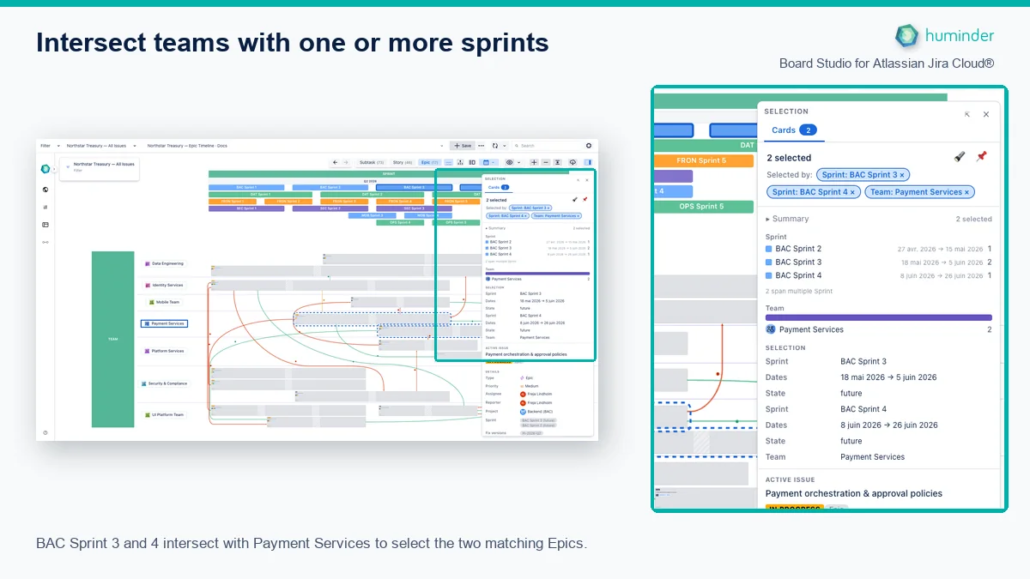
BAC Sprint 3 and 4 intersect with Payment Services to select the two matching Epics.
Stable fit-to-view
Clicking Fit to View zooms to show all content without recalculating the layout, so cards do not shrink on repeated fits. The viewport state is kept.
Works with other features
| Feature | Behaviour in timeline mode |
|---|---|
| Focus Mode | Focus a card to see its connections across time bands; multi-sprint cards show every spanned column. |
| Semantic Zoom | Zoom out for a chip-level overview; zoom in for full detail. |
| Dependency lines | Edges render across time bands to show cross-interval dependencies. |
| Rollups | Parent cards show rollup metrics within their band. |
| Dark mode | The timeline renders correctly in light and dark themes. |
Use cases
| Scenario | How the timeline helps |
|---|---|
| Sprint planning | See how work spreads across upcoming sprints, sized in proportion. |
| Release timeline | Use Fix Versions as the dimension to lay releases out by date. |
| Capacity check | Spot dense bands against sparse ones. |
| Cross-team coordination | Combine project rows with time columns to see allocation by interval. |
| Historical view | Use bucketed mode for long-range datasets that span years. |