
Overview
A large programme board can hold hundreds of cards across many teams. Focus Mode narrows the view to a set of cards and their dependency connections, so you can follow one thread at a time.
Find the controls
Use the Focus group on the canvas toolbar. The numbered circles identify controls, not steps.
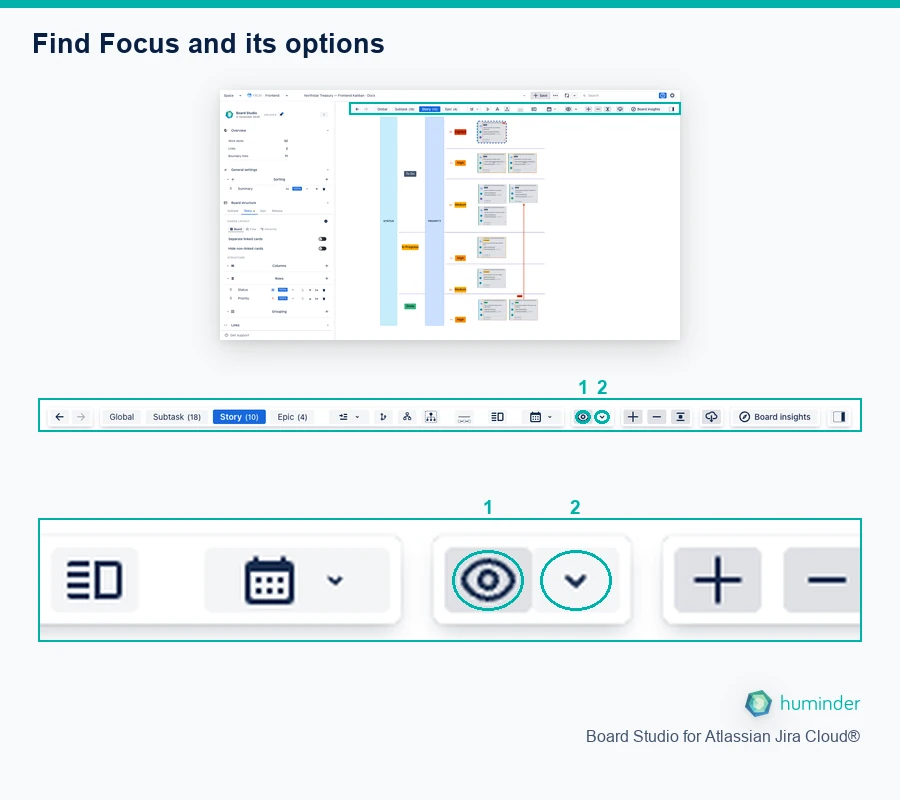
Find Focus and its options. The numbers identify controls, not steps.
- 1. Focus: turn Focus on or off around your selection.
- 2. Focus options: choose Hide or Dim and how much connected work to include.
Select a card or dependency edge before turning Focus on. Choosing an option and turning Focus on are separate actions.
How to turn it on
Select one or more cards or edges, then click Focus on the canvas toolbar. Selecting a card or link alone does not enable Focus. The chosen depth determines whether linked neighbours are included; Selection only is the default.
- Select one or more cards or dependency edges on the board.
- Click the Focus button in the toolbar.
With Selection only, selecting one card does not automatically include its blockers or dependent work. In Focus options, choose 1 hop to include directly connected cards. Choose Hide or Dim according to whether you want the surrounding work removed from view or left faintly visible.
Example: keep a readiness decision and its neighbours visible
The Estuary Robotics example starts with EST-26, Record field-readiness decision, selected. All 24 Story and Task cards are still visible at normal opacity: selection alone has not applied Focus.
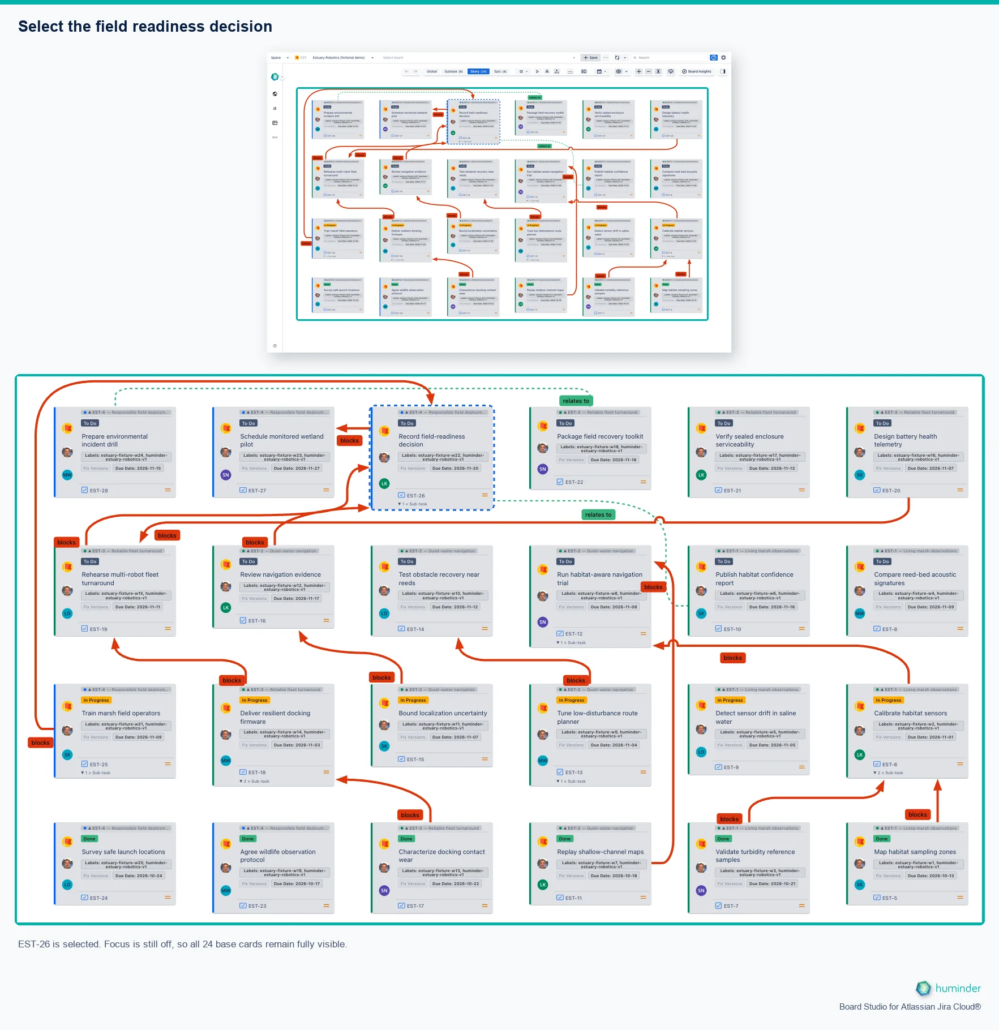
EST-26 is selected. Focus is still off, so all 24 base cards remain fully visible.
In Focus options, choose Dim others and 1 hop, then turn on Focus. The same board and camera now keep six cards prominent: EST-10, EST-16, EST-19, EST-25, EST-26 and EST-27. The other eighteen cards remain in place but are dimmed.
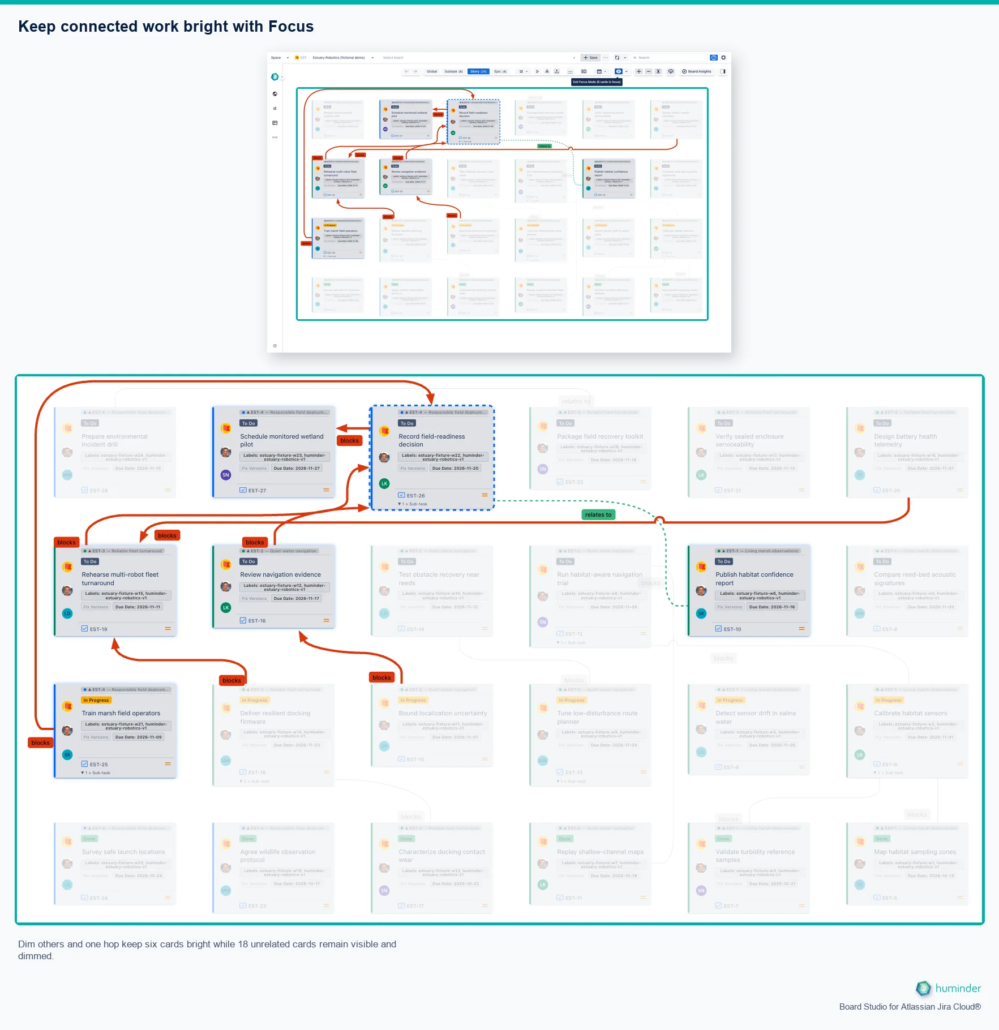
Dim others and one hop keep six cards bright while 18 unrelated cards remain visible and dimmed.
Compare the surrounding cards, not just the selected card’s outline. This pair demonstrates Dim others, not Hide. Your focused set depends on your selection, visible relationships and chosen depth; six is the result for this example, not a fixed limit.
Ways to select
| Action | Result |
|---|---|
| Click a card or edge | Select that element. |
| Ctrl/Cmd + click | Add or remove an element from the selection. |
| Marquee (drag on empty canvas) | Select every card and edge inside the rectangle. |
Display behaviour: Hide or Dim
Focus Mode has two display behaviours. Both use the same scope, which is your selection plus a number of hops. They differ only in how they treat everything outside that scope. You choose between them in the Focus options dropdown next to the Focus button, and your choice is saved per user.
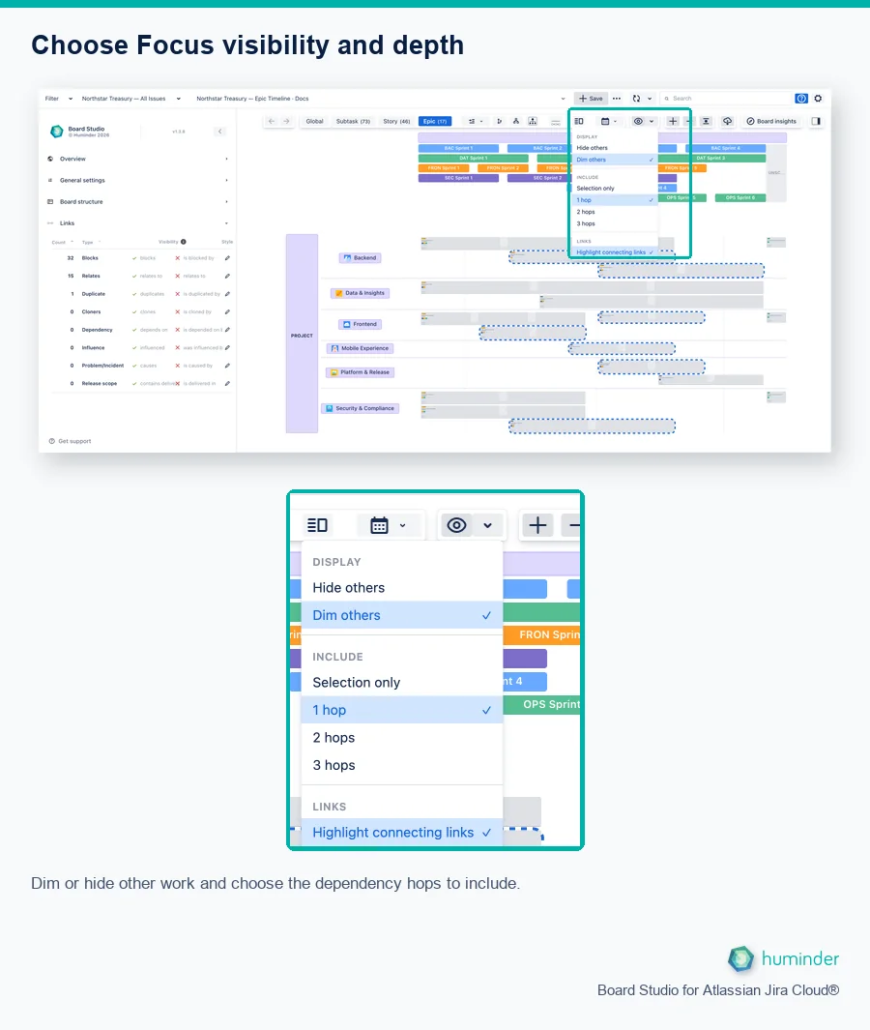
Dim or hide other work and choose the dependency hops to include.
| Behaviour | What it does |
|---|---|
| Hide others (default) | Removes every card, edge, and band that is not in focus, shrinks the board structure to the rows and columns that remain, and runs a layout transition. |
| Dim others | Keeps the whole board and its layout in place, and dims everything outside the focused set. Nothing is removed and the layout does not move. |
Use Hide to isolate a chain and reclaim screen space. Use Dim to keep the surrounding board for context, for example when presenting.
Highlight connecting links
In Dim mode, a Highlight connecting links toggle controls the edges that touch a focused card when the card on the other end is dimmed.
- On (default): every edge attached to a focused card stays bright, even when the card it points to is dimmed. This shows what the selection connects to.
- Off: only edges between two focused cards stay bright.
The toggle is shown in Dim mode only. In Hide mode the far cards are removed, so there is nothing to connect to.
How much to include: depth
The Focus options dropdown also sets how far Focus reaches out from your selection. The depth is saved per user.
| Setting | Result |
|---|---|
| Selection only (default) | Just the selected cards and the edges between them. |
| 1 hop | The selection plus its directly connected cards. |
| 2 hops or 3 hops | The selection plus cards two or three steps away. |
For wider downstream analysis, use Impact analysis in the Inspector, which reaches further.
How to turn it off
| Action | Result |
|---|---|
| Click the Focus button again | Leave Focus Mode. |
| Press Escape | Leave Focus Mode. |
Clicking empty canvas does not leave Focus Mode. When you leave, the full board structure returns, every card and edge reappears, and the layout transitions back.
What stays visible
Focus Mode keeps the visual detail on the cards that remain. Card badges such as story points and flags, status and priority icons, and the headers and separators for the relevant bands all stay in place. In Hide mode the unfocused cards and edges are removed; in Dim mode they are dimmed instead.
Use cases
Trace a blocker across teams
A story is blocked. Select it, choose 1 hop in Focus options and turn on Focus to inspect directly connected work, including a blocker in another swimlane. Review the link direction and available Jira evidence. Increase depth or use the Inspector’s impact tools when you need a wider investigation; Focus alone does not guarantee discovery of a root cause.
See what depends on a feature
Select a feature card and turn on Focus with a chosen hop depth to inspect its connected neighbourhood. This can help a planning discussion, but it is not an unrestricted or downstream-only impact analysis. Use the Inspector’s Downstream impact section for that question and check its depth and coverage.
Present during a standup or review
Select the items under discussion and click Focus. Dim mode keeps the surrounding board in place for reference; Hide removes unrelated work and adjusts the layout. Choose the behaviour before presenting so your audience can follow the change.
Works with any board structure
Focus Mode adapts to the structure you have configured.
| Structure | Behaviour |
|---|---|
| Swimlanes (horizontal or vertical) | Keeps only the relevant bands in Hide mode. |
| Grouping (by epic, team, and so on) | Keeps group boundaries for focused cards. |
| Nested dimensions | Multi-level headers adjust to the focused content. |
| Collapsed groups | A collapsed group expands when it holds a focused card. |
| Semantic zoom levels | Works at any hierarchy level. |
Back and Forward use the recorded Focus context where available. This is session navigation, not a guarantee of exact restoration after data changes or a reload. See Navigation History for the distinction between visits and per-level state.
Related
- Guided Tours and Contextual Help: explain Focus and Focus options without changing the current board.
- Inspector: inspect a card or link, then put it in focus. Impact analysis reaches further than Focus depth.
- Semantic Zoom: Focus works at every hierarchy level.
- Dependency Roll-ups: focus a rolled-up edge to see both ends.