
Board Studio’s configuration sidebar lets you shape how your board is organised — defining swimlanes, grouping, linked-card separation, and sort order. Every change is applied live with a smooth morphing animation, so you can experiment freely.
Overview
Open the configuration sidebar by clicking Expand sidebar in the header bar. The sidebar slides in from the left with two main sections:
| Section | Purpose |
|---|---|
| Board Structure | Define swimlanes, card grouping, and linked-card separation for each hierarchy level |
| General Settings | Define the order of cards within each board cell |
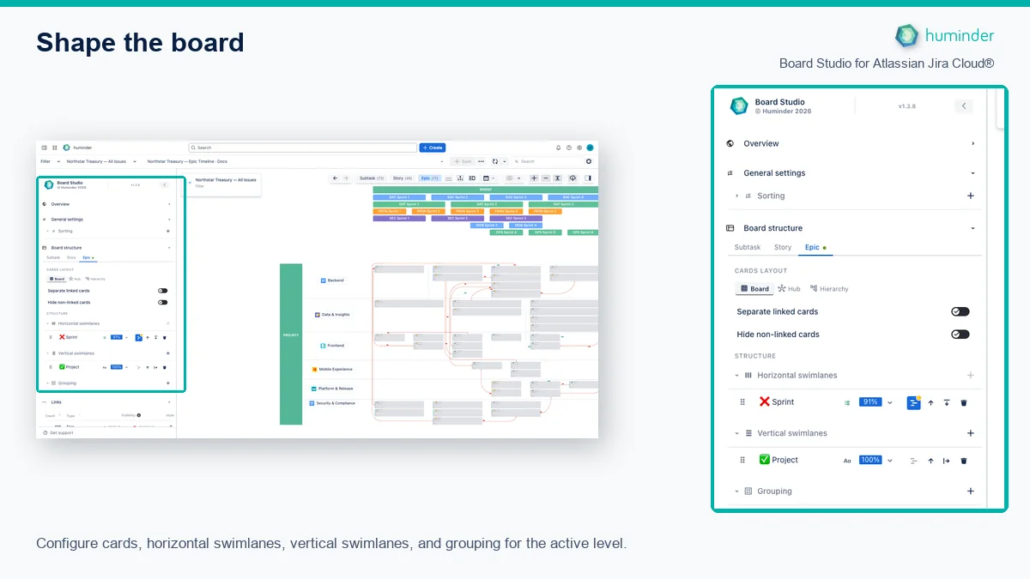
Configure cards, horizontal swimlanes, vertical swimlanes, and grouping for the active level.
💡 Tip: Start simple. Add one dimension, see the result, then layer in more. You can always remove dimensions you don’t need.
Board Structure
The Board Structure section controls the visual grid of your board. It has three subsections that each add a different type of spatial organization.
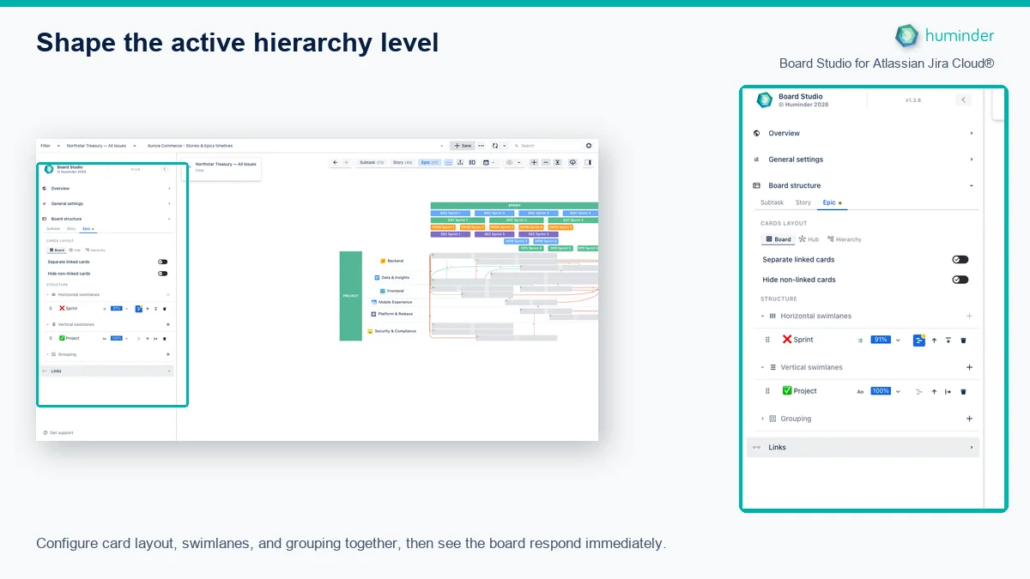
Configure card layout, swimlanes, and grouping for the active hierarchy level.
Dimension types
| Dimension type | Creates | Headers appear at | Axis | Visual result |
|---|---|---|---|---|
| Vertical Swimlanes | Horizontal bands (rows) | LEFT and RIGHT edges | Y-axis | Issues split into rows |
| Horizontal Swimlanes | Vertical bands (columns) | TOP and BOTTOM edges | X-axis | Issues split into columns |
| Grouping | Card groups within cells | Inline group headers | — | Cards stacked under collapsible headers |
📝 Note on naming: The names describe the orientation of the dividing lines, not the bands themselves. “Vertical swimlanes” draw vertical lines, creating horizontal rows. “Horizontal swimlanes” draw horizontal lines, creating vertical columns.
Visual examples
Sprint (columns) × Project (rows)
Use Horizontal Swimlanes for Sprint to create columns and Vertical Swimlanes for Project to create rows. The result is a portfolio grid that lets you compare delivery periods across projects at a glance.
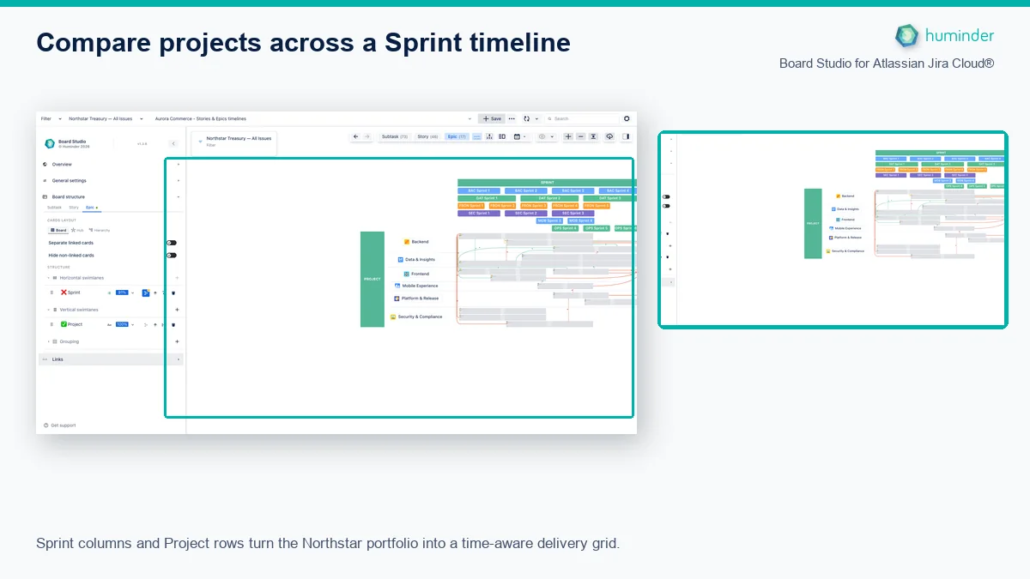
Sprint columns and Project rows reveal delivery timing across the Northstar portfolio.
Adding Priority grouping within cells
Add Priority under Grouping to organise cards beneath collapsible priority headers inside each grid cell. This makes urgent work easier to identify without changing the board’s rows or columns.
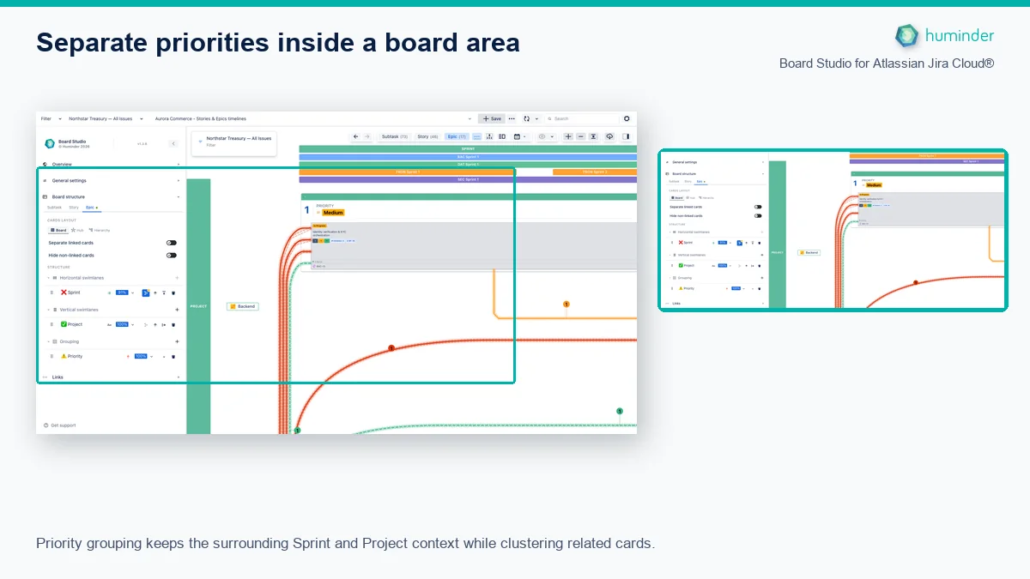
Priority grouping clusters related cards without removing their Sprint and Project context.
Nested swimlanes (Project → Status rows)
Add Project, then Status, under Vertical Swimlanes to subdivide every project row by workflow stage. This keeps project ownership visible while exposing where work is accumulating.
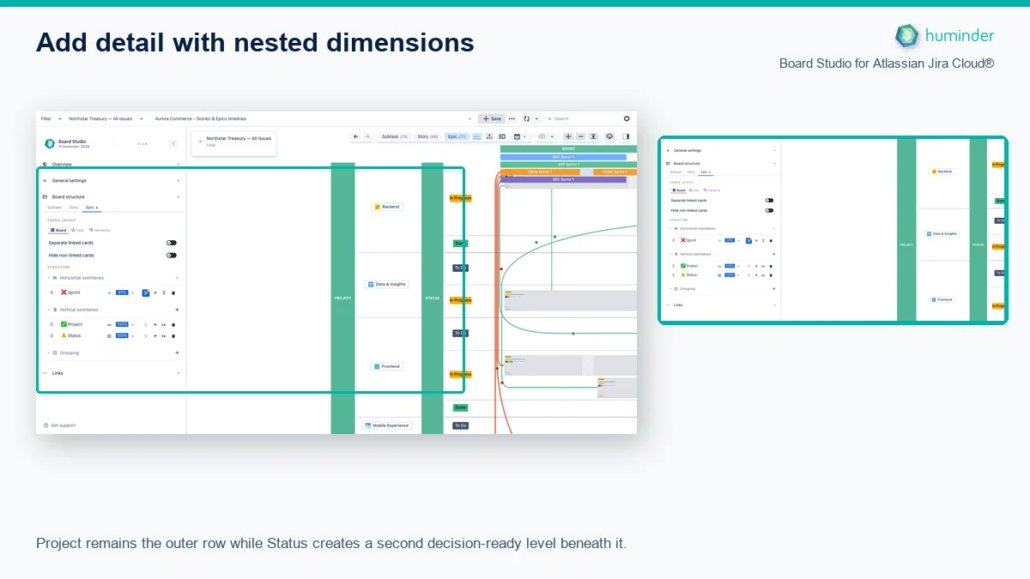
Nested dimensions keep Project as the outer row and add Status beneath it.
Dimension controls
Each dimension row combines the selected Jira field with controls for its position and ordering. The field’s icon identifies the ordering logic Board Studio detected from Jira metadata, while the percentage badge shows how many loaded work items contain a value for that field.
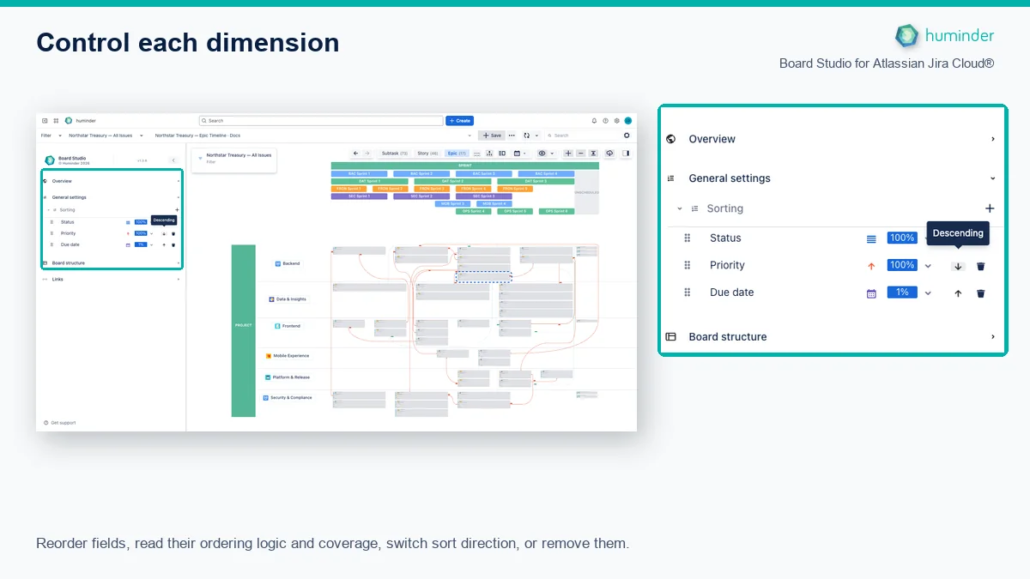
Control each configured dimension with drag ordering, field aware sort direction, coverage, and removal.
Control reference
| Control | Icon | Action | Available on |
|---|---|---|---|
| Drag handle | ⠿ (6 dots) | Reorder dimensions via drag-and-drop | All dimension types |
| Field selector | Dropdown | Choose any Jira system or custom field | All dimension types |
| Sort direction | ↑ / ↓ | Toggle ascending or descending order | Swimlanes |
| Header position | ◁ / ▷ or △ / ▽ | Toggle header position (Left/Right or Top/Bottom) | Swimlanes |
| Visibility toggle | 👁 | Show/hide specific field values | All dimension types |
| Delete | ✕ | Remove the dimension from the board | All dimension types |
The ordering icon and direction work together. For example, Status uses workflow order, Priority uses Jira priority rank (and defaults to Highest first), and Due date uses chronological order. The arrow reverses that field-aware sequence; it does not replace it with alphabetical sorting.
Adding a dimension
- Expand the subsection (Vertical Swimlanes, Horizontal Swimlanes, or Grouping).
- Click Add Dimension at the bottom of the subsection.
- Select a Jira field from the dropdown.
- The board updates immediately with the new dimension applied.
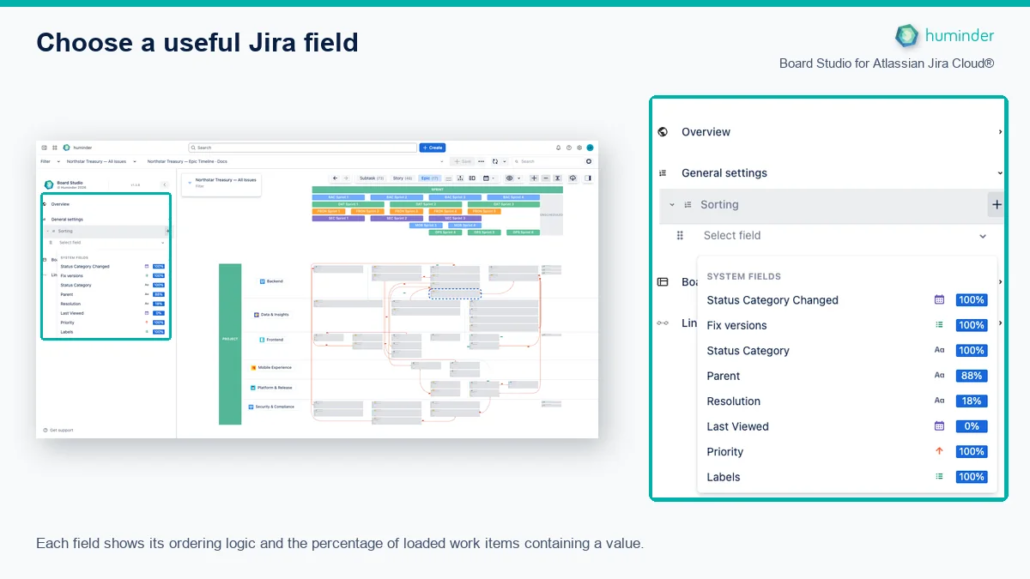
Choose a Jira system or custom field using its ordering type and coverage in the loaded work items.
The selector separates System fields from Custom fields. Every row includes:
- the Jira field name;
- an ordering icon such as Workflow, Priority, Date, Numeric, Options, or Alphabetical;
- a coverage percentage showing the share of loaded work items with a value.
Prefer fields with meaningful coverage for the current data source. A low percentage is valid, but it creates a large empty or unscheduled bucket.
Reordering dimensions
When multiple dimensions exist in the same subsection, their order determines the nesting hierarchy:
- Grab the drag handle (⠿) on the left of the dimension row.
- Drag to the desired position.
- Drop — the board re-layouts to reflect the new hierarchy.
💡 Tip: The first dimension in a swimlane list is the outermost level. Drag the most important grouping to the top.
Removing a dimension
- Click the delete button (✕) on the right of the dimension row.
- The dimension is removed and the board updates immediately.
Field discovery
The fields available in dimension selectors depend on the loaded data:
| Field category | Availability |
|---|---|
| System fields (Status, Priority, Sprint, Assignee, etc.) | Always available |
| Custom fields (Story Points, Team, RACI Role, etc.) | Discovered from loaded issues |
| Multi-project fields | Union of all fields across loaded projects |
📝 Note: If a custom field doesn’t appear in the dropdown, ensure the issues using that field are loaded via your data source. Fields are discovered dynamically — they appear once Board Studio sees at least one issue containing them.
Business Logic Detection
Board Studio automatically detects the semantic meaning of each field and applies intelligent sort defaults. A small icon appears next to each dimension to indicate the detected ordering type.
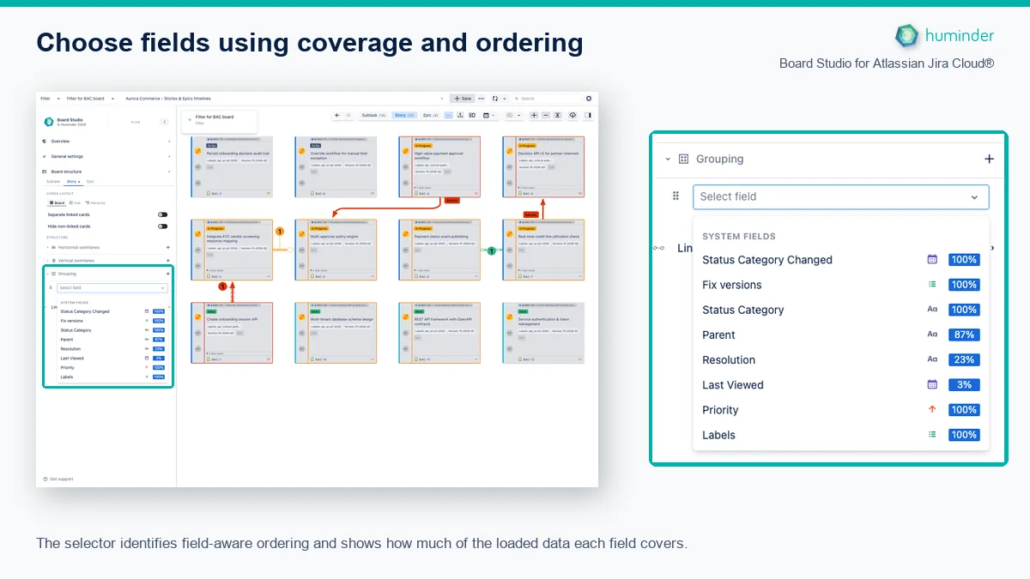
Choose fields using their Jira-aware ordering type and loaded-data coverage.
Ordering type reference
| Icon | Ordering type | Fields | Default behavior |
|---|---|---|---|
| ⚙️ | Workflow | Status | Follows workflow sequence: To Do → In Progress → Done |
| ⬆️ | Priority | Priority | Ranked by importance: Highest → Lowest |
| 📅 | Chronological | Date, Created, Updated, Due Date, Sprint | Ordered by time |
| 📊 | Numerical | Story Points, Number fields | Ordered by numeric value |
| 🔤 | Alphabetical | Text, User, Project | Locale-aware A → Z sorting |
| ••• | Option-based | Select lists, Radio buttons, Checkboxes | Follows Jira admin option order |
How detection works
- When you add a field as a dimension, Board Studio analyzes its Jira schema metadata.
- The system classifies the field into one of the ordering types above.
- An appropriate default sort direction is set automatically (e.g., Priority defaults to descending for “Highest first”).
- The icon is displayed on the dimension row.
You can always override the default direction using the sort direction toggle (↑/↓).
💡 Tip: For custom select fields (like “Environment” or “RACI Role”), Board Studio uses the option order defined in Jira administration — not alphabetical order. This means the sort will match the sequence your Jira admin configured.
Live preview
Every configuration change triggers an immediate visual update on the board.
| Aspect | Detail |
|---|---|
| Animation duration | Smooth morphing transition (typically 800ms for full layout changes, 500ms for incremental updates) |
| What animates | Cards flow to new positions, headers appear/disappear, groups expand/collapse |
| No reload required | All updates happen in-place without page refresh |
| Undo-friendly | Change your mind? Modify or remove the dimension — the board morphs back |
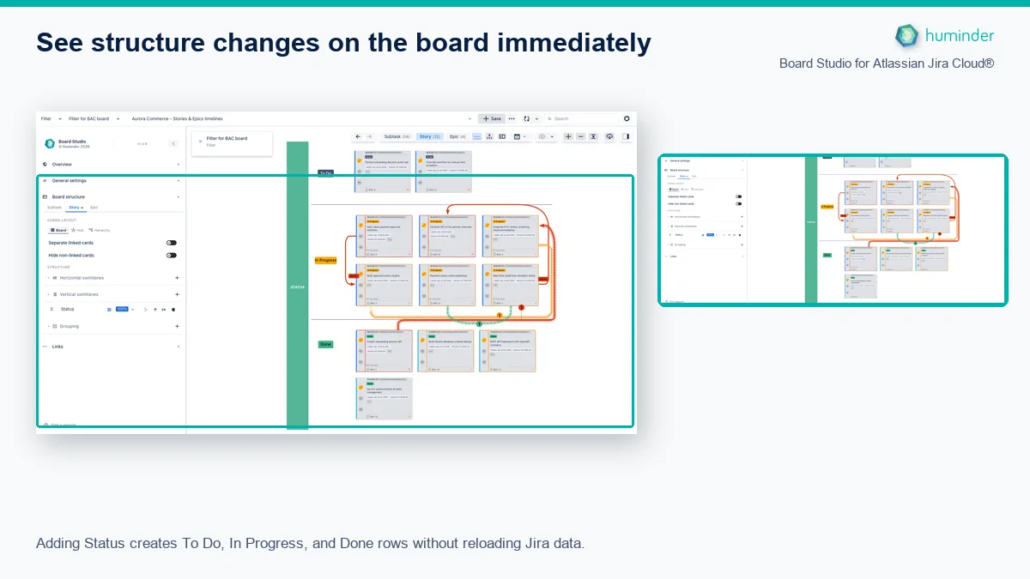
Adding Status creates decision-ready rows without reloading Jira data.
📝 Note: During layout animations, the data source selector and Update button are temporarily disabled to prevent conflicting operations.
Unlimited nesting
Swimlane subsections support unlimited nesting of dimensions. Each added dimension creates a deeper level of board structure.
| Nesting level | Example (Vertical Swimlanes) | Result |
|---|---|---|
| 1 dimension | Project | One row per project |
| 2 dimensions | Project → Assignee | Rows subdivided by assignee within each project |
| 3 dimensions | Project → Assignee → Priority | Further subdivided by priority within each assignee |
The header area expands to accommodate multi-level nesting with indented labels.
⚠️ Warning: While there’s no hard limit, deeply nested layouts (4+ dimensions) can become visually dense. Two to three dimensions per axis typically provides the best balance of structure and readability.
Separate linked cards
Use Separate linked cards in Board Structure to distinguish dependency chains from standalone work at the active hierarchy level.
With the option disabled, linked and standalone cards share the same grid area. This compact view works well when you want to scan all work together.
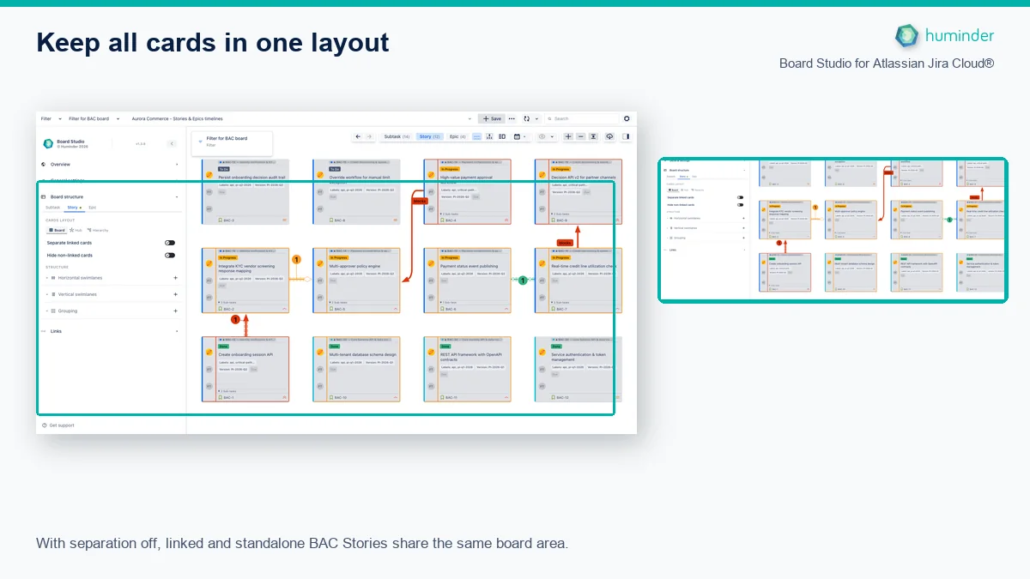
With separation off, linked and standalone BAC Stories share the same board area.
Enable the option to place dependency chains in a dedicated zone above the standalone cards. Connections become easier to trace without losing the surrounding work context.
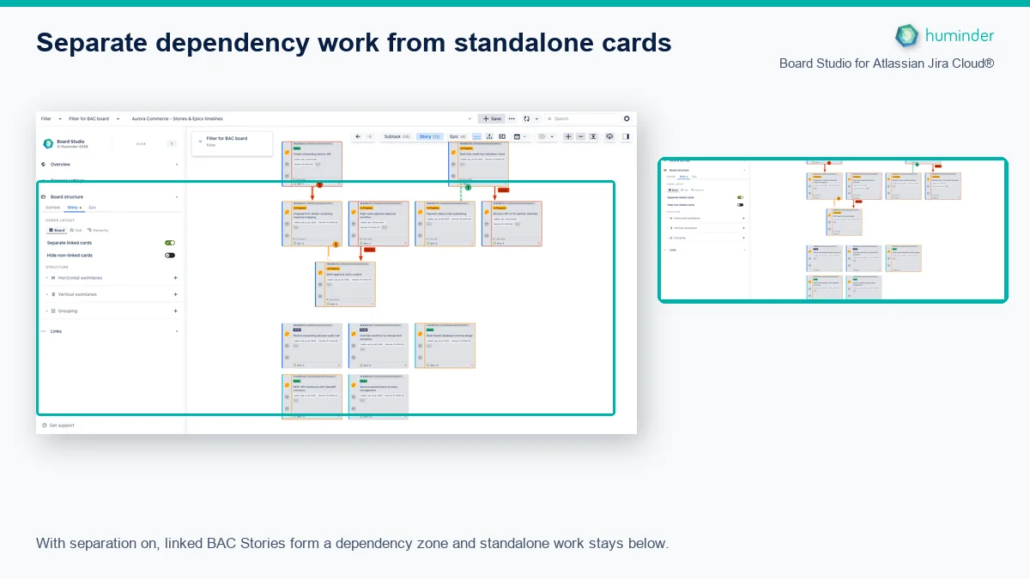
With separation on, dependency work forms its own zone above standalone cards.
| State | Effect |
|---|---|
| Enabled | Linked cards appear in a dedicated dependency zone above standalone work |
| Disabled (default) | Linked and standalone cards appear together in the same grid area |
📝 Note: Board Structure settings apply to the hierarchy level currently selected in the toolbar. Configure each level independently when you want different layouts for Stories, Epics, or higher-level work.
General Settings
Use Sorting in General Settings to control the order of cards within each swimlane cell. Add several fields when you need a predictable sequence for planning or review.
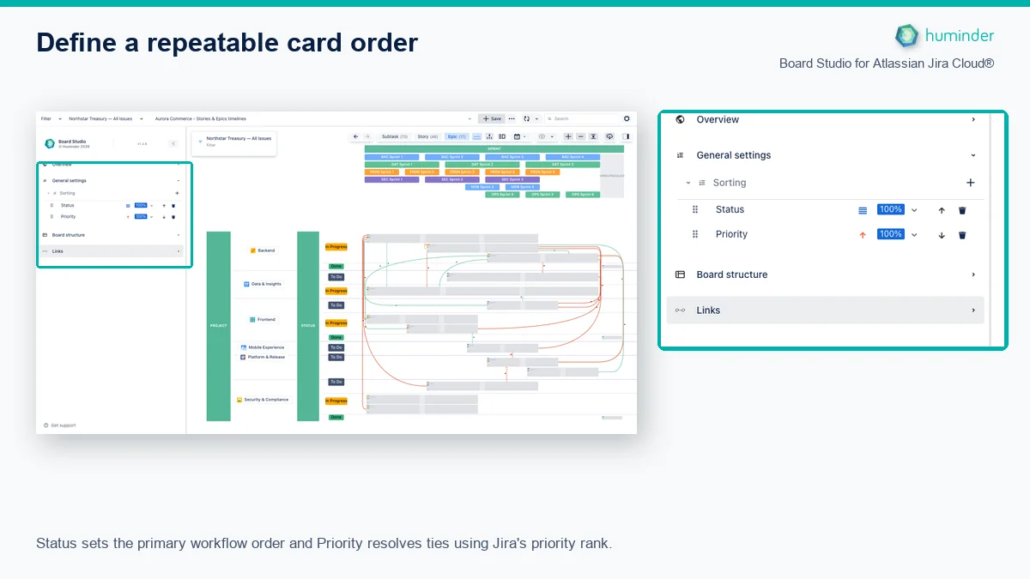
Use Status as the primary order and Priority to resolve ties.
How multi-field sorting works
Cards are sorted by multiple fields in priority order:
| Sort rank | Field | Direction | Meaning |
|---|---|---|---|
| Primary | Status | ↑ Ascending | To Do → In Progress → Done |
| Secondary | Priority | ↓ Descending | Highest → Lowest |
| Tertiary | Assignee | ↑ Ascending | Alice → Bob → Carol |
Ties in the primary field are broken by the secondary field, then the tertiary, and so on.
Sort controls
Each sort dimension has the same controls as Board Structure dimensions:
| Control | Action |
|---|---|
| Drag handle (⠿) | Reorder sort priority |
| Field selector | Choose the Jira field to sort by |
| Direction toggle (↑/↓) | Switch ascending / descending |
| Delete (✕) | Remove this sort field |
| Add Dimension | Add another sort field at the bottom |
Direction toggle behavior
| Direction | Icon | Meaning |
|---|---|---|
| Ascending | ↑ | A→Z, 1→9, To Do→Done, Low→High, oldest→newest |
| Descending | ↓ | Z→A, 9→1, Done→To Do, High→Low, newest→oldest |
📝 Note: Priority uses inverted semantics — “Highest” priority has the lowest internal rank in Jira. Board Studio handles this automatically, so ↑ on Priority means Low→High and ↓ means High→Low, matching user expectations.
Empty state
When no sort dimensions are configured, cards follow their default Jira order within each cell. The subsection displays:
- “No sorting configured”
- “Click ‘Add Dimension’ to define sort order”
Configuration workflow summary
Here’s the recommended workflow for setting up a board from scratch:
| Step | Action | Section |
|---|---|---|
| 1 | Select a data source (Space or Filter); its issues load automatically | Header bar |
| 2 | Click Expand sidebar | Header bar |
| 3 | Add a Horizontal Swimlane (e.g., Sprint) for columns | Board Structure |
| 4 | Add a Vertical Swimlane (e.g., Project) for rows | Board Structure |
| 5 | Optionally add Grouping (e.g., Priority) | Board Structure |
| 6 | Adjust dimension order and sort direction as needed | Board Structure |
| 7 | Toggle Separate linked cards when you want a dedicated dependency zone | Board Structure |
| 8 | Configure card Sorting | General Settings |
| 9 | Save the configuration for reuse | Header bar |
💡 Tip: Board Studio saves configurations so you can switch between different board layouts instantly. Create a “Sprint Planning” config and a “Portfolio Overview” config for the same data source.
Next steps
- Data Sources — Learn how to select and manage the data powering your board
- Features — Explore dependency visualization, focus mode, semantic zoom, timeline, and more