
Overview
Board Studio turns Jira issue links into an interactive Jira dependency graph with adaptive routing. Visualise dependencies across projects on one spatial map, so blockers, direction and delivery risk are easier to trace.
Unlike native Jira boards (which show no dependency lines at all) or Advanced Roadmaps (which draws limited lines on a timeline), Board Studio gives you full spatial dependency visualisation across your entire program board.
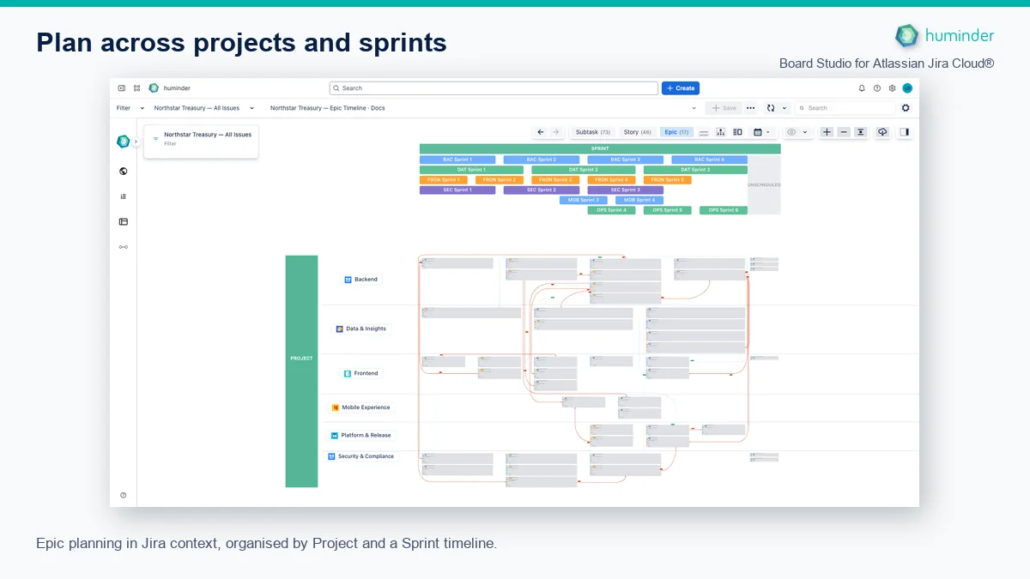
Epic planning in Jira context, organised by Project and a Sprint timeline.
Visualise Dependencies Without Spaghetti
Traditional dependency visualizations quickly become unreadable as the number of links grows. Board Studio solves this with adaptive edge routing: edges route cleanly around cards, never through them.
The layout engine automatically adapts spacing between cards based on edge density, giving edges more room to route where the board is most connected.
| Feature | Board Studio | Native Jira Board | Advanced Roadmaps |
|---|---|---|---|
| Dependency lines | ✅ Full graph edges | ❌ None | ⚠️ Limited (timeline only) |
| Edge routing | ✅ Around cards & headers | — | ❌ Straight lines |
| Routing styles | ✅ Orthogonal, octilinear, curved | — | ❌ None |
| Cross-project links | ✅ Yes | ❌ No | ⚠️ Partial |
Supported Dependency Types
Board Studio supports all Jira link types, including custom ones:
| Link Type | Outward | Inward |
|---|---|---|
| Blocks | blocks | is blocked by |
| Clones | clones | is cloned by |
| Duplicates | duplicates | is duplicated by |
| Relates | relates to | relates to |
| Causes | causes | is caused by |
| Child/Parent | is child of | is parent of |
| Custom types | ✅ Fully supported | ✅ Fully supported |
Any link type that exists in your Jira instance — including those added by apps or custom configurations — is automatically discovered and rendered.
Per-Link-Type Visual Styling
Each link type and each direction (outward / inward) can have its own independent visual style. Configure these properties per link type:
For step-by-step controls, see how to configure Jira dependency links, including visibility, direction, styling, and roll-ups.
| Property | Options |
|---|---|
| Color | Theme-aware design token palette |
| Thickness | 1–6 px (step 1) |
| Arrow size | 0.5–3.0× (step 0.1) |
| Line style | Solid, dash, dot |
| Arrow type | Triangle, circle, circle-filled, diamond, none |
| Routing style | Orthogonal, octilinear, curved |
Example: Style “Blocks” edges as thick red solid lines with standard arrows, while “Relates” edges appear as thin gray dashed lines — making critical blockers instantly visible on the board.
Focus Mode Integration
When you select a card, Board Studio enters focus mode: the selected card and all its directly connected cards stay fully visible, while everything else fades to ~50% opacity. Dependency paths become prominent and easy to follow.
This lets you trace a blocker chain across teams in seconds. See the Focus Mode feature page for full details.
Collapsed Group Aggregation
When you collapse a group (e.g., a team swimlane), individual cards are hidden — but their dependencies aren’t lost. Board Studio aggregates edges by link type and direction and displays them with count labels in the format “LinkTypeName (count)” on the collapsed group.
This means you can still see that “Team Alpha has 3 blocking dependencies on Team Beta” even when both teams’ cards are collapsed.
Aggregate Edges at Hierarchy Level
When viewing parent-level cards via semantic zoom, Board Studio generates synthetic aggregate edges built from child-level links between two parents. Structural links (epic-child, subtask) are excluded from aggregation.
These aggregate edges use a distinctive “triple-line” styling so you can instantly distinguish them from individual link edges. When the aggregated count exceeds 1, a label in the format “⊞ Relationship (count)” is displayed.
| View Level | Edge Display |
|---|---|
| Child level (Stories/Tasks) | Individual edges between issues |
| Parent level (Epics) | Triple-line aggregate edges labeled “⊞ Relationship (count)” |
| Any collapsed group | Aggregated edges labeled “LinkTypeName (count)” |
Cross-Project Dependencies
Board Studio loads issues from multiple projects simultaneously. Dependencies that span project boundaries are rendered on the same board — no switching between projects or boards to trace a cross-team link.
The Overview section in the configuration panel shows a count of “linked work items outside” — the number of dependency links pointing to issues outside your current dataset. This gives you immediate visibility into external dependencies you may need to investigate.
Note: Cross-project dependencies appear automatically whenever your data source (filter, board, or project list) includes issues from multiple projects.
Interactive Edges
Dependency edges are not just visual — they are interactive:
- Click on an edge to select it — the edge and its connected cards enter focus mode while the rest of the board fades
- Aggregate edge labels display tooltips on hover (400 ms delay, 8 s duration) showing the rolled-up link details
- Edges participate in layout morphing: when you change the board structure (add a swimlane, reorder dimensions), edges re-route with a smooth animation
Layout Morphing
Every structural change to the board — adding a dimension, changing grouping, entering or exiting focus mode — triggers a smooth morphing animation. Full layout changes typically animate over 800 ms, while incremental updates (e.g., a single card move) complete in 500 ms. Cards glide to their new positions, and edges re-route elegantly along the way.
This animation is not cosmetic. It preserves spatial context: your eye can follow a card as it moves, keeping you oriented even during major layout changes.
Summary
| Capability | Details |
|---|---|
| Edge routing | Adaptive, around cards & headers (orthogonal / octilinear / curved) |
| Link types | All Jira types including custom |
| Styling | Per link type + direction: color, thickness, arrow size, line style, arrow type, routing |
| Focus mode | Highlight selected card or edge’s dependency chain |
| Group aggregation | Collapsed groups show “LinkTypeName (count)” labels |
| Hierarchy aggregation | Triple-line edges labeled “⊞ Relationship (count)”, structural links excluded |
| Cross-project | Full support, external link count in Overview |
| Interactivity | Click to select (focus mode); aggregate label tooltips on hover |
| Animation | Layout morphing (800 ms full / 500 ms incremental) |