
Last updated: April 2026
Overview
Board Studio keeps your board synchronized with live Jira data. When issues change in Jira — new assignments, status transitions, link updates, sprint moves — you can refresh manually with a single click or enable Auto Update to let the board poll for changes every 30 seconds.
No stale data. No manual rebuilds. Your board always reflects the current state of your work.
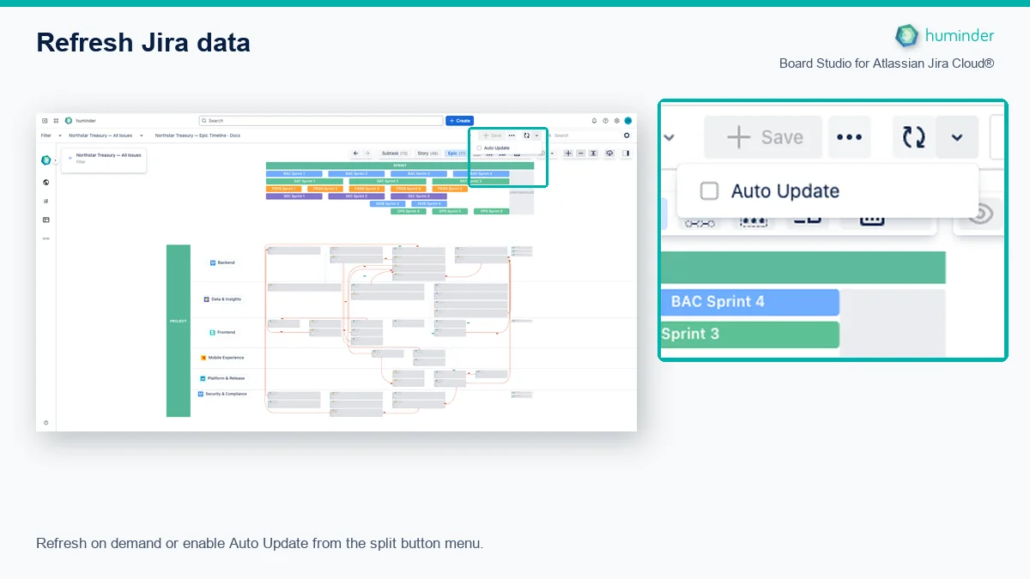
Refresh on demand or enable Auto Update from the split button menu.
How to Update
The Update Button
The Update button is located in the board’s header bar. It’s a split button with two interaction modes:
| Action | Behavior |
|---|---|
| Click the button | Refreshes all issue data from Jira immediately |
| Click the dropdown arrow | Opens a dropdown containing the Auto Update checkbox |
What Happens During an Update
- A loading indicator appears while data is being fetched from Jira
- New issue data is loaded through authenticated app services
- The board automatically re-renders with the updated data
- Cards animate to their new positions with a smooth morphing transition (800ms for full layout, 500ms for incremental updates)
- The Overview section statistics update to reflect the new data
💡 Tip: Click Update after making changes in Jira (status transitions, reassignments, new issues) to see them reflected on the board immediately.
What Gets Updated
Every update fetches a comprehensive snapshot of your issue data:
| Data Category | What’s Refreshed |
|---|---|
| Issue fields | Status, priority, assignee, summary, labels, components, and all custom fields |
| Issue links | New dependencies, removed links, changed link types |
| Sprint assignments | Issues moved between sprints, new sprint associations |
| Numeric fields | Story points, time estimates, custom number fields |
| New issues | Issues recently created that match your filter or space criteria |
| Removed issues | Issues that no longer match the data source (deleted, moved, or filtered out) |
Real-Time Sync Behavior
Board Studio supports two complementary refresh modes — manual and automatic:
| Aspect | Manual Refresh | Auto Update |
|---|---|---|
| Trigger | User clicks the Update button | Automatic polling every 30 seconds |
| Activation | Always available | Enable via the dropdown checkbox |
| Data source | Live Jira data through authenticated app services | Live Jira data through authenticated app services |
| Loading feedback | Visual indicator during data fetch | Visual indicator during data fetch |
| Statistics | Overview section updates after each refresh | Overview section updates after each refresh |
Auto Update: Change Detection
How Auto Update detects changes depends on your data source type:
| Data Source | Detection Strategy |
|---|---|
| Project (Space) | Checks issue change timestamps and link change timestamps. The board reloads only if either timestamp has changed since the last poll. |
| Filter | Reloads the filter data on every polling cycle (no change detection — filters are re-evaluated each time). |
Choosing the Right Mode
- Manual refresh gives you full control — the board never changes unexpectedly while you’re presenting or reviewing. Ideal for demos, standups, and planning sessions.
- Auto Update keeps the board continuously up to date with minimal effort. Ideal for monitoring dashboards or collaborative sessions where multiple people are updating Jira in real time.
📌 Note: Your board structure and styling settings are automatically preserved across updates. Only card data changes — your swimlane configuration, link styles, grouping, and all other settings remain exactly as you configured them.
Event-Driven Architecture
Under the hood, an update loads current data from Jira, invalidates stale cached data, refreshes the affected components, and then morphs the layout into its new state. This event-driven sequence keeps card content, link routing, and swimlane grouping consistent.
Performance
Board Studio is optimized to make updates fast and visually smooth, even on large boards:
| Optimization | How It Works |
|---|---|
| Incremental graph updates | Only changed nodes are modified — the entire graph is not rebuilt from scratch |
| Layout morphing | Cards animate to their new positions (800ms for full layout, 500ms for incremental updates) rather than jumping instantly, preserving spatial context |
| Avatar caching | Avatars don’t re-fetch unless the 30-minute cache has expired, avoiding redundant API calls |
| Selective re-render | Components only re-render when their specific data has changed |
💡 Tip: Large datasets (500+ issues) may take a few seconds to refresh. The loading indicator keeps you informed of progress.
Tips & Best Practices
| Tip | Details |
|---|---|
| Update after Jira changes | Click Update after making status transitions, reassignments, or creating new issues in Jira — or enable Auto Update to pick up changes automatically |
| Safe during presentations | Disable Auto Update during demos and standups so the board only changes when you click Update |
| Board structure is preserved | Swimlanes, link styles, grouping, and sorting are never affected by updates — only card data changes |
| Large datasets | Boards with many issues may take a few seconds to refresh — the morphing animation confirms when the update is complete |
| Configuration auto-save | Your board configuration is saved independently from issue data — updates never reset your settings |