
Board Studio connects to your Jira data through data sources — the starting point for every board. Choose what work items to visualize, and Board Studio handles the rest.
Overview
A data source defines which Jira issues appear on your board. Board Studio supports two types:
| Data source type | What it pulls | Best for |
|---|---|---|
| Space (Project) | All issues from a single Jira project | Team-level boards focused on one project |
| Filter (Saved filter) | Issues matching a JQL query | Cross-project planning, portfolio views, custom scopes |
💡 Tip: Start with a Space for quick setup. Move to Filters when you need cross-project visibility or tighter scope control.
Selecting a data source
Data source selection happens in the header bar at the top of the app, using two dropdown selectors side by side.
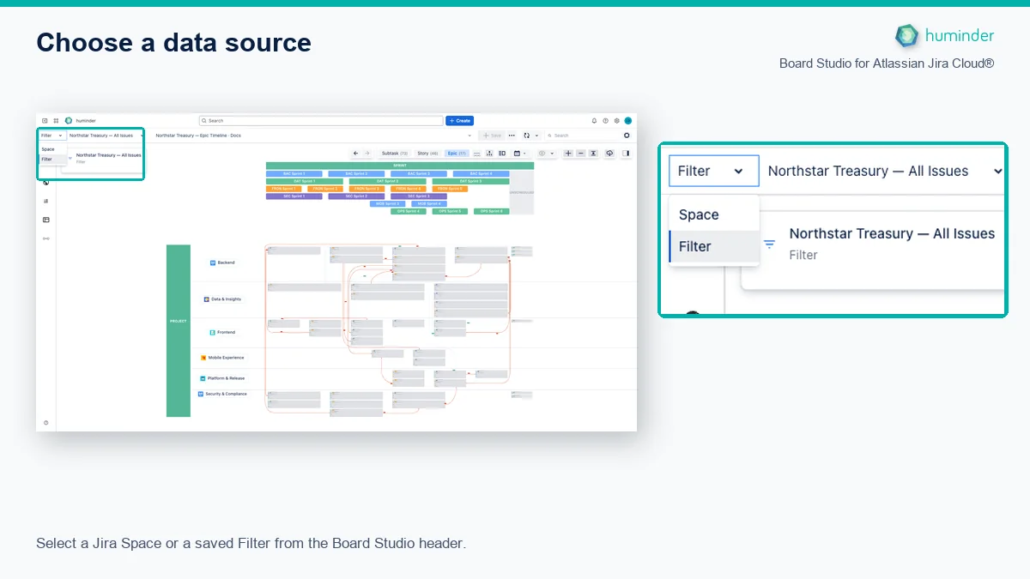
Select a Jira Space or a saved Filter from the Board Studio header.
Step 1 — Choose the data source type
- Click the type selector dropdown on the left side of the header bar.
- Select either Space or Filter.
The type selector is disabled while issues are loading or a layout is in progress to prevent conflicting operations.
Step 2 — Choose a specific data source
- Click the data source selector dropdown (to the right of the type selector).
- Browse the list or type to search — the dropdown filters results as you type.
- Click the desired project or filter to select it.
- Issues load automatically — no additional action is needed.
📝 Note: The data source selector adapts its placeholder text based on the selected type — showing “Select a space…” or “Select a filter…” accordingly.
Working with Spaces
When Space is selected, the dropdown lists all Jira projects you have access to.
| Feature | Behavior |
|---|---|
| List contents | All Jira projects visible to the current user |
| Search | Type to filter by project name |
| Project avatars | Each project shows its Jira avatar icon |
| Scope | All issues within the selected project |
What gets loaded
Selecting a Space loads all issues from that Jira project, respecting the project’s issue hierarchy:
- Epics (and higher-level items)
- Stories, Tasks, Bugs
- Sub-tasks
Working with Filters
When Filter is selected, the dropdown lists your saved Jira filters, organized into two groups.
Filter list organization
| Group | Icon | Contents |
|---|---|---|
| Favorites | ⭐ Star | Filters you’ve starred in Jira |
| Other Filters | — | Your remaining saved filters |
Favorite filters appear first for quick access. The star indicator (⭐) matches your Jira favorites — star or un-star filters in Jira to control what appears in the Favorites group.
Cross-project data
Filters unlock Board Studio’s most powerful capability: cross-project visualization.
A single JQL filter can pull work items from multiple Jira projects onto one board. For example:
project IN (FRON, BAC, MOB) AND sprint IN openSprints()This creates a unified view across Frontend, Backend, and Mobile teams — showing all their active sprint work and the dependencies between them.
💡 Tip: Use Jira’s filter subscription feature to share filters with your team. Everyone can then use the same filter as a Board Studio data source for a consistent view.
Loading issue data
When you select a data source, Board Studio automatically loads the matching issues — there is no separate “load” step.
How it works
- You select a data source (Space or Filter).
- Board Studio sends an authenticated request to Jira.
- Issues matching the data source are fetched with all their fields and links.
- The board populates with the loaded data.
- Dependency links between issues are resolved and displayed.
Refreshing data with the Update button
The Update button in the header bar lets you manually refresh the issue data already on the board. Use it when the underlying Jira data has changed and you want to pull the latest state.
| Scenario | When to use Update |
|---|---|
| Issues changed in Jira | Someone updated a status, priority, or assignee |
| New issues created | Issues were added to the project or filter scope since the board loaded |
| Links modified | Dependencies were added or removed in Jira |
| Sprint changes | Items were moved between sprints |
💡 Tip: Enable the Auto Update checkbox next to the Update button to have Board Studio automatically poll for changes every 30 seconds. See Auto Update for details.
Space vs. Filter comparison
| Criteria | Space (Project) | Filter (Saved JQL) |
|---|---|---|
| Scope | Single Jira project | Any JQL query — single or multi-project |
| Setup complexity | One click — select a project | Requires a saved Jira filter with JQL |
| Cross-project | ✗ Single project only | ✓ Combine issues from multiple projects |
| Issue control | All issues in the project | Fine-grained JQL-based scoping |
| Best for | Team boards, project-level views | Program boards, portfolio views, PI planning |
| Dependency visibility | Dependencies within the project | Dependencies across all included projects |
| Filter maintenance | None — always current | JQL filter must be maintained in Jira |
Performance recommendations
Board Studio handles large datasets, but performance varies with the number of issues loaded.
| Issue count | Expected performance | Recommendation |
|---|---|---|
| < 500 | ⚡ Instant | Optimal range for most boards |
| 500 – 2,000 | 🚀 Fast | Works well; consider scoping with filters for focused views |
| 2,000+ | ⏳ Slower initial load | Use JQL filters to scope data; avoid loading entire large projects |
Tips for large datasets
- Use filters to scope: Instead of loading an entire project, create a JQL filter targeting specific sprints, components, or labels.
- Focus on active work:
sprint IN openSprints()limits data to current and upcoming sprints. - Leverage components:
component = "Platform"narrows to a specific team’s work. - Combine criteria:
project IN (FRON, BAC) AND sprint IN openSprints() AND statusCategory != Donegives you active cross-project work without closed items.
⚠️ Important: Performance is primarily affected by the number of issues loaded, not the number of projects. A filter pulling 200 issues from 5 projects is faster than loading a single project with 3,000 issues.
Jira permissions
Board Studio respects Jira’s permission model at every level.
| Permission aspect | Behavior |
|---|---|
| Project visibility | Only projects you can access appear in the Space list |
| Filter visibility | Only filters you own or have been shared with you appear |
| Issue-level security | Issues you cannot view in Jira are excluded from the board |
| Field-level security | Restricted fields are not displayed on cards |
Every Jira request is made on behalf of the logged-in user and respects their exact Jira permissions. No admin credentials are used, and no data is accessible beyond what the user can see in Jira itself.
📝 Note: If issues seem to be missing from your board, check your Jira permissions first. Board Studio cannot show issues that Jira restricts from your account.
Next steps
Once your data source is selected:
- Board Configuration — Organize your board with swimlanes, grouping, and sorting
- Features — Explore dependency visualization, focus mode, semantic zoom, and more