
Overview
A large program board can hold hundreds of cards across many teams. Focus Mode narrows the view to a set of cards and their dependency connections, so you can follow one thread at a time.
How to turn it on
Select one or more cards or edges, click the Focus button in the toolbar, and Board Studio reshapes the view to show the elements you selected, their linked neighbours, and the edges between them.
- Select one or more cards or dependency edges on the board.
- Click the Focus button in the toolbar.
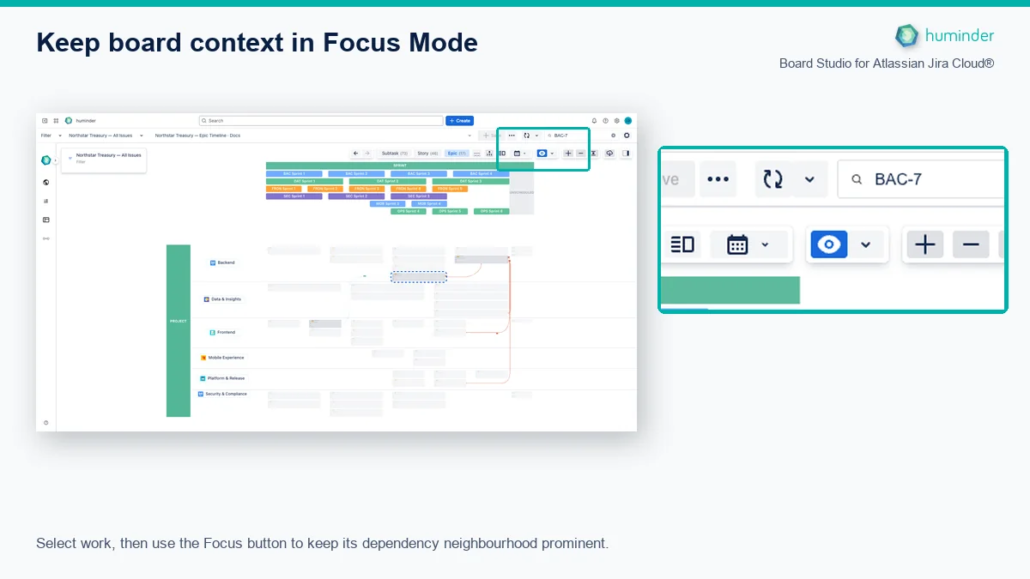
Select work, then use the Focus button to keep its dependency neighbourhood prominent.
Ways to select
| Action | Result |
|---|---|
| Click a card or edge | Select that element. |
| Ctrl/Cmd + click | Add or remove an element from the selection. |
| Marquee (drag on empty canvas) | Select every card and edge inside the rectangle. |
Display behaviour: Hide or Dim
Focus Mode has two display behaviours. Both use the same scope, which is your selection plus a number of hops. They differ only in how they treat everything outside that scope. You choose between them in the Focus options dropdown next to the Focus button, and your choice is saved per user.
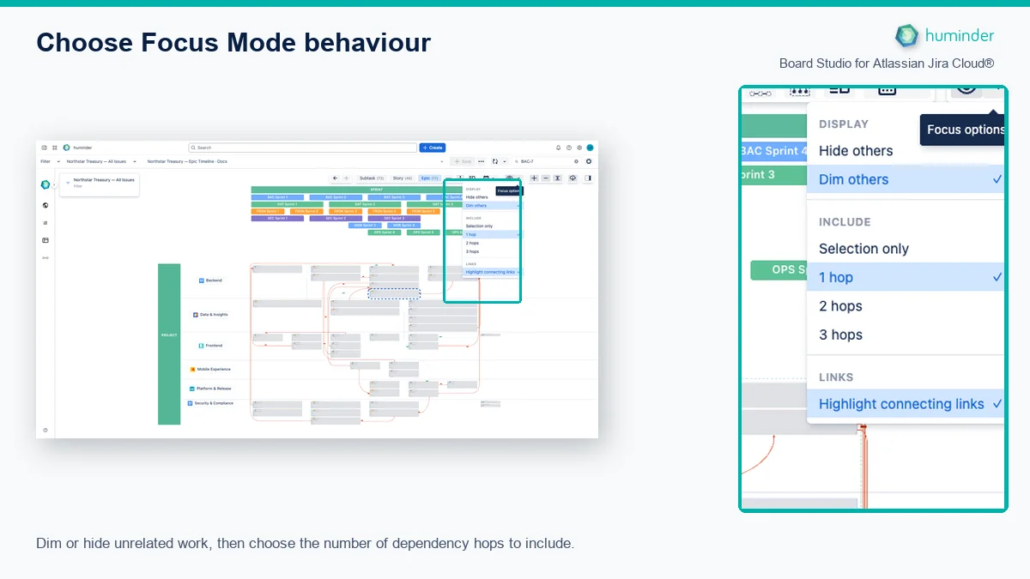
Dim or hide unrelated work, then choose the number of dependency hops to include.
| Behaviour | What it does |
|---|---|
| Hide others (default) | Removes every card, edge, and band that is not in focus, shrinks the board structure to the rows and columns that remain, and runs a layout transition. |
| Dim others | Keeps the whole board and its layout in place, and dims everything outside the focused set. Nothing is removed and the layout does not move. |
Use Hide to isolate a chain and reclaim screen space. Use Dim to keep the surrounding board for context, for example when presenting.
Highlight connecting links
In Dim mode, a Highlight connecting links toggle controls the edges that touch a focused card when the card on the other end is dimmed.
- On (default): every edge attached to a focused card stays bright, even when the card it points to is dimmed. This shows what the selection connects to.
- Off: only edges between two focused cards stay bright.
The toggle is shown in Dim mode only. In Hide mode the far cards are removed, so there is nothing to connect to.
How much to include: depth
The Focus options dropdown also sets how far Focus reaches out from your selection. The depth is saved per user.
| Setting | Result |
|---|---|
| Selection only (default) | Just the selected cards and the edges between them. |
| 1 hop | The selection plus its directly connected cards. |
| 2 hops or 3 hops | The selection plus cards two or three steps away. |
For wider downstream analysis, use Impact analysis in the Inspector, which reaches further.
How to turn it off
| Action | Result |
|---|---|
| Click the Focus button again | Leave Focus Mode. |
| Press Escape | Leave Focus Mode. |
Clicking empty canvas does not leave Focus Mode. When you leave, the full board structure returns, every card and edge reappears, and the layout transitions back.
What stays visible
Focus Mode keeps the visual detail on the cards that remain. Card badges such as story points and flags, status and priority icons, and the headers and separators for the relevant bands all stay in place. In Hide mode the unfocused cards and edges are removed; in Dim mode they are dimmed instead.
Use cases
Trace a blocker across teams
A story is blocked. Select it and its blocking edge, then click Focus to see the chain, even when the blocking issue belongs to another team in another swimlane. Follow it to the root cause without scrolling the whole board.
See what depends on a feature
Select a feature card and turn on Focus to see everything that depends on it. This answers the question of what else is affected if the feature slips, which is useful during PI planning.
Present during a standup or review
Select the items under discussion and click Focus. The board filters and zooms to the relevant context. Dim mode is a good fit here, since it keeps the rest of the board on screen for reference.
Works with any board structure
Focus Mode adapts to the structure you have configured.
| Structure | Behaviour |
|---|---|
| Swimlanes (horizontal or vertical) | Keeps only the relevant bands in Hide mode. |
| Grouping (by epic, team, and so on) | Keeps group boundaries for focused cards. |
| Nested dimensions | Multi-level headers adjust to the focused content. |
| Collapsed groups | A collapsed group expands when it holds a focused card. |
| Semantic zoom levels | Works at any hierarchy level. |
Your Focus settings are saved with your navigation history, so stepping Back and Forward across levels restores the display behaviour and depth you had at each step.
Related
- Inspector: inspect a card or link, then put it in focus. Impact analysis reaches further than Focus depth.
- Semantic Zoom: Focus works at every hierarchy level.
- Dependency Roll-ups: focus a rolled-up edge to see both ends.