
Use the Inspector to find work that needs attention, understand a selection, and act on dependency evidence without leaving the board.
What you can do with the Inspector
The Inspector is a rail on the right side of the board. It has two working views:
| View | Use it to |
|---|---|
| Board attention | Find unresolved work with traceable warning signals, understand why it is ranked, and follow its causal trail. This view does not require a selection. |
| Selection | Inspect the cards or links selected on the board, assess risk, analyse impact, and continue in Jira when needed. |
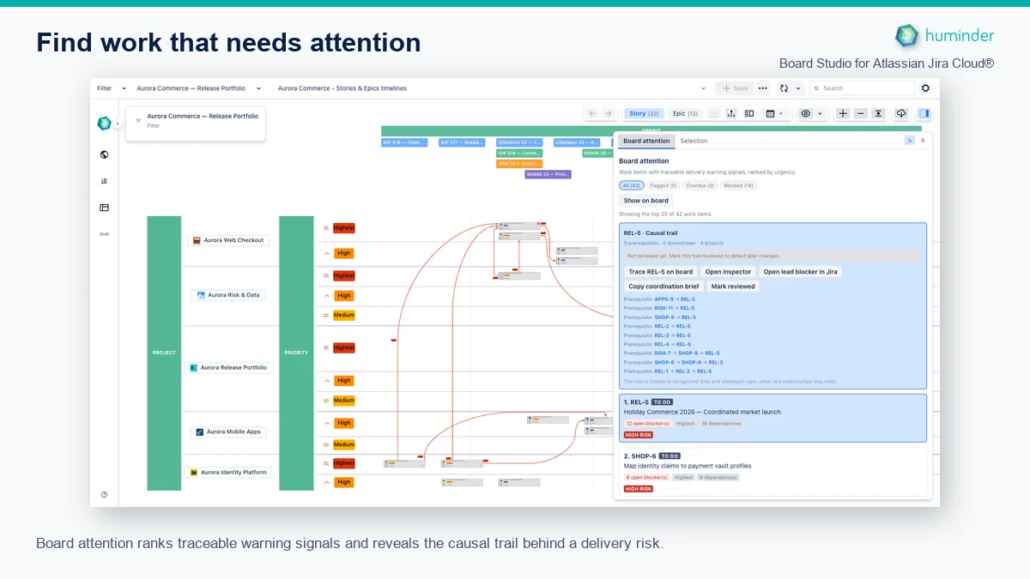
Board attention ranks warning signals and exposes the causal trail behind the selected delivery risk.
Tip: Expand the Inspector to its full width when you need to read AI guidance, compare several selected items, or review a long dependency path.
Open, widen, or hide the Inspector
To open the Inspector, select Show inspector in the board toolbar or press Ctrl+I on Windows or Cmd+I on Mac.
When the Inspector is open:
- Select the diagonal arrow in the Inspector header to expand the rail to its full width.
- Select the opposite diagonal arrow to return to the compact width.
- Select ×, or use the keyboard shortcut again, to hide the rail.
Hiding the Inspector does not clear the board selection, pins, or section state. The same sections remain open or closed when you return to that hierarchy level.
Triage the board before selecting work
Open Board attention to start with the work most likely to need a decision. Board Studio ranks unresolved work using warning signals available in the loaded board data.
Use the filters to focus the list:
| Filter | Shows |
|---|---|
| All | Every ranked work item in the current view. |
| Flagged | Work flagged in Jira. |
| Overdue | Work whose due date has passed. |
| Blocked | Work with unresolved incoming blockers. |
The ranking can also use supporting evidence such as missing ownership, high priority, and multiple dependencies. Each candidate shows the signals that contributed to its position.
Select Show on board to highlight the filtered candidates without changing the selection.
Note: Board attention evaluates the work items and recognised dependencies loaded on the board. The coverage statement at the bottom of the view tells you what was checked. It does not claim that unloaded Jira hierarchy or unavailable dependencies are clear.
Trace why a work item needs attention
Select a candidate in Board attention to reveal its causal trail. The trail separates prerequisites from downstream work and shows how the paths cross projects.
From the trail, you can:
- Select Trace on board to highlight prerequisites and downstream items.
- Select Open inspector to move the candidate into the Selection view.
- Open the lead blocker in Jira.
- Copy a coordination brief for a status update or hand-off.
- Select Mark reviewed to create a baseline. The next review identifies added, removed, or updated trail evidence.
Inspect a selected card
Select a card on the board, then open Selection and Cards. The top of the view keeps the issue identity and immediate actions visible before the analysis sections.
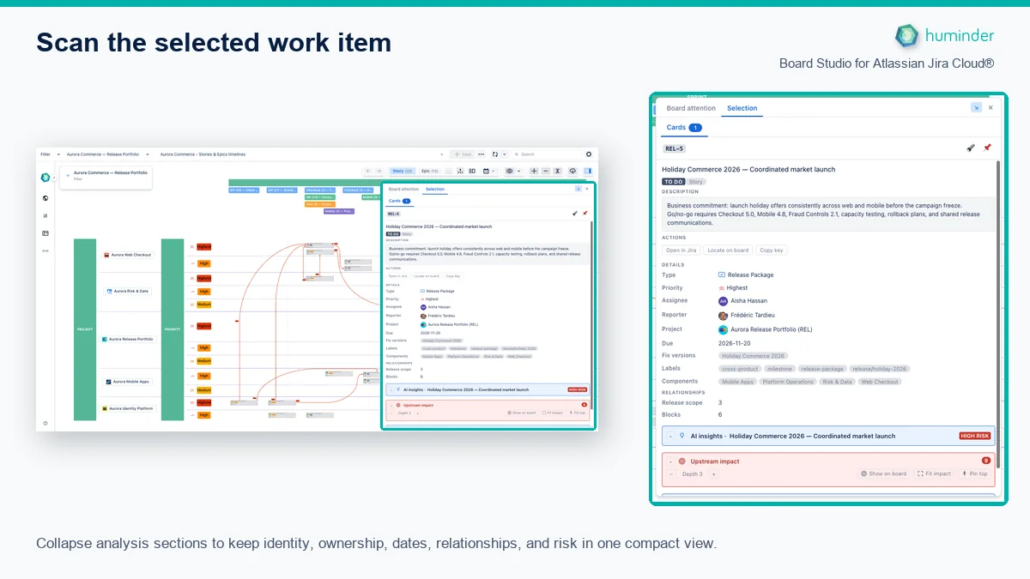
Collapse analysis sections to scan ownership, dates, relationships, and risk before opening deeper evidence.
The card view can contain these sections:
| Section | What it helps you answer |
|---|---|
| Description | What outcome or scope does this work item describe? |
| Actions | Do I need to open Jira, locate the card, or copy its key? |
| Details | Who owns the work, when is it due, and how is it classified or related? |
| Card layout fields | Which configured custom values or child roll-ups also appear on the board card? |
| AI insights | What outcome is at risk, what should happen next, and which Jira evidence supports that guidance? |
| Upstream impact | Which unresolved prerequisites can affect this work item? |
| Downstream impact | Which work items can be affected by this one? |
| External dependencies | Which configured non-blocking prerequisites sit outside a release-like work item? |
| Child cards | Which immediate loaded children can you continue to at their own hierarchy level? |
Sections that have no relevant data stay out of the way. AI insights and impact sections can be collapsed independently, and their state is remembered per hierarchy level.
Choose a compact or complete selection view
Collapse the analysis sections when you want to scan ownership, dates, classification, and relationships quickly.
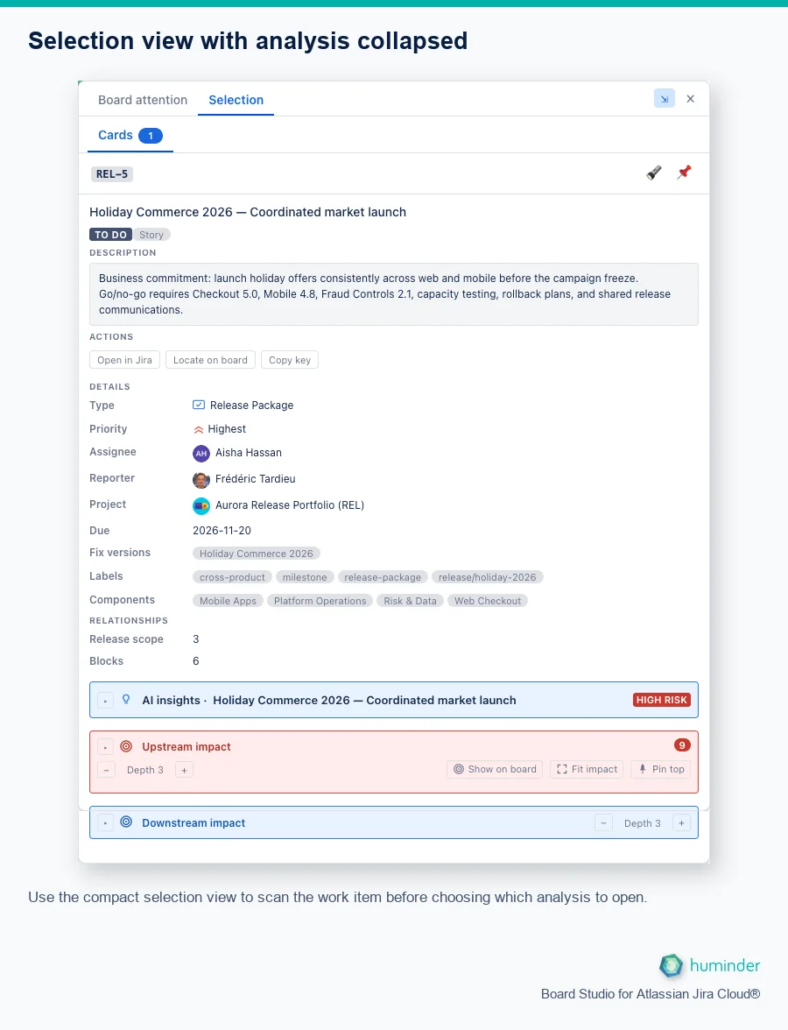
The complete compact Selection view keeps the work item and every available analysis entry point together.
Expand them when you need the complete decision context in one continuous view.
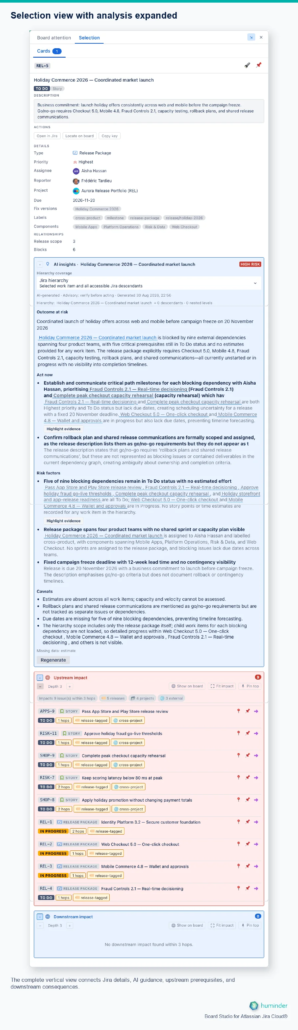
The complete expanded Selection view connects Jira details, AI guidance, upstream prerequisites, and downstream consequences.
The expanded vertical image combines multiple full-width captures of the same Inspector while scrolling. It preserves the order of the sections from the selected work item through AI guidance and both impact directions.
Assess risk with AI insights
Expand AI insights on a selected card, then choose the hierarchy coverage that matches the decision:
| Coverage | Includes |
|---|---|
| Board hierarchy | The selected work item and descendants available in the loaded board data. |
| Jira hierarchy | The selected work item and accessible descendants retrieved from Jira. |
| Selected work item only | The selected work item without descendants. |
Select Assess risk. The assessment can provide:
| Subsection | What it shows |
|---|---|
| Hierarchy coverage | Whether the assessment uses the selected work item, descendants loaded on the board, or accessible descendants retrieved from Jira. |
| Outcome at risk | The delivery outcome that could be affected and an evidence-grounded explanation of why. |
| Act now | Prioritised recommendations for the people coordinating the work. |
| Risk factors | The Jira evidence that contributes to the Low, Medium, or High assessment. |
| Caveats | Important limitations, uncertainty, and relevant evidence that is unavailable. |
| Missing data | Jira fields whose absence limits the assessment, such as estimates or due dates. |
References open the relevant Jira work item. Where a statement has enough visible board evidence, Highlight evidence connects it to the supporting cards and links.
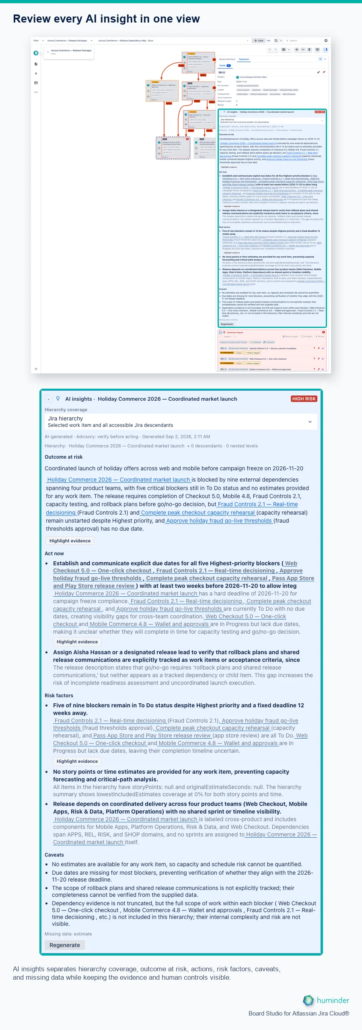
AI insights separates the assessed outcome, recommended actions, risk factors, caveats, and missing data while keeping Jira evidence and human controls visible.
AI insights is advisory. Check the evidence before acting. An assessment is marked as outdated when the underlying evidence or selected hierarchy scope no longer matches it. Select Regenerate when you need a fresh assessment.
Note: AI insights appears only when an administrator has enabled the capability. The Inspector reports disabled, loading, unavailable, and failed states explicitly.
Enable AI insights for your Jira site
A Jira administrator enables AI once for the Board Studio installation. The setting applies to every Board Studio board on that Jira site; it is not configured board by board.
- Open Board Studio as a Jira administrator.
- Select Settings (the cog icon) in the upper-right corner.
- Select the AI tab. This administrator-only tab is not shown to other users.
- Turn on AI insights.
- Close Settings. The change is saved immediately; there is no separate Save action.
To verify the outcome, select a card, open Inspector → Selection → Cards, and expand AI insights. The Assess risk action should be available. Reload Board Studio if it was already open when the setting changed.
Users still choose when to run each assessment, and every assessment respects that user’s Jira permissions. Turning AI insights off again prevents assessments and hides saved AI results across the Jira site; it does not change Jira work.
How AI is governed
Board Studio’s AI insights use Anthropic Claude Haiku 4.5 through Atlassian’s hosted AI service. Board Studio does not call a separate AI endpoint and is classified as Runs on Atlassian. The specific model may change in a later app version as Atlassian’s hosted model availability evolves.
Atlassian’s responsible AI guidance recommends that app documentation identify the model or provider, the customer data processed and its purpose, where people interact with AI, known limitations, and the human controls. Board Studio’s implementation is disclosed below.
| Safeguard | What it means for you |
|---|---|
| Model and provider | Anthropic Claude Haiku 4.5 is accessed through Atlassian’s hosted AI service. |
| Administrator control | AI is disabled by default and must be enabled by a Jira administrator. |
| Explicit use | Selecting, opening, or navigating the board never starts an assessment. A user must select Assess risk or Regenerate. |
| Purpose | The model produces an advisory delivery-risk level, outcome, rationale, recommended actions, risk factors, caveats, and evidence references. |
| Permission-aware input | Jira evidence is read with the current user’s permissions. The selected scope can include issue keys, summaries, the selected issue description, issue type, status, priority, assignee display name, update and delivery dates, versions, sprints, estimates, flags, labels, components, hierarchy, and recognised dependencies. |
| Data minimisation | Board Studio includes only the fields needed for the assessment, limits the selected description text and the number of hierarchy and dependency records, and identifies incomplete coverage. |
| Visible evidence | Results show their scope, generation time, risk factors, caveats, and references back to Jira work. |
| Storage and retention | Board Studio stores each user’s generated assessment in Atlassian-hosted app storage for up to 30 days. It does not store the prompt as a separate Board Studio record. |
| Human accountability | Results are advisory. Board Studio does not automatically change Jira work or treat generated guidance as a decision. |
| Platform safeguards | Requests undergo the same Atlassian moderation checks used for Atlassian’s own AI and Rovo features. |
Warning: Generated text can be inaccurate, incomplete, or biased. A Low, Medium, or High label is an advisory assessment, not a prediction or Jira status. Verify cited issues, dates, owners, dependencies, and recommendations before acting. Risks outside the selected scope or inaccessible Jira data cannot be assessed.
The experience is designed in line with Atlassian’s AI interaction guidelines: AI stays in the working surface, its state remains visible across navigation, supporting evidence can be inspected, and people retain control of every action. Use the Board Studio Support action to report problematic output.
Analyse prerequisites and consequences
Use the two impact sections to reason in both dependency directions:
- Upstream impact follows unresolved blocking paths towards the selected card. Use it to find prerequisites and blockers.
- Downstream impact follows blocking paths away from the selected card. Use it to understand consequences.
For either direction:
- Adjust the depth to control how many dependency hops are included.
- Review the issue count and the release, project, and external-work breakdown.
- Select Show on board to add graded highlights without changing the selection.
- Select Fit impact to frame the affected area.
- Select Pin top to keep the highest-impact items available.
- Use a row action to locate, pin, or continue to the work item at its board level.
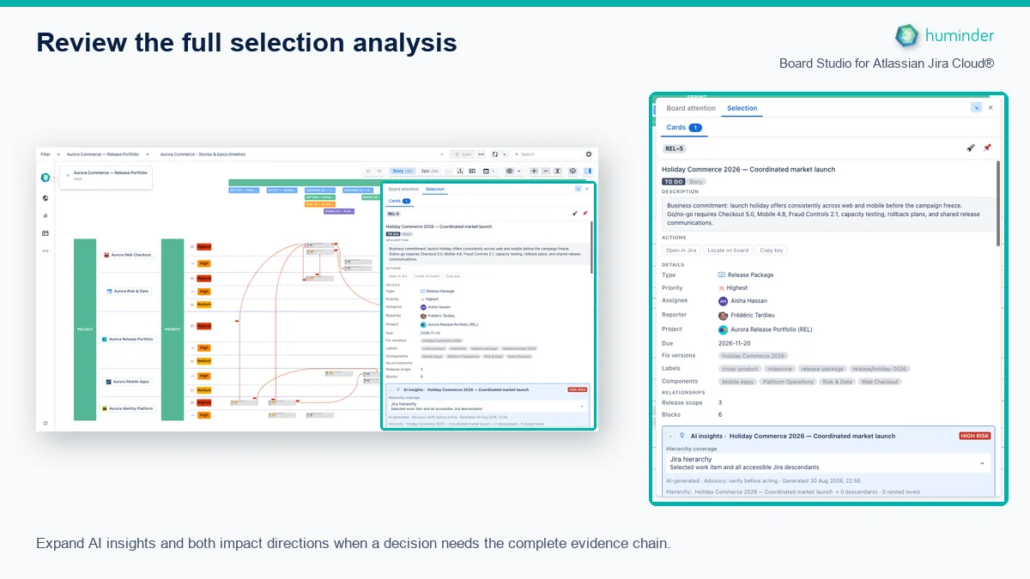
Expand the analysis sections when a decision needs AI guidance and the complete dependency evidence chain.
An empty state is still useful evidence. It confirms that no impact was found within the chosen depth and the data available to the board.
Summarise several selected cards
Select several cards, or select a row, column, sprint, fix version, or unscheduled header. The Cards view becomes a summary of the set.
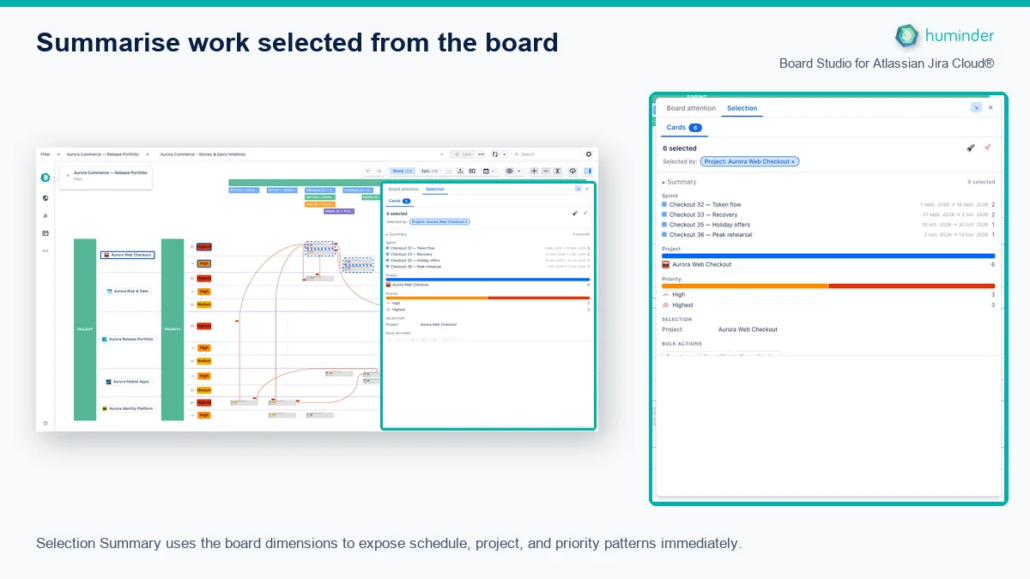
Selection Summary uses the current board dimensions to reveal schedule, project, and priority patterns.
Expand Summary to break the selection down by the dimensions currently shaping the board. This keeps the explanation aligned with the columns, rows, and timeline you can see.
- Discrete dimensions use a distribution bar and ranked values.
- Timeline dimensions list dated buckets in calendar order and include Unscheduled when needed.
- A field used on more than one axis is summarised once.
- Select a value to replace the board selection with the cards behind that value.
The Selection section records the board header that produced the set. Bulk actions let you copy keys, copy JQL, or open the selected work in Jira. Select an issue under Selected issues to open its full card analysis below without discarding the board selection.
Inspect selected links
Select a direct link or a rolled-up link, then open Selection and Links.
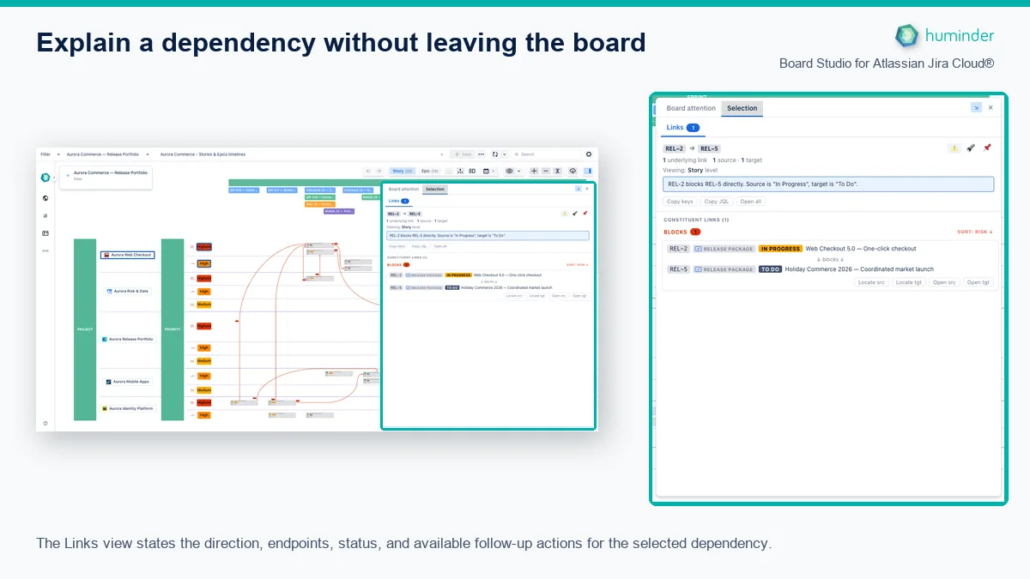
The Links view explains direction, endpoint status, constituent links, and available follow-up actions.
The Links view explains:
- The source, target, direction, and number of underlying Jira links.
- Whether the selected line is direct or aggregated.
- The hierarchy level being viewed.
- Constituent links grouped by link type and ordered by risk when risk sorting is active.
- Source and target statuses.
- Actions to locate either endpoint, open either issue, copy keys, copy JQL, or open all related work.
When a roll-up contains links from different descendant levels, use the depth filters to focus the evidence. Select Explore handoffs when several constituents need to be opened together at their deepest available level. The Inspector keeps the parent hand-off context visible while you review the underlying links.
If several links are selected, the summary separates direct and aggregated lines, reports the total underlying dependencies, and counts unique sources and targets. Choose a selected link to review its constituents without losing the rest of the set.
Keep a working set with pins
Pin cards and links that you need to compare or revisit. The pin tray stays above the Inspector views, so changing between Board attention and Selection does not remove the working set.
Pins persist while you change selection or hierarchy level. A pin from another level identifies its home level. Select it to return to that level and locate the item.
Use Highlight pinned to show pinned cards and links on the board without replacing the current selection.
Select work from the board
| Action | Result |
|---|---|
| Select a card or link | Replace the current selection with that item. |
| Shift + select | Add the item to the selection. |
| Ctrl/Cmd + select | Toggle the item in the selection. |
| Select empty canvas | Clear the selection. |
| Ctrl/Cmd + select empty canvas | Preserve the current selection. |
| Ctrl/Cmd + A | Select every card visible at the current hierarchy level. |
Cards and links remain separate inside Selection. When both kinds are selected, use the count badges on Cards and Links to move between their explanations.
Undo or redo a selection
| Shortcut | Action |
|---|---|
| Ctrl/Cmd + Z | Undo the last selection change. |
| Ctrl/Cmd + Shift + Z or Ctrl/Cmd + Y | Redo the selection change. |
Selection history is kept per hierarchy level and resets when you change data source.
Related
- Dependency Roll-ups: reveal and inspect the Jira links represented by a parent-level line.
- Search: build a precise multi-card selection and continue in the Inspector.
- Focus Mode: keep selected work and its dependency neighbourhood prominent.
- Semantic Zoom: move between hierarchy levels while preserving Inspector context and pins.