
Overview
On a busy board it is easy to lose track of which parent a card belongs to. Show Parent Context isolates one parent at a time: it opens a floating legend of the parents at the current level and dims everything that does not belong to the parent in focus, so the children of that parent stand out.
How to turn it on
- Select a card whose parent you want to see.
- Click the Show Parent Context button beside the Level Picker.
- The parent legend opens in Following mode and isolates the selected card’s parent.
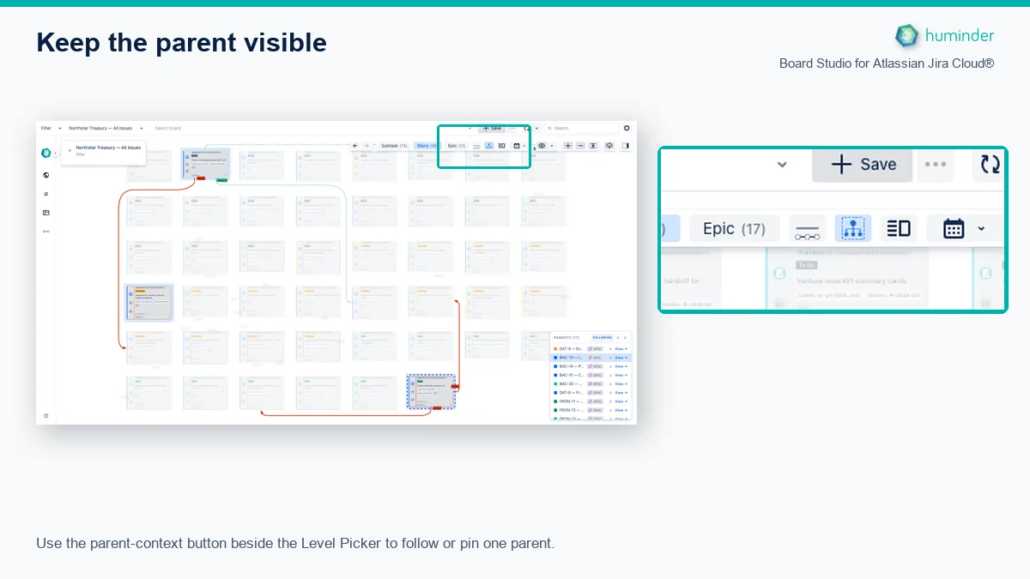
Use the Parent Context button beside the Level Picker to follow or pin one parent.
Click the same button again to close the legend and restore the full board.
How to configure it
Parent Context does not require board configuration. Use the legend to choose whether it follows your selection or stays pinned to one parent.
Choosing the legend width
The legend opens at standard width, keeping its parent list compact so more of the board remains visible.
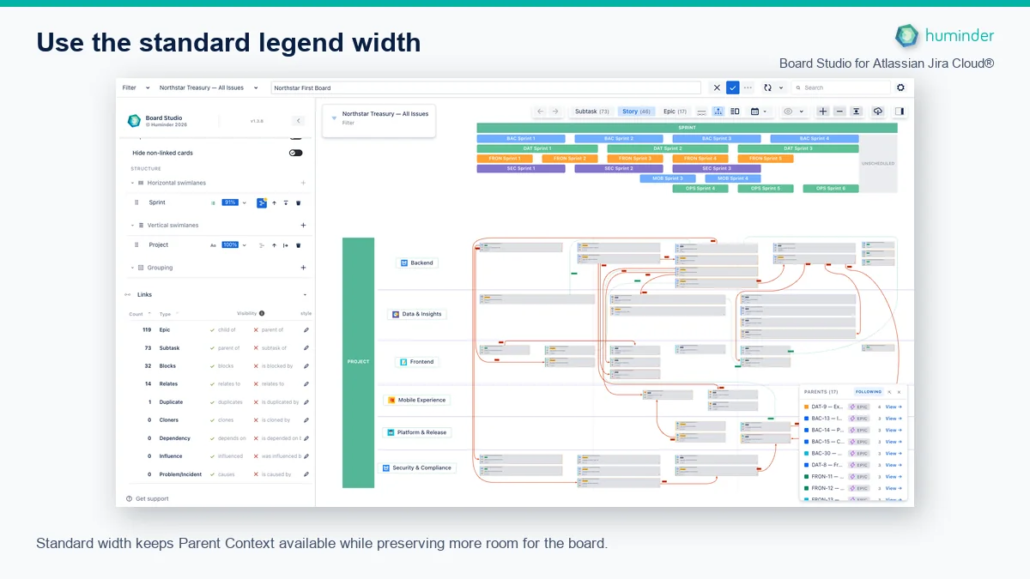
Standard width keeps Parent Context available while preserving more room for the board.
Select the diagonal Expand parent context button in the legend header when you need to read complete parent names.
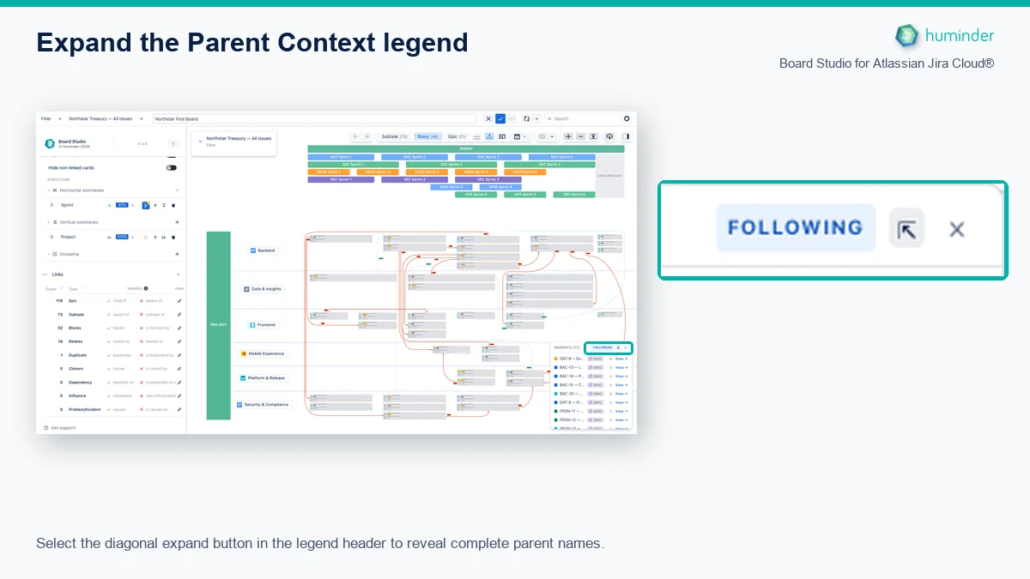
Select the diagonal expand button in the legend header to reveal complete parent names.
Expanded width gives each parent name more room while keeping its level, child count, and View action aligned.
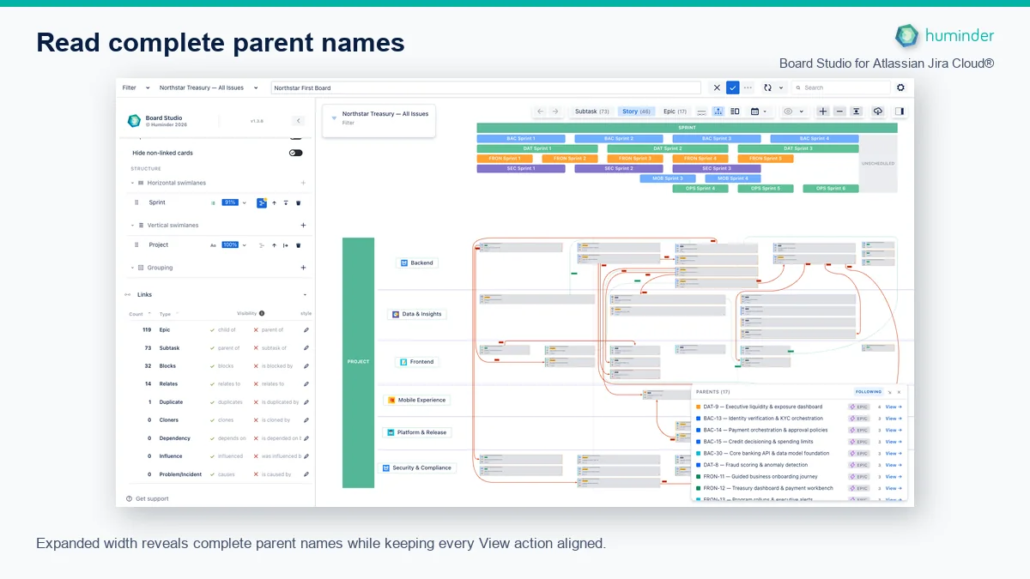
Expanded width reveals complete parent names while keeping every View action aligned.
Select the Close legend button beside the width control to close Parent Context and restore the unobstructed board.
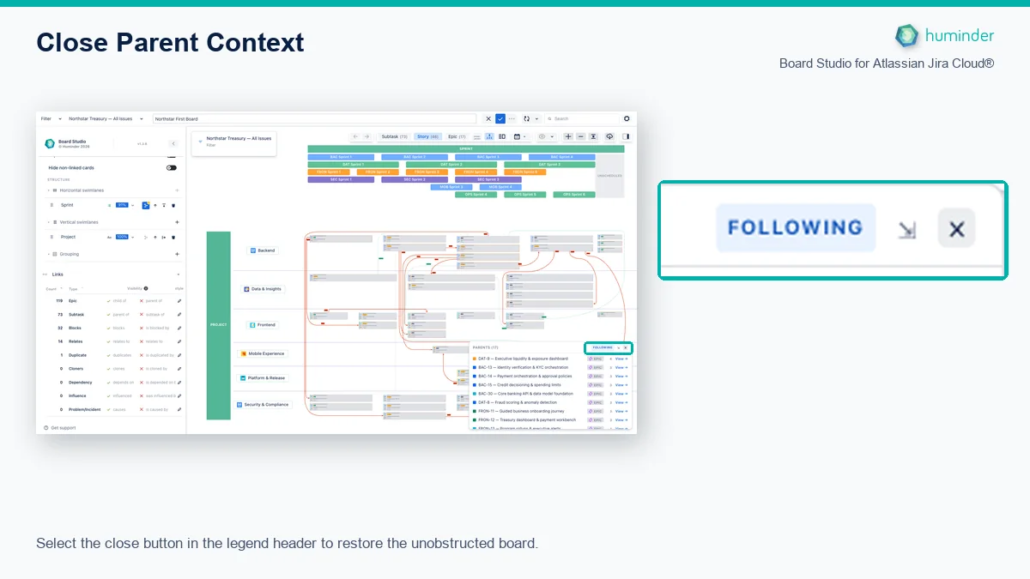
Select the close button in the legend header to restore the unobstructed board.
Following your selection
By default the legend follows your selection. When you turn it on, it reads the cards you have selected and isolates their parent. As you select different cards, the isolated parent updates to match.
The legend header shows a badge for the current mode:
- Following: the isolated parent tracks your selection.
- Pinned: the isolated parent stays fixed, whatever you select.
| What you do | What happens |
|---|---|
| Turn the toggle on | The legend opens in Following mode and isolates the parent of the current selection. |
| Select cards under one parent (Following) | That parent is isolated. |
| Select cards under several parents (Following) | The legend clears the isolation and shows a hint: Multiple parents selected. Choose one to focus. |
| Select nothing eligible (Following) | The isolation clears. |
| Click a parent in the legend | That parent is pinned, and the mode switches to Pinned. |
| Click the pinned parent again | The pin is released, and the mode returns to Following. |
| Turn the toggle off | The isolation clears and the mode resets to Following for next time. |
Only cards count towards the selected parent. Edges and group nodes are ignored, each card’s immediate parent is used, and the parent has to be present at the current level for it to be isolated.
Hovering
Hovering over a card still previews its parent, in any mode. The preview does not change the parent you have isolated.
Out of the way of the Inspector
The legend keeps clear of the docked Inspector. It sits to the left of the rail and moves as the rail opens, closes, or resizes, so it never hides behind it. When the isolated parent changes, the legend scrolls that parent’s row into view.
Use cases
- Read one epic’s children on a crowded board. Select a card in the epic and its siblings stand out while the rest of the board recedes.
- Step through epics one at a time. Pin the first parent, review it, then click the next parent in the legend.
- Check where a card belongs. Select it and the parent it rolls up to is the one left bright.
Related
- Focus Mode: isolate a selection and its dependency chain, by hiding or dimming the rest.
- Semantic Zoom: move between parents and children across hierarchy levels.
- Inspector: the legend repositions itself around the docked rail.