
Board Studio keeps Jira scope, board configuration, navigation, and analysis in one workspace. Use this guide to find the right control quickly without losing the planning context on the canvas.
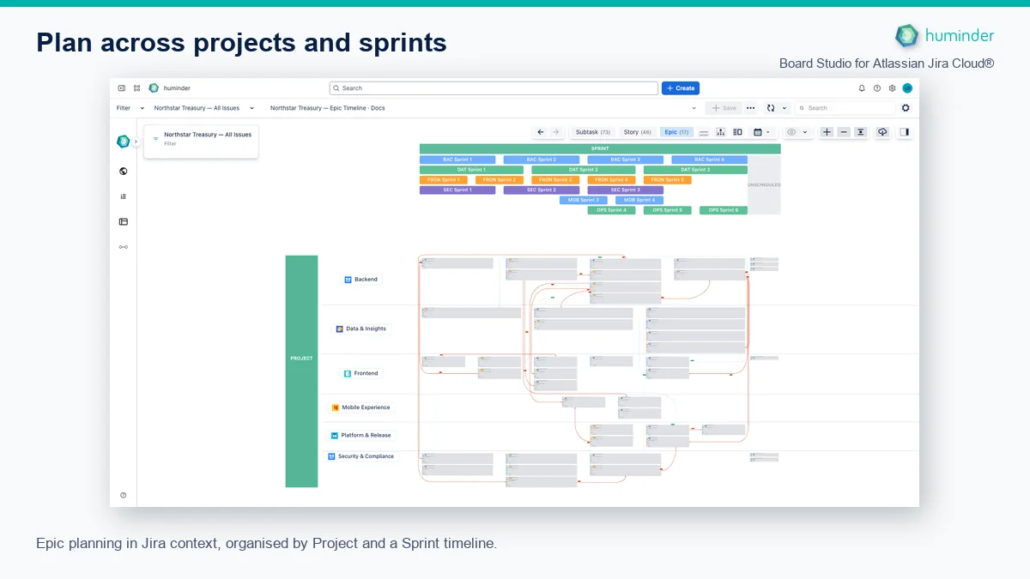
Epic planning in Jira context, organised by Project and a Sprint timeline.
Interface map
The app has four main regions:
| Region | Use it to |
|---|---|
| Header | Choose Jira work, load or save a board, refresh data, search, open Board insights, and change app settings. |
| Configuration sidebar | Shape cards, sorting, swimlanes, grouping, and dependency links for the active hierarchy level. |
| Board canvas and toolbar | Explore work visually, move between hierarchy levels, navigate previous views, focus, lay out, export, and control the Inspector. |
| Inspector | Triage board risks and explain selected cards, links, or groups without leaving the board. |
Tip: Hover over an icon-only control to see its current label. The labels below match the app tooltips rather than approximating the icons.
Choose Jira scope and a saved board in the header
Start at the left of the header:
- Select Space to load one Jira project, or Filter to use a saved Jira filter.
- Choose the specific Space or Filter in the adjacent selector.
- Use the board selector to load a saved Board Studio configuration.
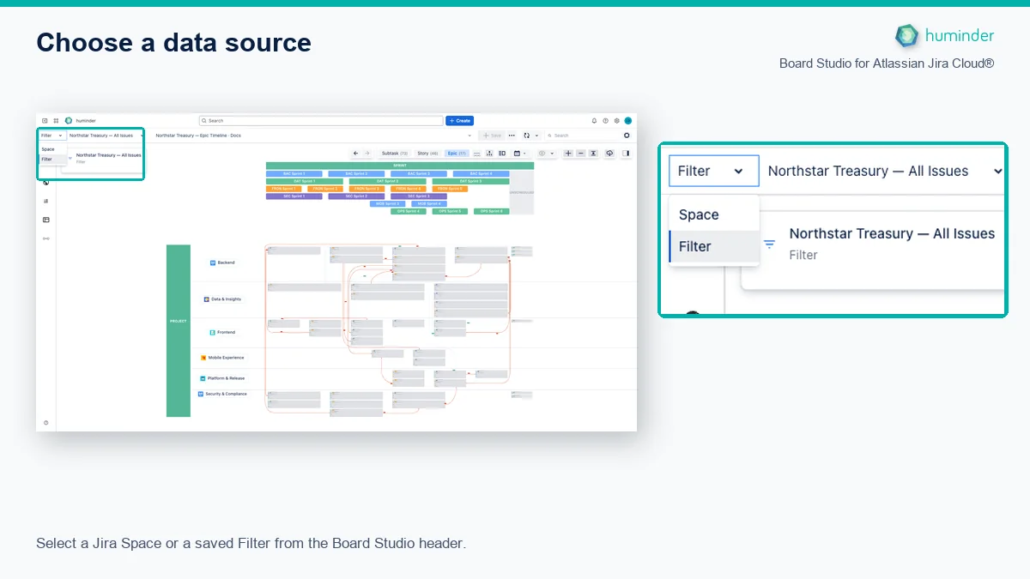
Select a Jira Space or a saved Filter from the Board Studio header.
The board selector and its neighbouring actions manage reusable views. Depending on the current state and your permissions, you can create or save a board and use the More menu to rename, save as a copy, share, or delete it. These actions affect the Board Studio configuration, not the underlying Jira work items.
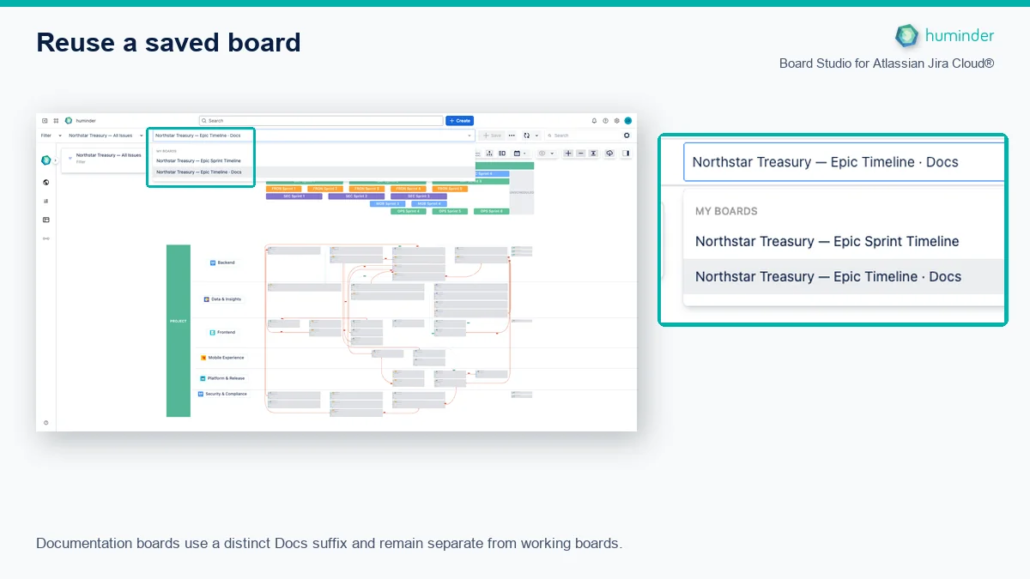
Documentation boards use a distinct Docs suffix and remain separate from working boards.
At the right of the header:
| Control | Purpose |
|---|---|
| Update view | Refresh the loaded Jira data on demand. Open Update options to turn Auto Update on or off. |
| Search | Find loaded work by free text, Jira field value, or link type, then select results on the canvas. |
| Board insights | Open an AI-assisted assessment of the loaded board when the capability is available. |
| Settings | Change app preferences. Jira administrators also use the AI tab here to enable AI insights for the site. |
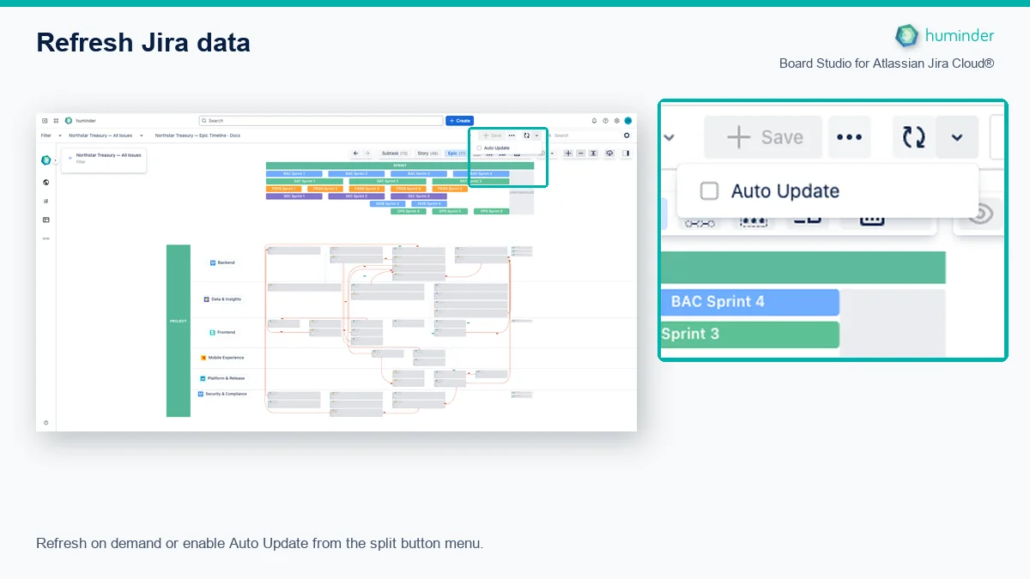
Refresh on demand or enable Auto Update from the split button menu.
Configure the view in the sidebar
The left sidebar controls how the current Jira scope is presented. You can resize it, collapse it to maximise the canvas, or select the Board Studio logo and Expand sidebar to restore it.
Its sections have distinct jobs:
| Section | What it controls |
|---|---|
| Overview | A summary of the work loaded from Jira. |
| General settings | Sorting and other board-wide presentation choices. |
| Board structure | Card layout, horizontal and vertical swimlanes, grouping, and linked-card separation for each hierarchy level. |
| Links | Visibility and styling for each Jira link type and direction found in the loaded data. |
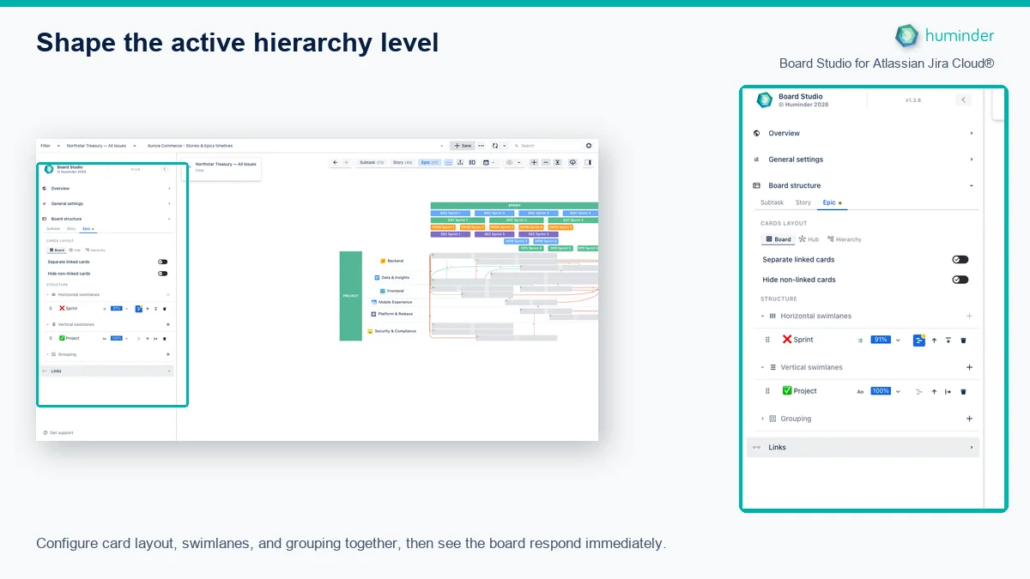
Configure card layout, swimlanes, and grouping for the active hierarchy level.
Board structure can differ by hierarchy level. Check the active level before changing cards or dimensions, and read the canvas as you work: structural changes appear on the board immediately without reloading Jira data.
Note: Board Studio names swimlanes by their dividing lines. Horizontal swimlanes create columns; vertical swimlanes create rows.
Work on the canvas and board toolbar
The canvas is the decision surface. Select cards, links, or headers to inspect them. Pan and zoom to move through large plans, then use the toolbar above the canvas for repeatable navigation and view actions.
The hierarchy controls show the available Jira levels and the number of loaded work items at each level. Select a level such as Epic, Story, or Subtask to rebuild the board at that level. The neighbouring controls can show rolled-up child links, show parent context, edit card content for the active level, and choose the timeline date-ruler mode when those options are available.
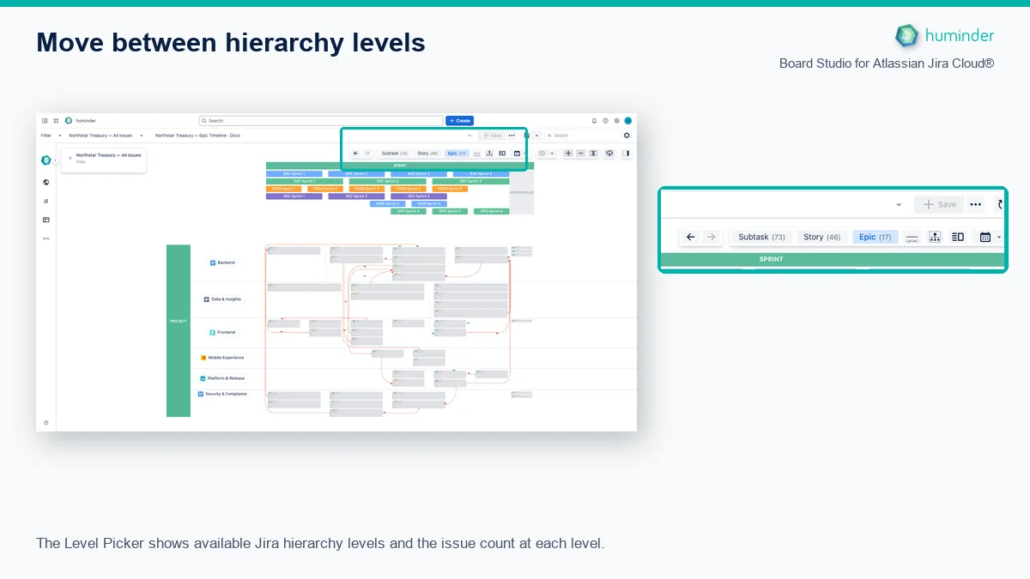
The Level Picker shows available Jira hierarchy levels and the issue count at each level.
The remaining toolbar controls use these exact app labels:
| Control | Purpose |
|---|---|
| Back / Forward | Return to a previous semantic visit, including its level, selection, and viewport. |
| Focus on Selection | Keep a selected dependency neighbourhood prominent; Focus options controls display behaviour and hop depth. |
| Zoom in / Zoom out | Change the board scale. |
| Trigger layout | Reapply the current layout to the board. |
| Export as PNG | Download the complete board as a high-resolution image. |
| Show inspector / Hide inspector | Toggle the right-side Inspector. The keyboard shortcut is Ctrl+I on Windows or Cmd+I on Mac. |
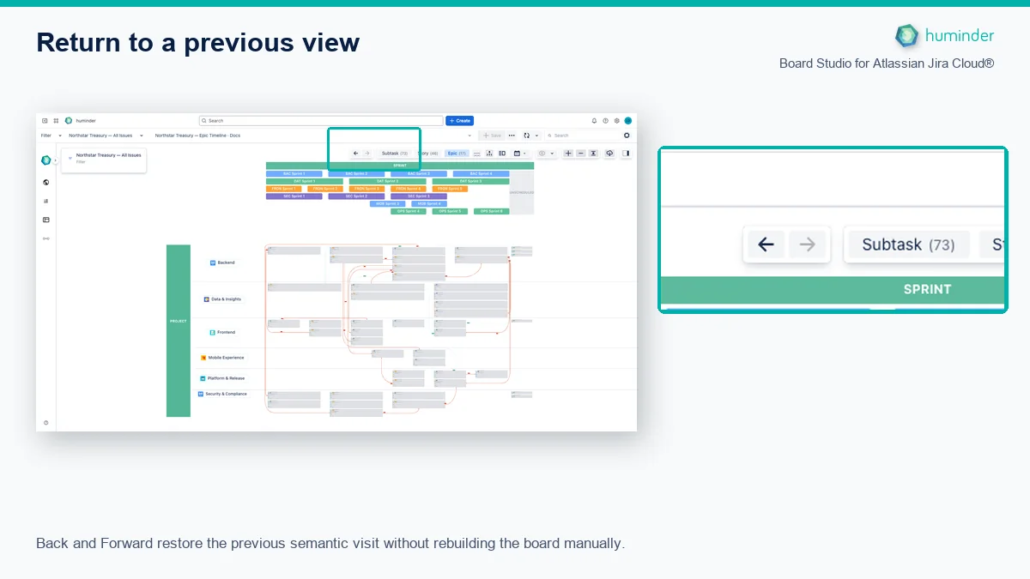
Back and Forward restore the previous semantic visit without rebuilding the board manually.
Find work without leaving the board
The persistent Search field works against the Jira data already loaded on the board. Type free text, or enter a field followed by a colon, such as status:, to choose a value that exists in the current data.
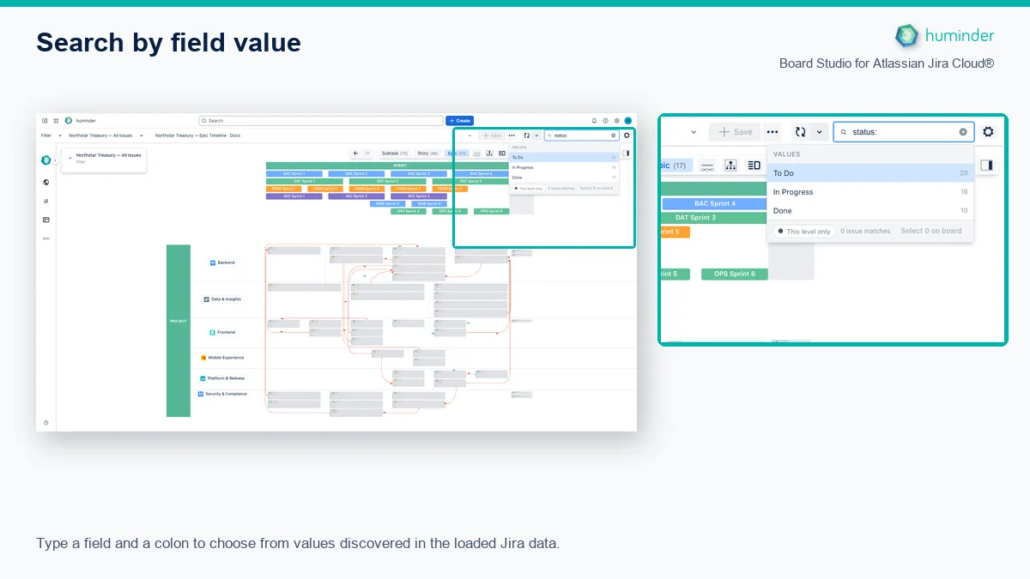
Type a field and a colon to choose from values discovered in the loaded Jira data.
Choose one result to select it and bring its card into view. Select all matches when you need a working set for triage. Search follows the active hierarchy level, so the same query can return Epics at one level and Stories at another.
Explain the selection in the Inspector
Open Show inspector at the right end of the board toolbar. The Inspector has two main views:
| View | Use it to |
|---|---|
| Board attention | Find unresolved work with traceable warning signals before making a selection. |
| Selection | Explain selected cards or links, inspect Jira details, assess impact, and continue with relevant actions. |
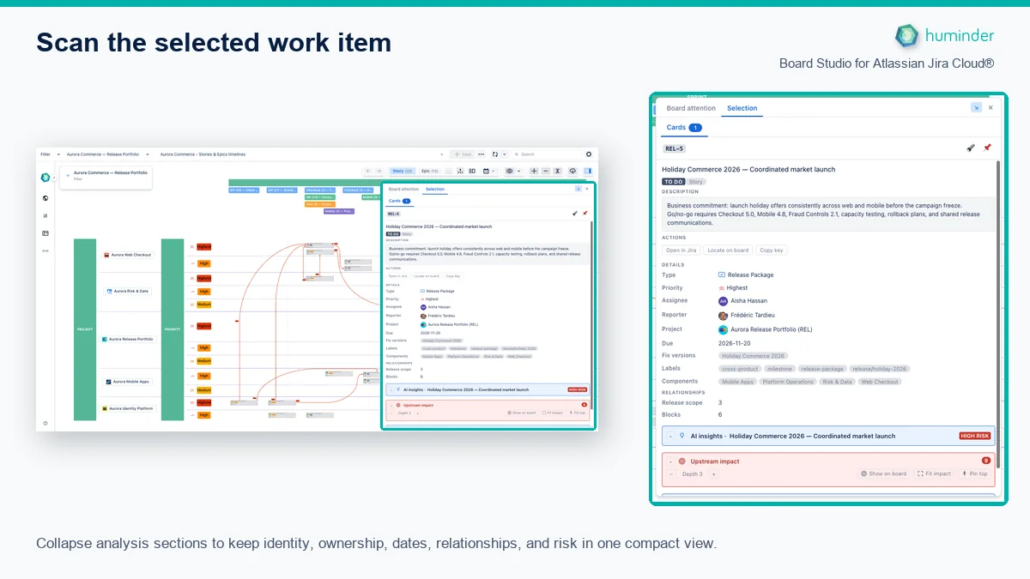
Collapse analysis sections to scan ownership, dates, relationships, and risk before opening deeper evidence.
The Inspector follows the canvas rather than replacing it. Select a card to review its owner, dates, Jira fields, dependencies, children, and available analysis. Select several cards or a board header to see a summary aligned with the dimensions shaping the board.
A practical navigation pattern
When a planning meeting surfaces an unfamiliar blocker:
- Use Search to find the Jira work item.
- Select it and open the Inspector to check ownership and dependency evidence.
- Use Focus on Selection to reduce visual noise around its dependency neighbourhood.
- Change hierarchy level if you need parent or child context.
- Use Back to return to the previous board visit when the investigation is complete.
This keeps the investigation on one board instead of forcing repeated Jira searches, tabs, and manual reconstruction of context.
Related
- Your First Board: build and save a useful first view.
- Board Configuration: configure cards, dimensions, grouping, and sorting.
- Search: learn query syntax and selection shortcuts.
- Inspector: triage risks and inspect selected work in depth.
- Navigation History: move between semantic visits without losing context.