
A configuration in Board Studio is a saved snapshot of your entire board setup, including the data source, board structure, link styling, sorting order, and display preferences. Configurations let you switch between different views of your data instantly, share setups with your team, and keep your preferred layouts organised.
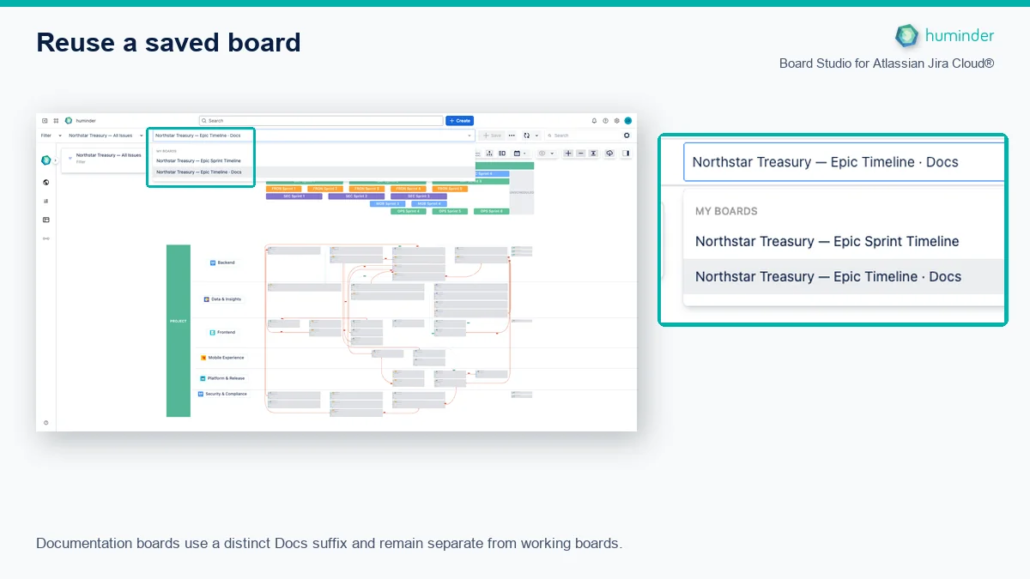
Documentation boards use a distinct Docs suffix and remain separate from working boards.
What is stored in a configuration?
| Setting area | What is saved |
|---|---|
| Data source | Source type (Space or Filter) and selected source |
| Board structure | Vertical swimlanes, horizontal swimlanes, grouping dimensions |
| General settings | Separate linked cards toggle, field sort order |
| Link styles | Per-link-type visual styles (thickness, colour, line pattern, arrows) |
| Link display | Visibility toggles for each link type and direction |
When you select a configuration, all of these settings are restored at once and the board re-renders to match.
Configuration selector
The configuration selector is a dropdown in the header bar that shows all configurations available to you, both your own and those shared with you by others.
Configuration ownership
| Type | Access |
|---|---|
| My configurations | Configurations you created. You can edit, rename, share, and delete them. |
| Shared with me | Configurations shared with you by others. You can load them or use Save As to create an editable copy. |
Creating a new configuration
You create a new configuration whenever you want to save the current board state under a name.
Step by step
- Set up the board: choose a data source, configure swimlanes, adjust link styles, and arrange the board to your liking.
- Detect changes: Board Studio tracks whether you’ve made unsaved modifications. When changes are detected (dirty state), the Create (+) button becomes active in the header bar.
- Click the Create (+) button.
- Enter a name for your configuration in the text field that appears.
- Click Save (💾) to persist the configuration.
Duplicate name detection
Board Studio uses backend-authoritative validation to prevent duplicate configuration names. If you enter a name that already exists:
- The backend detects the duplicate (case-insensitive comparison).
- An overwrite confirmation dialog appears, showing the name of the existing configuration.
- You can choose to overwrite the existing configuration or cancel and pick a different name.
This validation works even with slow networks, multiple browser tabs, or immediately after page load.
| Scenario | Behavior |
|---|---|
| Name is unique | Configuration is saved immediately |
| Name matches an existing config (any case) | Overwrite dialog appears |
| You confirm overwrite | Existing configuration is replaced |
| You cancel | No save occurs; you can edit the name |
Saving changes to an existing configuration
When you modify a board that already has a saved configuration selected:
- Make your changes (adjust swimlanes, toggle links, reorder sorting, etc.).
- The Save (💾) button becomes active in the header bar.
- Click Save (💾) to update the existing configuration with your changes.
The saved configuration is updated in place. No new entry is created.
Note: Only the configuration author can save changes directly. If you are viewing a shared configuration from another user, use Save As to create your own copy.
Actions menu
Click the Actions (⋮) button next to the configuration selector to access additional operations.
| Action | Description | Who can use it |
|---|---|---|
| Rename | Change the name of the current configuration | Author only |
| Save As | Create a copy of the current configuration under a new name | Anyone |
| Share | Open the sharing dialog to share with users or the organisation | Author only |
| Delete | Permanently remove the configuration | Author only |
Rename
- Click ⋮ → Rename.
- Edit the configuration name in the text field.
- Press Enter or click Save to confirm.
Duplicate name validation applies. If the new name conflicts with an existing configuration, you’ll be prompted to overwrite or cancel.
Save As
- Click ⋮ → Save As.
- Enter a new name for the copy.
- Click Save.
This creates an independent copy. Changes to the copy do not affect the original, and vice versa. Use Save As to experiment with different layouts without losing your current setup.
Delete
- Click ⋮ → Delete.
- Confirm the deletion in the dialog.
Deletion is permanent. Only the configuration author can delete a configuration. If the configuration is shared, deleting it removes it from all recipients’ selectors.
Sharing configurations
Board Studio lets you share configurations with your team so everyone can access the same board layouts and views.
How to share
- Select the configuration you want to share.
- Click ⋮ → Share.
- In the Share dialog, choose how to share:
| Share option | Description |
|---|---|
| Entire organisation | Everyone on your Jira site can see and use this configuration |
| Specific users | Search for and select individual users to share with |
- Confirm your selection. The configuration is now shared.
Shared configuration behavior
| Aspect | Details |
|---|---|
| Shared indicator | Shared configurations display a badge in the configuration selector |
| Recipient access | Recipients see the configuration in their dropdown and can load it |
| Modification rights | Only the author can rename, re-share, or delete a shared configuration |
| Saving changes | Recipients can modify the board and use Save As to create their own copy |
| Deletion impact | If the author deletes a shared configuration, it is removed for all recipients |
Note: Sharing does not grant edit access. Recipients use the shared configuration as a starting point and can create their own copies with Save As.
Configuration persistence
Configurations are stored in Atlassian-hosted app storage, which means:
- They persist across browser sessions and devices.
- They are scoped to your Jira site. Configurations are available everywhere you access Board Studio on that site.
- They survive app updates and redeployments.
- Each user’s configurations are private by default until explicitly shared.
Tips and best practices
| Tip | Details |
|---|---|
| Create multiple configurations | Set up different views for the same data, such as one focused on blocking dependencies, another on sprint structure, and a third for stakeholder presentations. |
| Share organisation-wide for alignment | Create a “Team Standard” configuration and share it with the organisation so everyone starts from the same baseline. |
| Use Save As to experiment | Before making major changes, use Save As to create a working copy. If the experiment fails, your original is untouched. |
| Name descriptively | Use clear, descriptive names like “Q2 Sprint Dependencies” or “Release 4.0: Epics Only” so configurations are easy to find. |
| Clean up unused configs | Periodically delete configurations you no longer need to keep the selector tidy. |
| Pre-configure link styles | Set up your preferred link styles once, save them in a configuration, and use Save As for new views. Link styles carry over. |