
Open Board insights on the canvas toolbar, immediately before the Inspector control, to review the loaded Jira source. Needs attention ranks warning signals without AI. AI analysis produces an on-demand synthesis of outcomes, decisions and patterns across the source.
Find the controls
Use the analysis group on the canvas toolbar. The numbered circles identify controls, not steps.
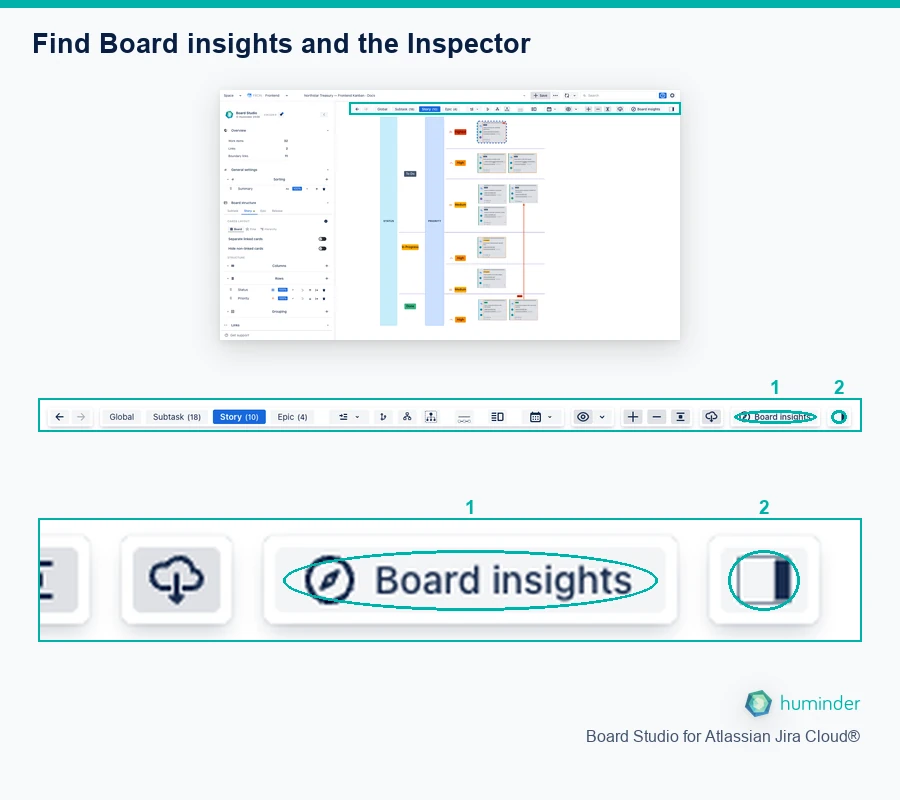
Find Board insights and the Inspector. The numbers identify controls, not steps.
- 1. Board insights: open the board-wide Needs attention and AI analysis views. Opening the panel does not run AI.
- 2. Show inspector: inspect selected cards or links instead of the whole source.
Start your first review
For a first review, load a Space or saved Filter, open Board insights → Needs attention and select a candidate if one is listed. Read its warning signals and the chain of blockers and potentially affected work, then use Open inspector to inspect the candidate. You do not need to enable or run AI for this task.
To read an explanation first, activate the header’s blue Help button and click the highlighted Board insights region. This opens contextual help without starting an analysis.
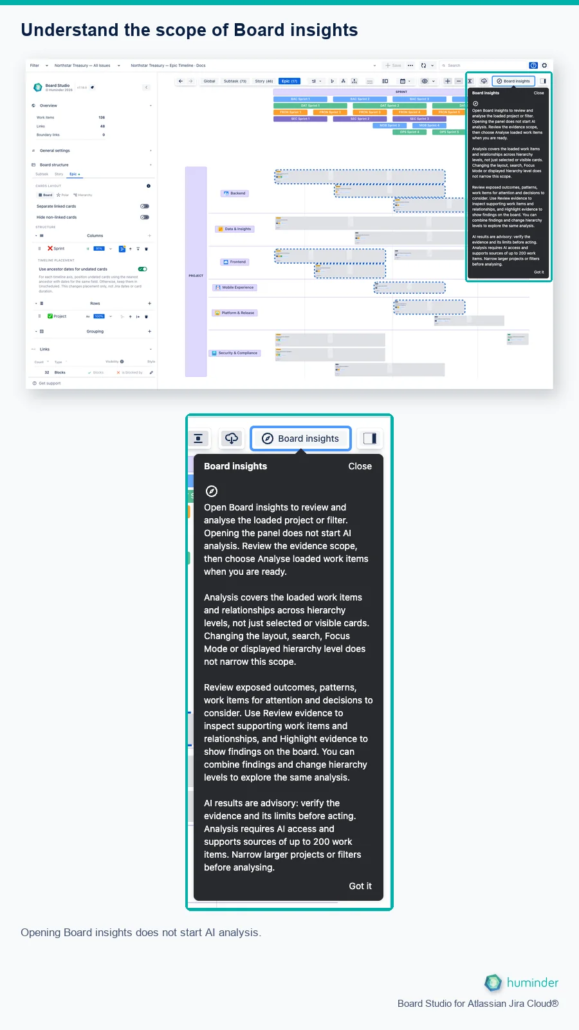
Opening Board insights does not start AI analysis.
Choose the right analysis
| Surface | Question | Scope |
|---|---|---|
| Needs attention | Which unresolved work needs review first? | Deterministic signals in loaded work and recognised dependencies. |
| AI analysis | What outcomes are exposed, and what decisions should we consider? | The accessible project or saved filter source, revalidated in Jira. |
| Inspector → AI insights | What is at risk for this particular work item? | One selected card, with Board hierarchy, Jira hierarchy or selected-item-only coverage. |
| Inspector → Upstream / Downstream impact | What can affect this selection, or be affected by it? | Loaded hierarchy and Blocks relationships, bounded by the chosen traversal depth. |
Start with Needs attention
Board insights opens on Needs attention. Filter by All, Flagged, Overdue or Blocked. The list ranks unresolved work using flagged status, overdue dates and open blockers, with supporting signals such as missing ownership, high priority and multiple dependencies. It shows the top 20 candidates and reports coverage.
Select a candidate to review its causal trail, the chain of blockers and potentially affected work. From there, open the Inspector, follow a lead blocker in Jira, copy a coordination brief or mark the trail reviewed. An existing AI risk badge can accompany a candidate, but AI does not determine this ranking. Opening this tab does not run an assessment.
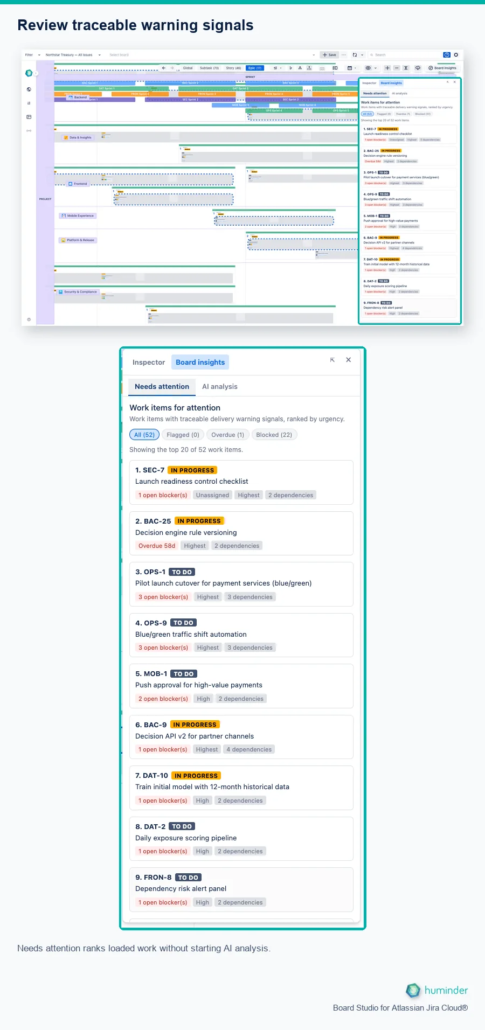
Needs attention ranks loaded work without starting AI analysis.
Run a whole-source AI analysis
- Load a project or saved Filter, then select Board insights → AI analysis.
- Review Evidence scope, including work-item, relationship and hierarchy-level counts.
- Select Analyse. AI must first be enabled by a Jira administrator in Settings → AI.
- Wait for Interpreting the loaded work items…. The background job continues if you close the panel; returning to the same source can restore its pending or completed analysis.
- Review the supported Analysis summary, Exposed outcomes, Decisions to consider, Patterns across loaded work and Evidence limits sections. Sections without supported content are omitted rather than filled with generic findings.
- Use Analyse again when you need a fresh assessment, or Try again after a recoverable failure.
Opening the panel, changing tabs or navigating the board never starts AI automatically.
Reports are conditional on the evidence. An analysis may contain only some sections or no supported findings. Omitted claims and evidence-limit notices explain what could not be supported; an empty report does not mean the source is risk-free.
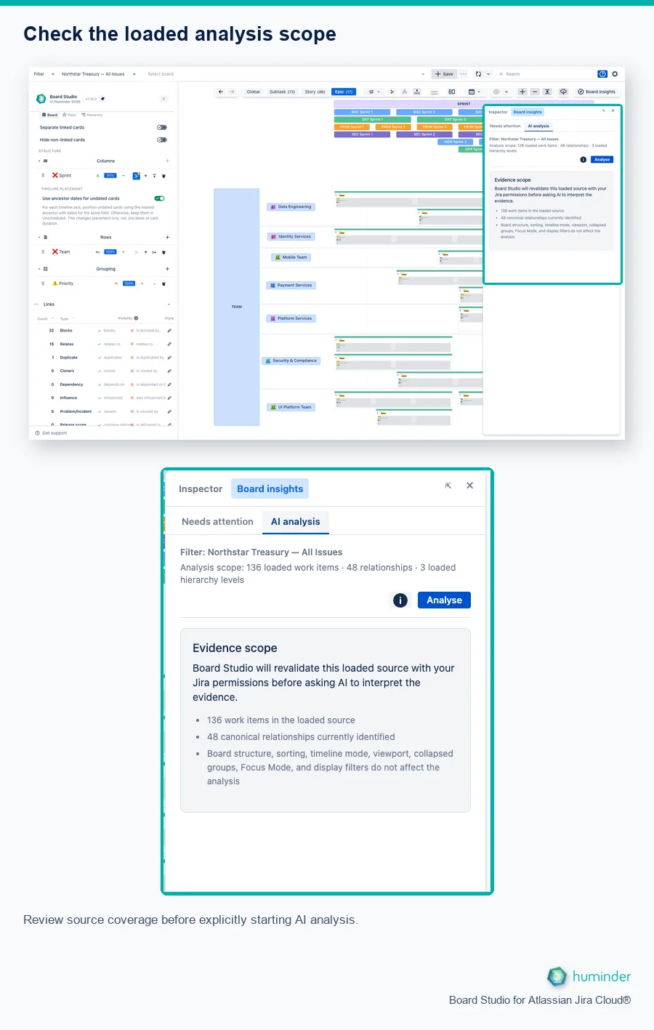
Review source coverage before explicitly starting AI analysis.
Understand the evidence scope
The analysis is not a screenshot of the visible canvas. Board Studio rereads the project or saved filter with the requesting user’s Jira permissions. Hidden cards, collapsed groups, Focus Mode, display filters, sorting, timelines and hierarchy-level changes do not narrow that source.
The source must contain no more than 200 accessible work items. If it exceeds that limit, narrow the project/filter scope first. Board Studio refuses a partial first-200 analysis. Within an accepted source, detailed evidence and relationships sent to AI are bounded; read Evidence limits for truncation and missing data. References to related work outside the source do not mean all of its descendants were loaded.
Whole-source analysis has no Board hierarchy/Jira hierarchy selector. Those choices belong to the selected-item assessment in the Inspector.
Review and show the evidence
Expand Review evidence to inspect the work items and relationships supporting a finding. Use the available locate, inspect and hierarchy-level actions to reach exact evidence. A citation may currently be represented by a parent card or an aggregate link rather than its exact endpoint.
Highlighting, revealing cited cards and framing them are independent actions. Several findings can remain active together, and switching between Global and level views preserves the investigation. Revealing evidence does not automatically add ancestor-only family cards or enable parent-child corridors. See Family Cards and Hierarchy.
AI evidence highlights use green on supporting cards and links, including a rolled-up connection representing a cited underlying link. Green identifies evidence for the selected finding, not a safe status, low risk or successful delivery. Impact highlights remain a separate visual investigation.
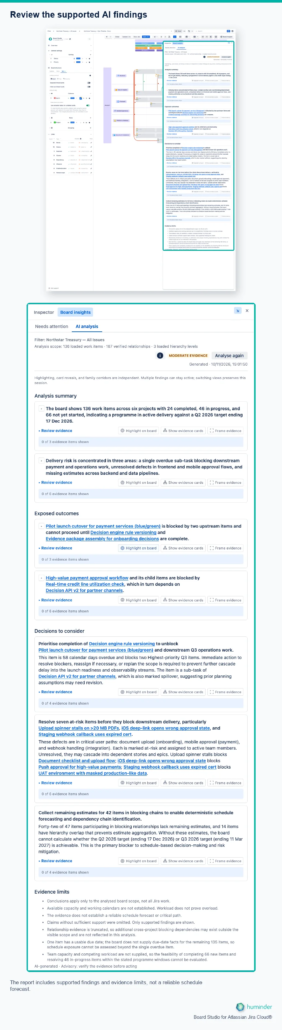
The report includes supported findings and evidence limits, not a reliable schedule forecast.
The Northstar example reports 136 work items, 167 verified relationships and Moderate evidence. The relationships include issue links and parent-child hierarchy, not 167 dependency links. The result identifies evidence limits; it is not proof of a complete critical path or a guaranteed delivery forecast.
Read one finding and its limits
Start with Analysis summary, then read an Exposed outcome if the report includes one. Select Review evidence to check the work behind a claim before acting. The following detail shows part of the same Northstar report, not a new analysis.
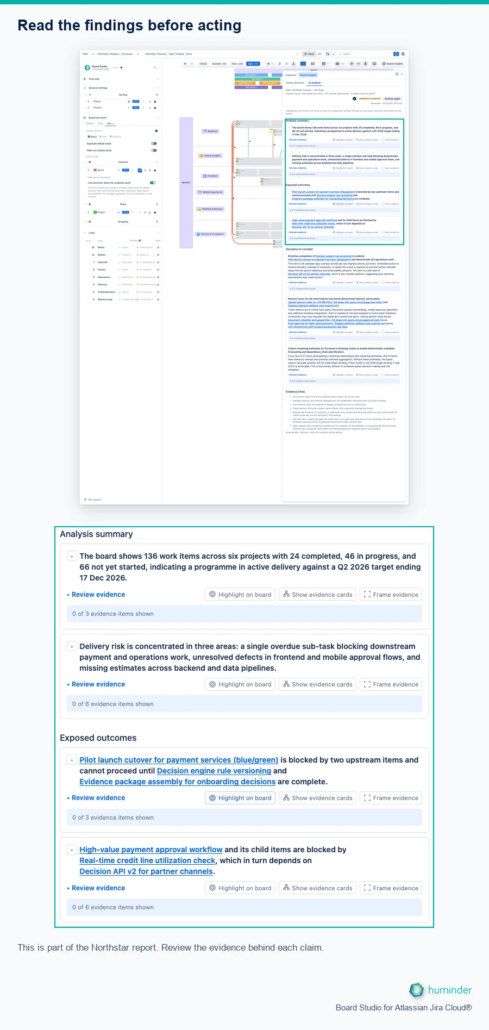
This is part of the Northstar report. Review the evidence behind each claim.
Read Evidence limits as well as the findings. Here, missing capacity, dates and estimates prevent a reliable schedule forecast. A report with fewer findings is not proof that the work is safe. Select an image to enlarge its interface text when needed.
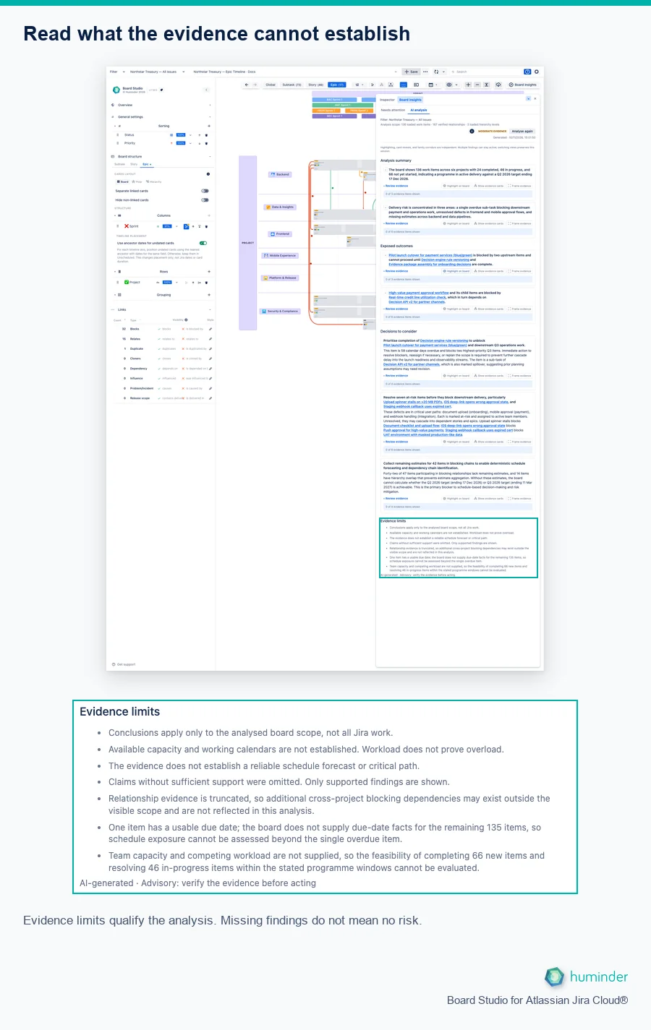
Evidence limits qualify the analysis. Missing findings do not mean no risk.
The expanded finding below has three cited work items. Highlight on board marks supporting evidence in green; Show evidence cards reveals the exact cited cards. The panel reports 3 of 3 evidence items shown. These controls do not change Jira or narrow the analysis source.
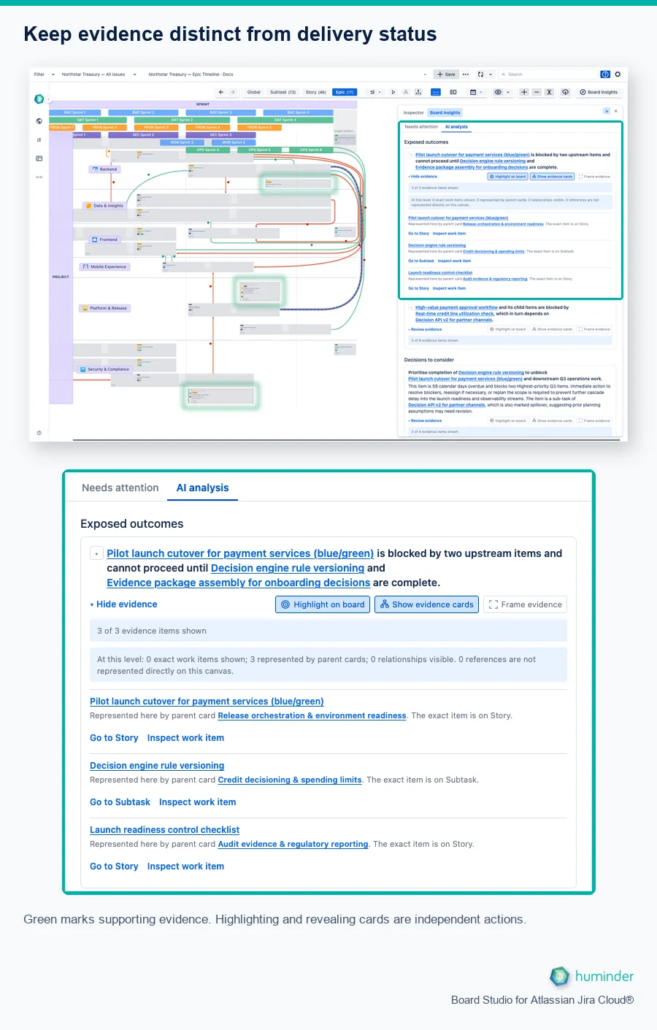
Green marks supporting evidence. Highlighting and revealing cards are independent actions.
Isolate a family for a closer review
After locating a cited work item, use Focus to reduce the surrounding cards, then reveal its family and show parent-child corridors. Hide the Inspector when you need more canvas space and centre the family in the visible area.
This Northstar example selects story BAC-4, uses Hide others with Selection only, and reveals its family. The four visible cards are BAC-4, its parent BAC-14, and its two subtasks BAC-21 and BAC-22. Blue family corridors show their parent-child relationships. This is the story’s immediate family, not every descendant of the epic.
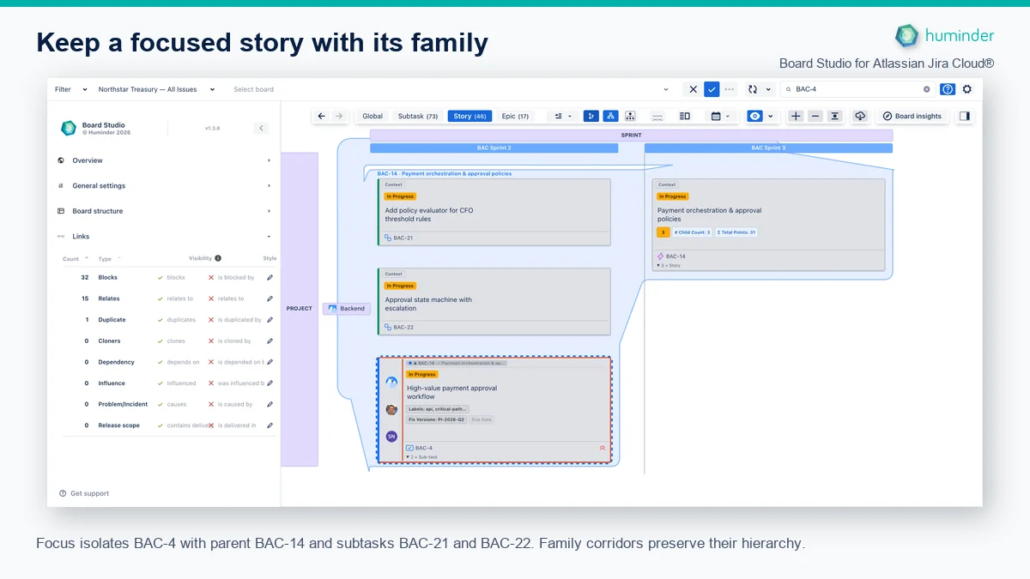
Focus isolates BAC-4 with parent BAC-14 and subtasks BAC-21 and BAC-22. Family corridors preserve their hierarchy.
Focus changes the visual investigation only. It does not narrow the project or filter used by whole-source AI analysis. See Focus Mode for isolation controls.
Read freshness and failures correctly
An earlier-snapshot notice means the displayed result describes previous source material. It is not a guarantee that every Jira field remains current when no notice is present. A new analysis request reloads Jira evidence before deciding whether a validated cached result can be reused.
Changing the source resets the visible investigation. A pending or completed result for a source can be restored when you return. Closing the panel is not cancellation. If the installation reaches a temporary AI processing limit, wait at least one minute before retrying. Permission, installation-approval, source-size and unavailable-service errors require their stated remedy rather than repeated clicks.
AI governance and retention
Both AI surfaces use Anthropic Claude Haiku 4.5 through Atlassian’s hosted AI service. AI is disabled by default, administrator-controlled, explicitly requested and advisory. It never automatically updates Jira. Verify cited work, owners, dates and proposed actions before making decisions.
Whole-source input includes an index of in-scope work plus bounded details and recognised relationships needed to interpret delivery evidence. Reads respect the requesting user’s Jira access. Generated analyses, supporting indexes and provenance are stored in Atlassian-hosted app storage for up to 30 days; background-job metadata has a two-day retention period. This does not promise that a result remains available to restore for the entire 30 days.
Read the Inspector AI safeguards for selected-item input details and limitations. Neither surface can conclude that inaccessible or unloaded Jira work is risk-free.
Related
- Guided Tours and Contextual Help: activate Help and select Board insights for an explanation without opening an analysis.
- Global App Interface: find the canvas toolbar and its neighbouring controls.