
Use Global view to explore loaded Jira work across hierarchy levels on one canvas. Follow an outcome into its Epics, Stories and Subtasks while retaining parent context and dependencies.
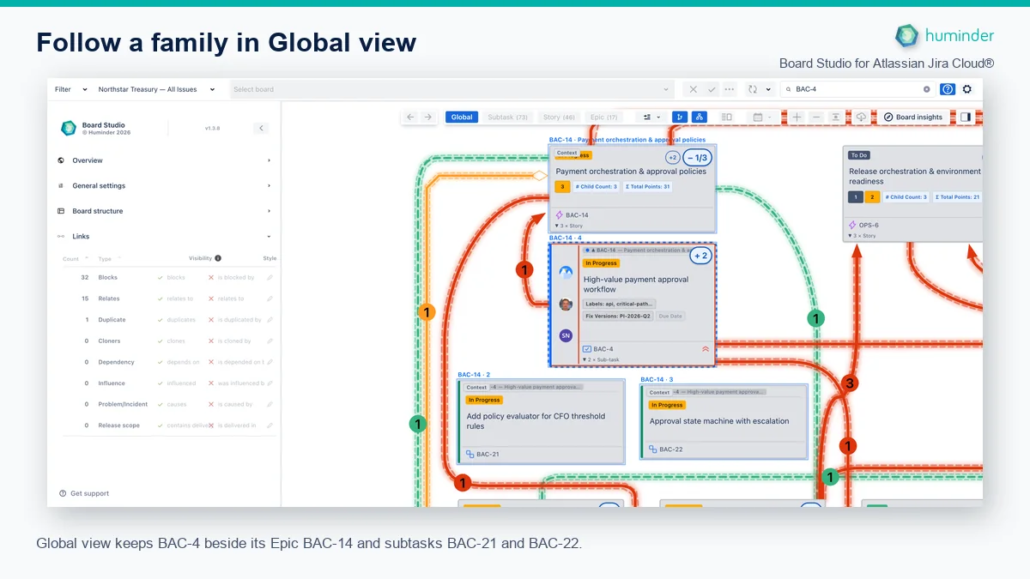
Global view keeps BAC-4 beside its Epic BAC-14 and subtasks BAC-21 and BAC-22.
Find the controls
Use Global beside the counted planning-level buttons on the canvas toolbar. Global combines levels; a counted button chooses one main planning level.
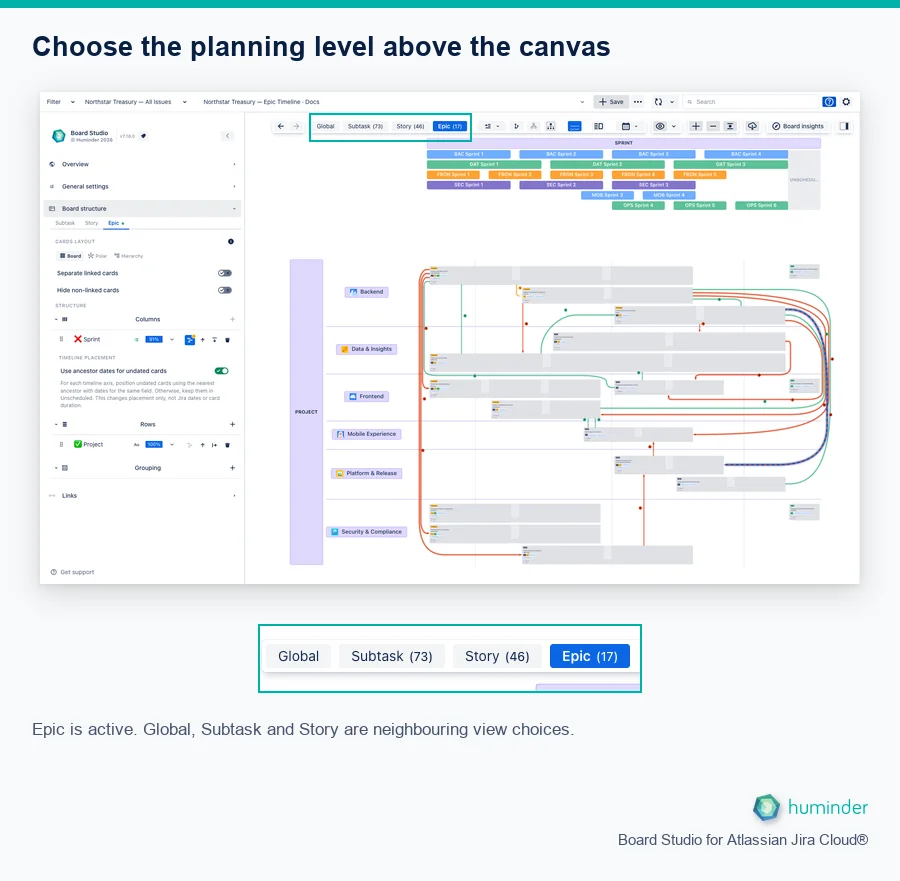
Epic is active. Global, Subtask and Story are neighbouring view choices.
The neighbouring Hierarchy menu controls how much loaded detail is visible. Its menu and the individual family controls are illustrated in Family Cards and Hierarchy.
Open Global view
- Load a Jira Space or saved Filter.
- Select Global beside the counted hierarchy-level buttons above the canvas.
- Use an available parent expansion control to reveal one parent’s loaded children. Use Hierarchy when you want to show more levels at once.
- Select one revealed child and open Inspector → Cards to read its details.
Global view starts from the highest available parent items in the loaded work, also called loaded roots. A loaded root can be below Jira’s highest level if its ancestors are outside the loaded scope. Global does not bypass Jira permissions or fetch every descendant automatically.
Open one branch and recognise the result
Start small when a programme contains more detail than you need for the current conversation. This Frontend example begins with four loaded Epic roots and no Stories displayed.
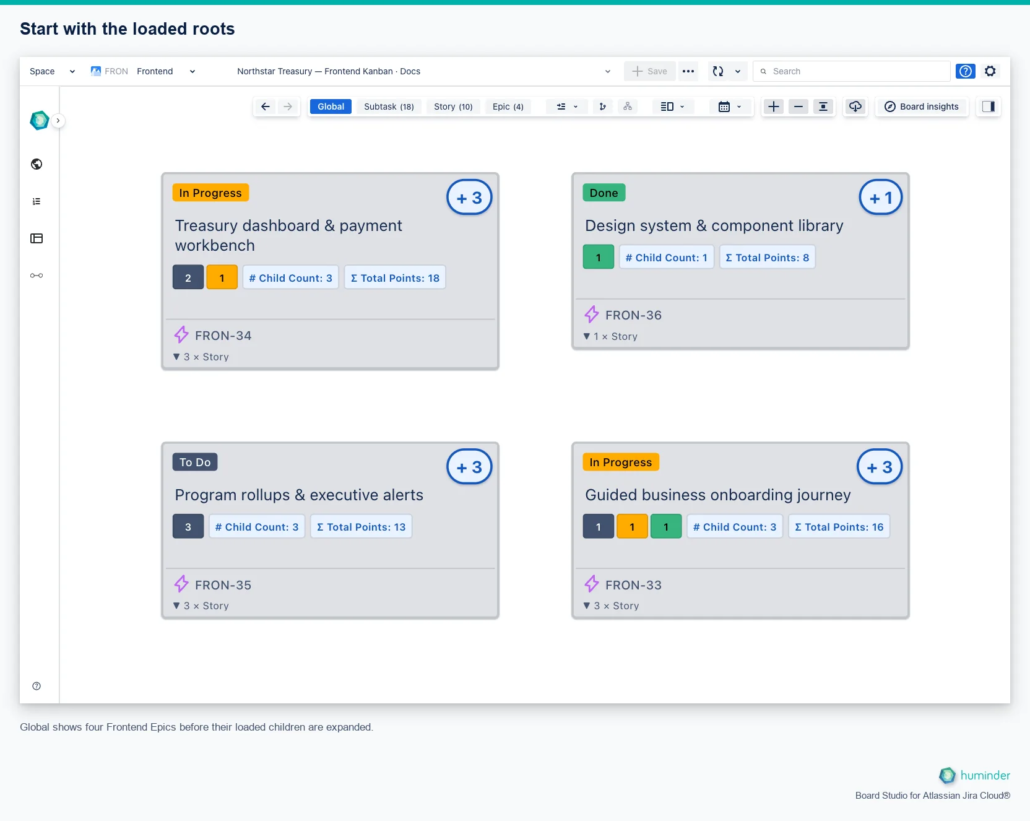
Global shows four Frontend Epics before their loaded children are expanded.
Use the Reveal 3 children control on FRON-34, Treasury dashboard & payment workbench. Its three loaded Stories, FRON-40, FRON-41 and FRON-42, appear while the other Epic branches stay collapsed. The Hierarchy counts change from zero to three of ten Stories shown; no additional Jira data is fetched by this expansion.
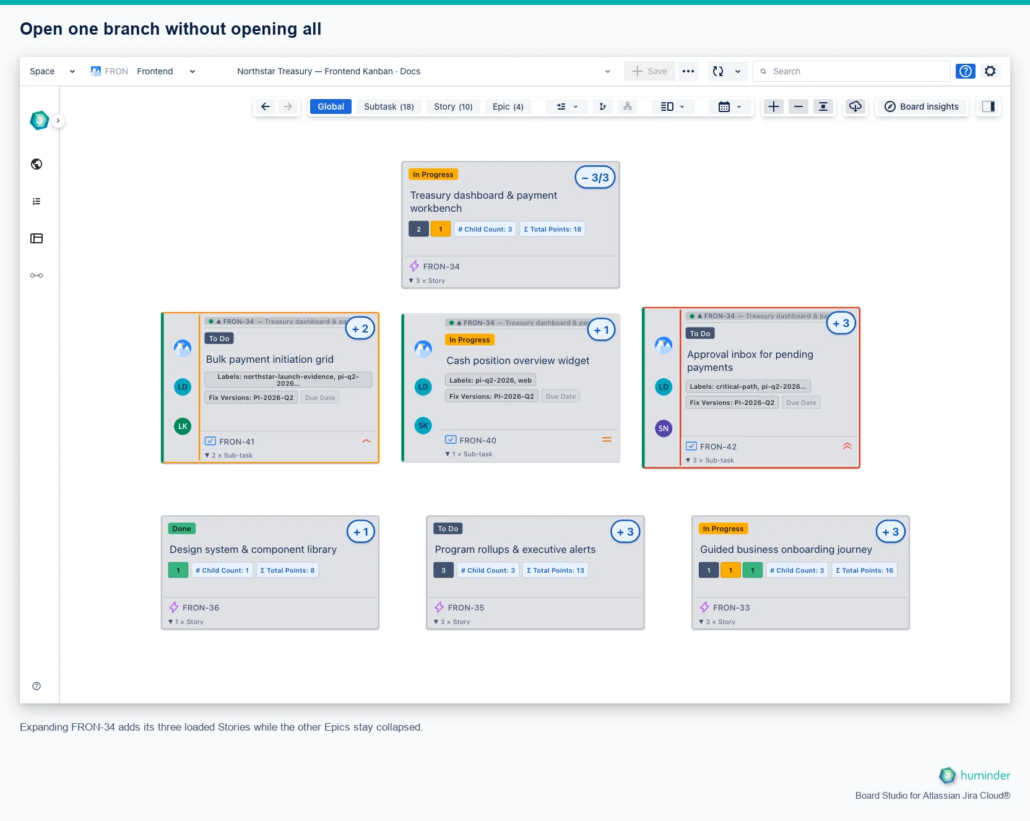
Expanding FRON-34 adds its three loaded Stories while the other Epics stay collapsed.
Use Collapse hierarchy branch to close that branch again. The number on an expansion control reflects that parent’s available children, so your board may show a different count.
Control the amount of detail
| Action | Result |
|---|---|
| Expand a parent | Reveal its available loaded descendants without opening every family. |
| Show all through a level | Display loaded hierarchy down to that level. |
| Collapse a level and deeper | Reduce detail while keeping view anchors visible. Affected temporary reveals end too. |
| Reveal family cards | Follow the current selection with loaded ancestor and direct-child context while enabled. |
| Show family corridors | Draw the parent-child paths between displayed cards independently of card reveals. |
The Hierarchy menu reports shown/total counts, including temporary family and evidence reveals. A partially selected row is expected when only some branches are expanded. See Family Cards and Hierarchy for the independent controls.
Read hierarchy and dependencies separately
Parent regions and family corridors explain containment and parent-child relationships. Jira dependency lines explain links such as Blocks. A collapsed hierarchy can roll descendant dependencies up to the displayed parent cards; select a rolled-up line to inspect its underlying Jira links.
Expansion reveals more exact endpoints. When both exact endpoints are displayed, their Jira link is drawn directly. Only underlying links not already represented directly remain in residual roll-ups, avoiding duplicate direct and aggregate evidence. Expansion does not invent dependencies for missing or inaccessible Jira work. A reference may be represented by a parent card or remain unavailable in the loaded data.
Arrange the Global board
Global has its own layout and structure state, separate from the individual hierarchy-level views. Choose Board, Polar or Hierarchy for card placement and configure dimensions for the current Global view. Polar places cards radially within Cartesian cells; Columns and Rows remain columns and rows, not sectors and rings. Global supports one active timeline axis at a time; individual level views can support timelines on both axes.
Use Issue Type as a dimension when you want hierarchy levels to read in order, or Project to compare teams’ work across levels. Issue-type dimensions order by hierarchy level rather than by the project configuration’s issue-type sequence.
Investigate without losing the thread
Use the Inspector to reveal or highlight an impact result, or open Board insights to review source-wide findings. Revealing evidence, highlighting it, drawing family corridors and framing the camera are independent operations. An AI result’s scope is the loaded source, not only the visible Global cards.
Select Epic, Story or another counted level to return to a level-specific planning view. Global and level visits retain their own navigation context within the session, and investigations survive view changes. Changing the Jira source establishes a different analysis scope.
Related
- Guided Tours and Contextual Help: explain Global or a hierarchy control without navigating away.
- Family Cards and Hierarchy: visibility, family reveals and corridor controls.
- Inspector: inspect cards, aggregated links and multi-selections.
- Semantic Zoom: navigate individual hierarchy levels.