
Add a Board Studio board widget to a Jira dashboard to display a live, read-only saved board. Each widget has its own hierarchy level, title, header labels and refresh schedule without changing the saved board.
Before you start
Create and save a board in Board Studio first. The widget uses that board’s Jira source, structure, card layout, sorting and link configuration. A dashboard viewer needs all three:
- An active Board Studio licence.
- Access to the saved board, as its owner or through board sharing.
- Jira permission to read the board’s project or saved filter and its work items.
Sharing a Jira dashboard does not share the underlying Board Studio configuration or grant Jira data access.
Find the controls
On a Jira dashboard you can edit, use Edit → Add widget, then search for Board Studio. These are Jira dashboard controls, not the Board Studio canvas toolbar.
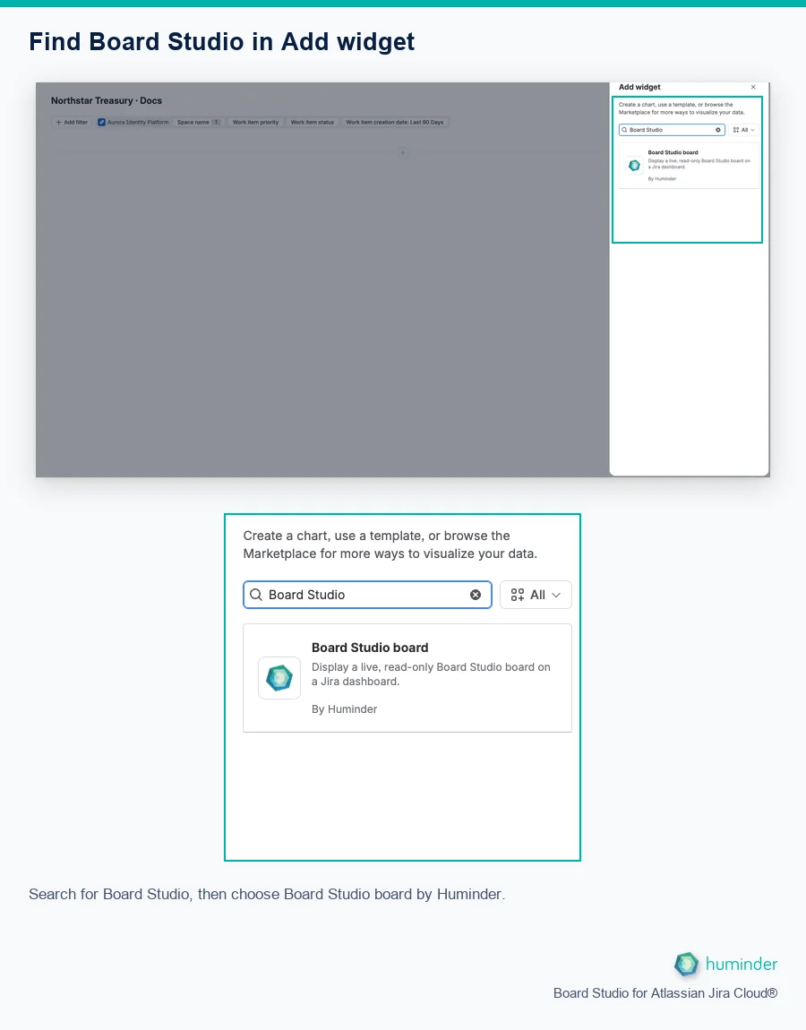
Search for Board Studio, then choose Board Studio board by Huminder.
Choose Board Studio board, listed By Huminder. Its editor contains the board selector, planning level, title, header labels and refresh settings shown in the following task.
Add and configure a widget
- Open a Jira dashboard that you can edit, select Edit, then Add widget.
- Search for Board Studio. Choose Board Studio board, listed By Huminder, to open Edit widget.
- Choose a saved Board from the configurations available to you.
- Choose the Hierarchy level to display, such as Epic, Story or Subtask. Custom Jira levels appear when available. The editor offers individual levels, not a Global/all-level option.
- Optionally enter a Widget title. Leave it empty to use the saved board’s name.
- Choose the header labels using Columns and Rows independently.
- Choose Auto-refresh, then select Add. Select Done to finish editing the dashboard.
Use Jira’s Add widget catalogue, not the classic Add gadget catalogue. If your dashboard only offers gadgets, use a Jira dashboard that supports widgets.
To change an existing widget, edit the dashboard, open that widget’s More widget actions, then choose Edit. The settings panel ends with Save rather than Add.
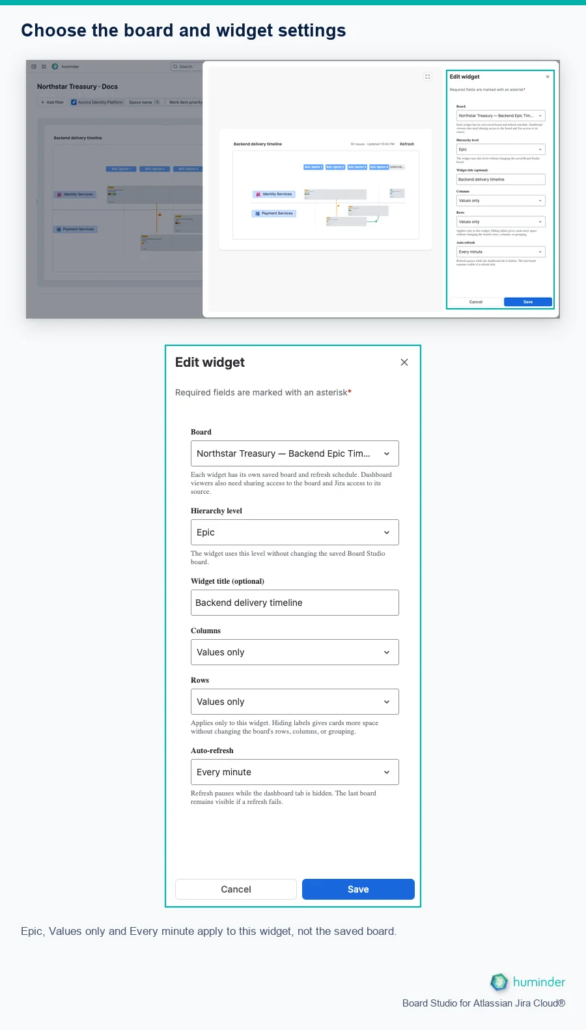
Epic, Values only and Every minute apply to this widget, not the saved board.
| Setting | Choices and defaults |
|---|---|
| Hierarchy level | Initially uses the selected board’s saved level; the widget override does not modify it. |
| Columns / Rows | Field names and values (default), Values only, or Hidden. Hiding labels does not remove swimlanes or grouping. |
| Auto-refresh | Every minute (default), Every 5 minutes, or Manual only. |
You cannot save the widget without selecting a board. If no board is available, create one in the app or ask its owner to share it with you.
For your first widget, keep the default labels and refresh setting after choosing a board and level. Save, then check that the widget shows the intended board and title. The label options change the text above/below columns and beside rows, not where the cards are placed. Adjust them after the basic widget is working.
Example: two views of Backend work
The Northstar Treasury example uses two saved boards with the same Backend Jira source. The widgets answer different questions:
| Widget | Question | Board structure and widget settings |
|---|---|---|
| Backend delivery timeline | How does delivery span the team’s sprints? | Epic level, Sprint timeline in Columns and Team in Rows. |
| Backend work by status, priority and owner | Who owns the work at each status and priority? | Subtask level, Status then Priority in Columns and Assignee in Rows. |
Both widgets use Values only for Columns and Rows. For example, a row says Identity Services rather than repeating the field name Team. This hides field names, not the row or column values.
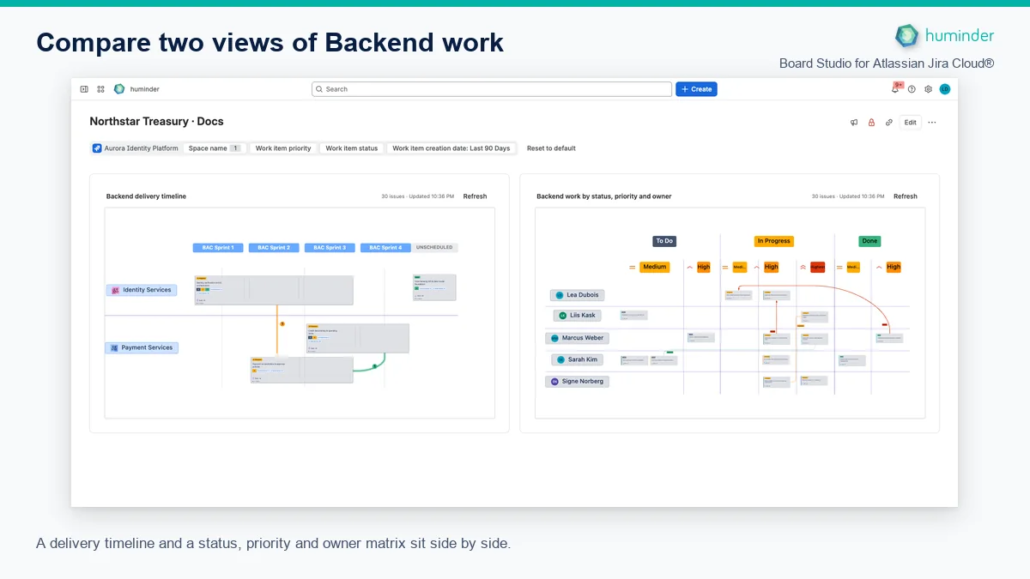
A delivery timeline and a status, priority and owner matrix sit side by side.
This image illustrates the two-widget arrangement, not individual card details. To build a similar dashboard:
- Configure and save each board in the full Board Studio app. Start with a focused source, such as one team’s project or a saved Jira filter.
- Add a widget for each saved board, choosing its level and a short, distinct title.
- In the Jira dashboard editor, place the widgets in a two-column row, side by side. The example uses Large row height.
- Set Columns and Rows to Values only if repeated field names add clutter, then finish with Done.
- Check readability at the screen size your viewers use. A complete fitted board can make card text very small. Give it more space or narrow the saved board’s source if the overview contains too much work. Use the full app when you need to inspect details.
Dashboard space is limited. Prefer one useful comparison per widget over reproducing an entire portfolio in a small panel. Dashboard-level filters should not be assumed to change a widget’s saved Jira source; configure that source in Board Studio.
Read and refresh the board
The widget loads Jira work, not a static image. Use its refresh control to update on demand. With automatic refresh enabled, source and configuration change events mark the widget for refresh, respecting the selected one-minute or five-minute cadence. Healthy event connections also reconcile periodically to recover missed or time-dependent changes. If event delivery is unavailable, the selected cadence provides recovery. Hidden dashboard tabs defer refresh work and catch up on return when due. The header reports the latest update time.
If a refresh fails after a successful load, the last board remains visible with Refresh failed. Treat it as older data until a refresh succeeds. Changes to the saved configuration are picked up on a later successful refresh.
Double-click a work item to open its Jira record. Use the full Board Studio app to change configuration, run AI analysis or work in the Inspector; these are not widget editing features.
Troubleshoot access
| Message or symptom | What to check |
|---|---|
| Board unavailable or not shared | Confirm that the configuration still exists and that the viewer has board-sharing access. |
| Jira source unavailable | Check the viewer’s project permissions and saved-filter access. |
| Licence required | Ask the Jira administrator to check the Board Studio licence. |
| No work items | Check whether the source matches any work visible to this viewer. |
| Refresh failed | Retry manually and check Jira access; the visible board may be the previous successful result. |
The 200-work-item limit documented for whole-source AI analysis is not a dashboard-widget limit.
Related
- Managing Configurations: save and share the board used by the widget.
- Data Sources: choose a project or filter.
- Board insights: analyse the source in the full app.