
A Jira family connects higher-level work to its delivery detail: for example, a Release contains an Epic, the Epic contains Stories, and a Story contains Subtasks. Bring that context into your board when you need to understand where a piece of work belongs, without switching every card to another planning level.
Find the controls
Use the hierarchy group on the canvas toolbar. The numbered circles locate the controls; they are not steps to perform in order.
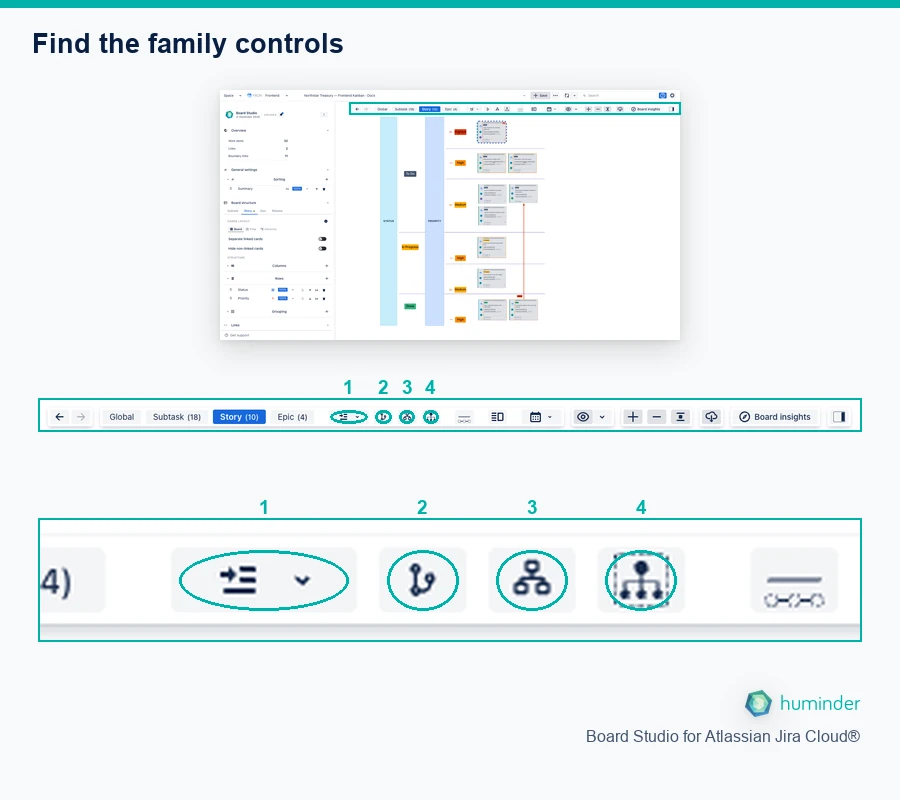
Find the family controls. The numbers identify controls, not steps.
- 1. Hierarchy: choose which loaded hierarchy levels are visible.
- 2. Show family corridors: draw parent-child paths between cards already displayed.
- 3. Reveal family cards: bring the selection’s loaded ancestors and direct children into view.
- 4. Parent Context: open the Parents legend to follow or pin one parent.
Rolled-up dependency links, card content and the date ruler are separate controls. They do not control family visibility. Load a Jira Space or Filter before trying the examples, and select a card before revealing its family.
See a family from top to bottom
A useful way to read a family is to place its highest ancestor above the work beneath it. Add Issue Type to Board structure → Rows and use the direction that places higher hierarchy levels first. This example reads downwards: Release → Epic → Story → Sub-task. Your Jira hierarchy may start at Epic or use different levels.
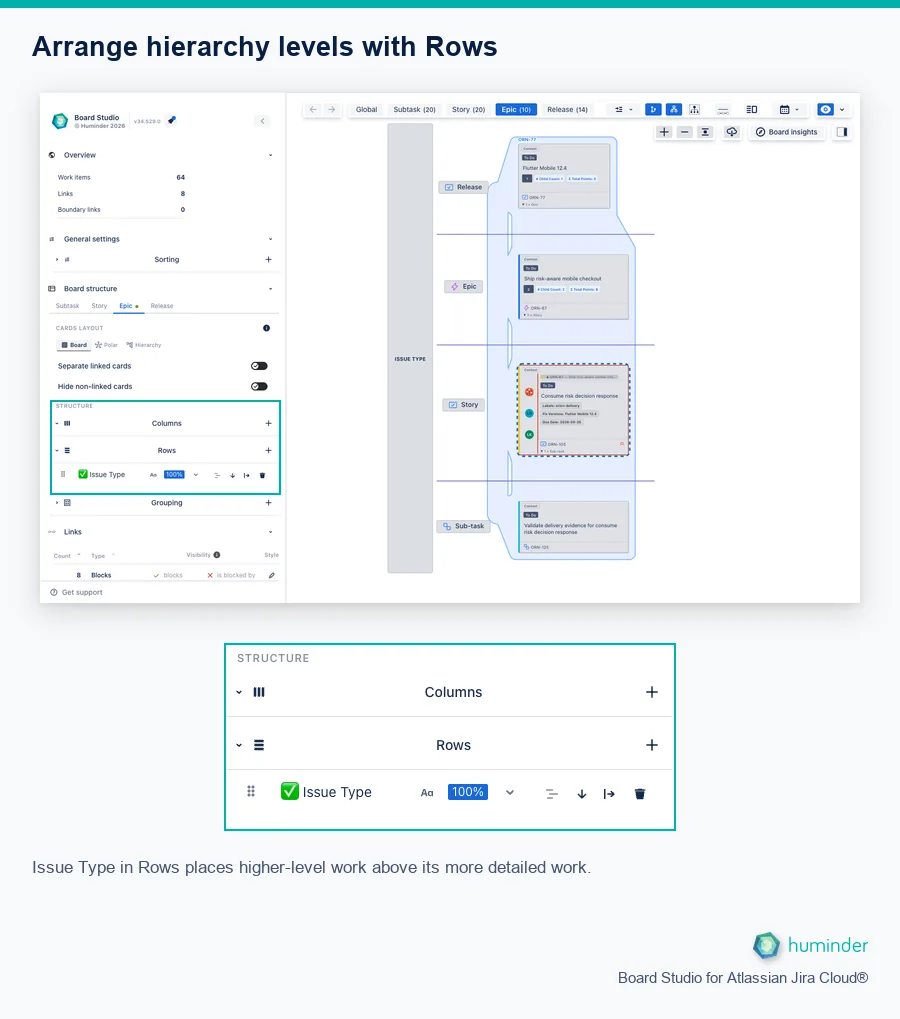
Issue Type in Rows places higher-level work above its more detailed work.
Rows arrange the cards that are already visible; they do not reveal family members. Select a card, enable Reveal family cards, and turn on Show family corridors to trace its actual parent-child relationships. Being above or below another card does not, by itself, mean the two are related.
In this example, Story ORN-105, Consume risk decision response, sits below its Epic ORN-87 and Release ORN-77, with Sub-task ORN-125 beneath it. Issue Type Rows place the levels vertically, Reveal family cards adds the loaded relatives, and Show family corridors draws their parent-child paths. Focus is set to Hide others and Selection only to remove unrelated work from the view. Turn Focus off to return to the wider board.
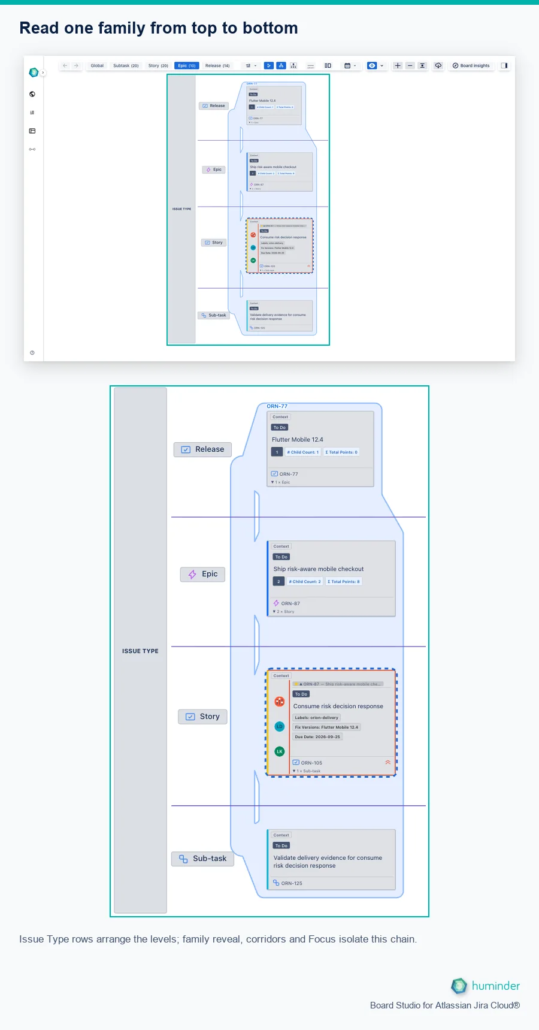
Issue Type rows arrange the levels; family reveal, corridors and Focus isolate this chain.
Keep your Epic view while revealing one family
You do not have to leave Epic planning to inspect an Epic’s delivery detail. Here, Epic remains the active level and all ten loaded Epics remain visible. Selecting ORN-87, Ship risk-aware mobile checkout, and enabling Reveal family cards adds its loaded Release ORN-77 and two Stories, ORN-105 and ORN-106.
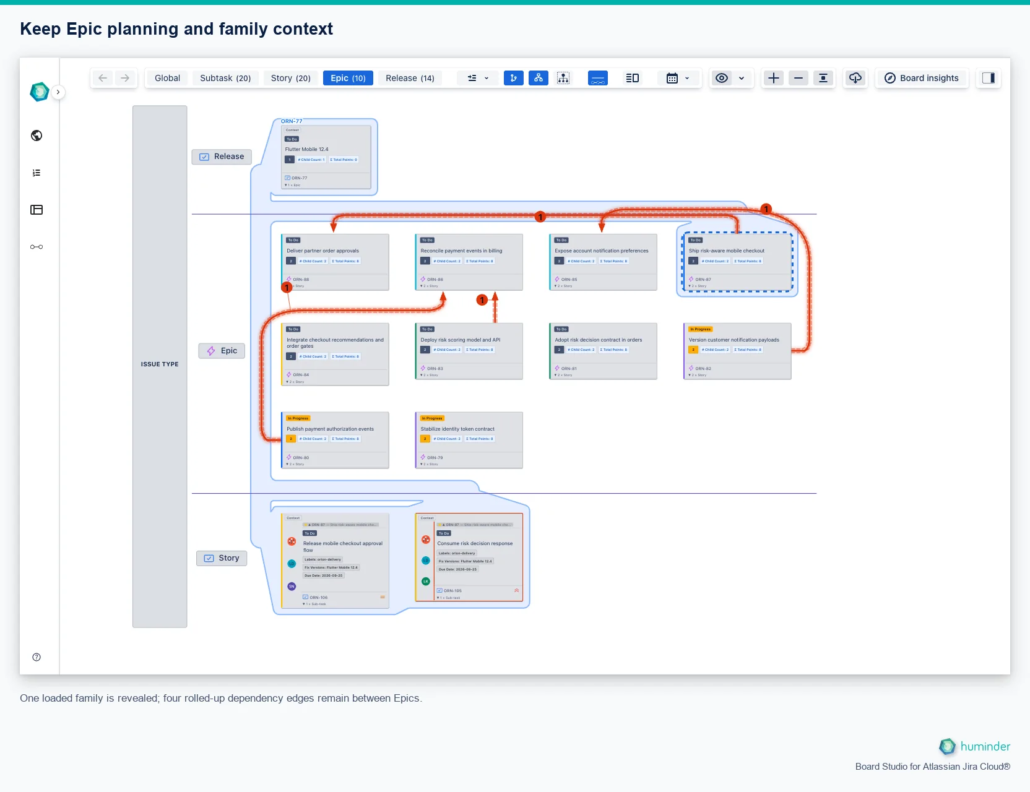
One loaded family is revealed; four rolled-up dependency edges remain between Epics.
Read the blue family corridors as parent-child paths. The four orange rolled-up edges summarise dependencies between Epics. Each badge counts the underlying Jira links represented by that edge, not the number of children. Select a roll-up to inspect its underlying links when overlapping lines are difficult to follow. Rolled-up links have their own toolbar control; revealing a family does not enable them automatically.
These are staging examples of loaded work, not a promise that every Jira ancestor or descendant is available. Reveal family cards brings in loaded ancestors and direct children; use further expansion when you need deeper loaded detail.
Choose the control for the question
| Control | What changes | What stays unchanged |
|---|---|---|
| Reveal family cards | Adds the selected cards’ loaded ancestors and direct children to the current view. | Selection, impact highlighting and corridor visibility. |
| Hierarchy | Shows loaded cards through a chosen level, or collapses that level and deeper. Counts include temporary reveals. | The cards that anchor the current view stay visible. |
| Show family corridors | Draws parent-child corridors between cards already displayed. | It never reveals cards or starts an impact investigation. |
| Show impact cards / Reveal evidence cards | Temporarily displays the sources and results required by a particular investigation. | It does not add ancestor-only family context or enable corridors. |
| Highlight impact / Highlight evidence | Emphasises the investigation’s evidence on the canvas. | Card visibility and selection. |
| Frame evidence | Moves the camera to displayed evidence and displayed family context. | It does not select or reveal additional cards. |
Reveal the family of a selection
- Select one or more cards on the board.
- Select Reveal family cards in the hierarchy toolbar or Inspector.
- Review the additional context cards alongside the selected work. Only loaded ancestors and children can appear; the control does not retrieve an entire Jira hierarchy.
- Use the available More descendants action or Hierarchy menu when deeper loaded detail is needed.
- Turn Reveal family cards off to end that family reveal.
While enabled, the reveal follows the current selection. Select another card or set of cards to update the family context without turning the control off and on again. Cards no longer needed by that family can disappear, but cards required by the view, selection or another reveal remain. A missing-context notice means some ancestors or selected items are not loaded, not that they do not exist in Jira.
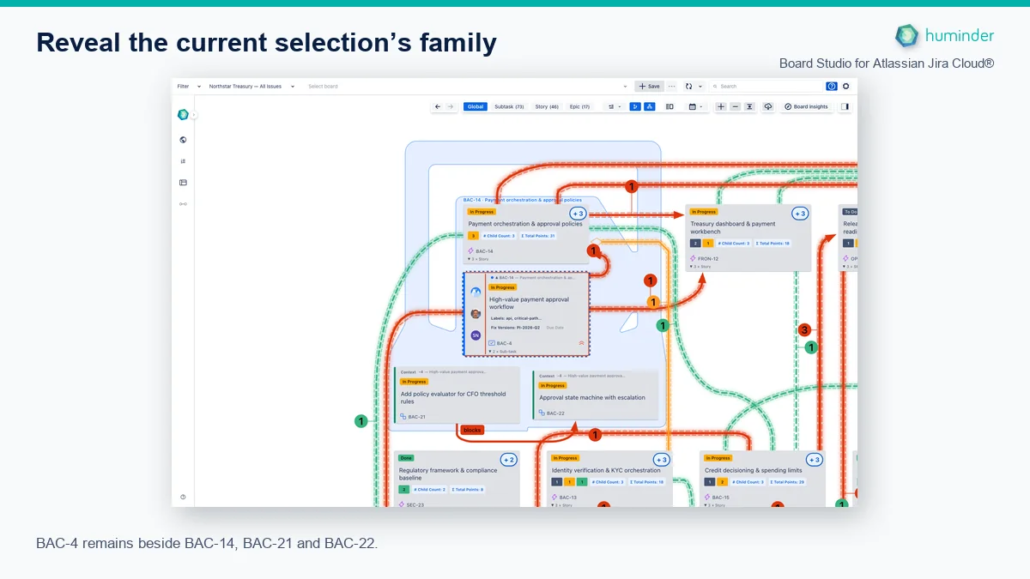
BAC-4 remains beside BAC-14, BAC-21 and BAC-22.
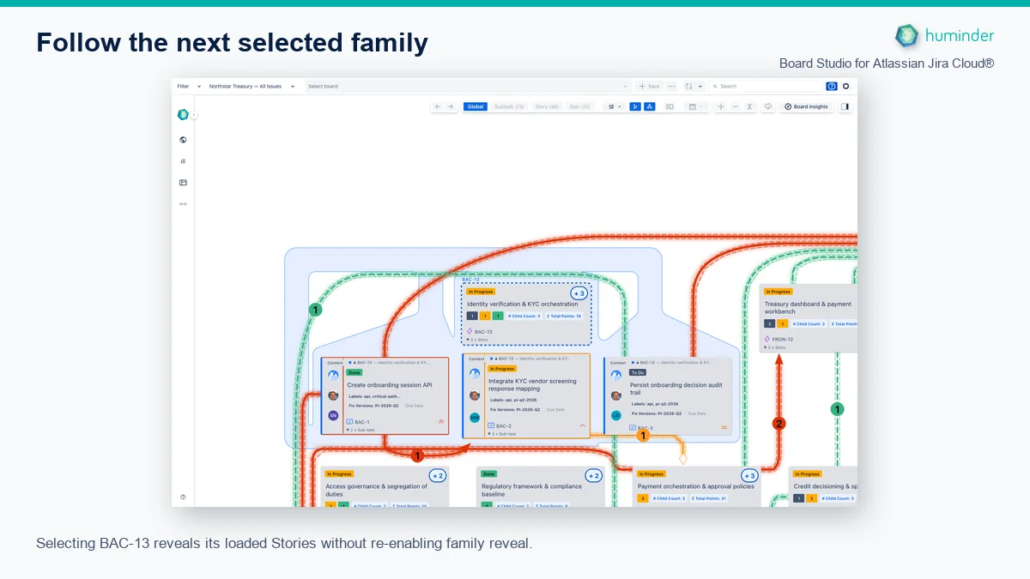
Selecting BAC-13 reveals its loaded Stories without re-enabling family reveal.
Read hierarchy visibility
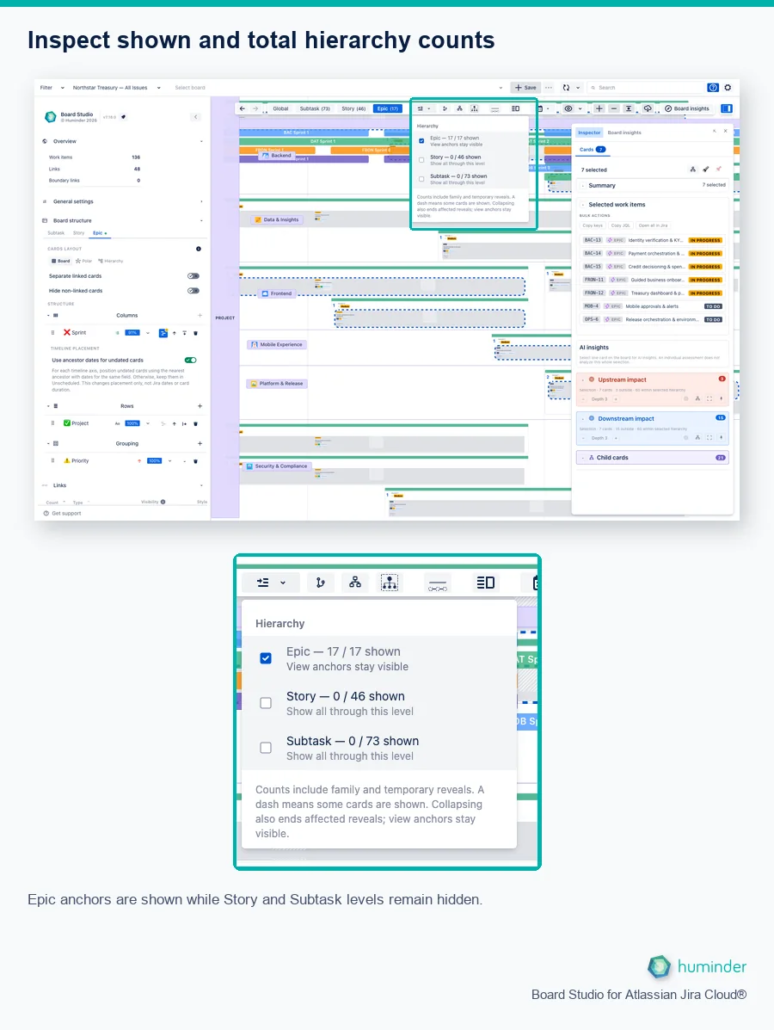
Epic anchors are shown while Story and Subtask levels remain hidden.
The Hierarchy menu reports shown and total cards for each available level. A checked row means all eligible cards at that level are shown; a dash means only some are shown. The counts include family and temporary evidence reveals.
- Choose a partially shown or hidden level to Show all through this level.
- Choose a fully shown level to Collapse this level and deeper.
- View anchors stay visible. Collapsing also ends affected temporary reveals.
These controls work in Global view and alongside level views. Visibility is not the same as analysis coverage: hiding a card does not remove it from the loaded source or change an existing analysis’s depth.
Follow parent-child corridors
Enable Show family corridors to follow the parent-child relationships between displayed cards. Corridors are not Jira dependency links. Missing intermediate parents are not skipped, and an obstructed route is not permission to draw a false connection through unrelated cards.
Corridors adapt during layout transitions. Turning them off removes that visual explanation without clearing cards, selection or impact halos. Reveal the relevant family first when the relationship cannot be read from the currently displayed cards.
Keep independent investigations independent
You can keep several evidence or impact investigations active. Ending one reveal does not remove cards still required by the current view, the selection or another reveal. Switching views preserves the investigation session; narrowing a selection can pause an earlier impact investigation, which can be resumed explicitly.
The existing Parent Context legend has a different purpose: it follows or pins one parent and dims unrelated work. Use family reveal to add context cards, corridors to explain parent-child paths, and Parent Context to isolate a family visually.
Related
- Guided Tours and Contextual Help: choose a hierarchy control with Help, then use Explore when offered for related controls.
- Inspector: summaries, impact, AI evidence and retained investigations.
- Global view: explore several hierarchy levels together.
- Semantic Zoom: change the main planning level.